On this page
Last week I attended the AI on the Lot 2026 conference, and like any true GenAI geek, I used an app to record and transcribe every session I attended. I wanted to turn those notes into a visual summary, so I decided to test out Claude Design as a way to create a LinkedIn carousel.
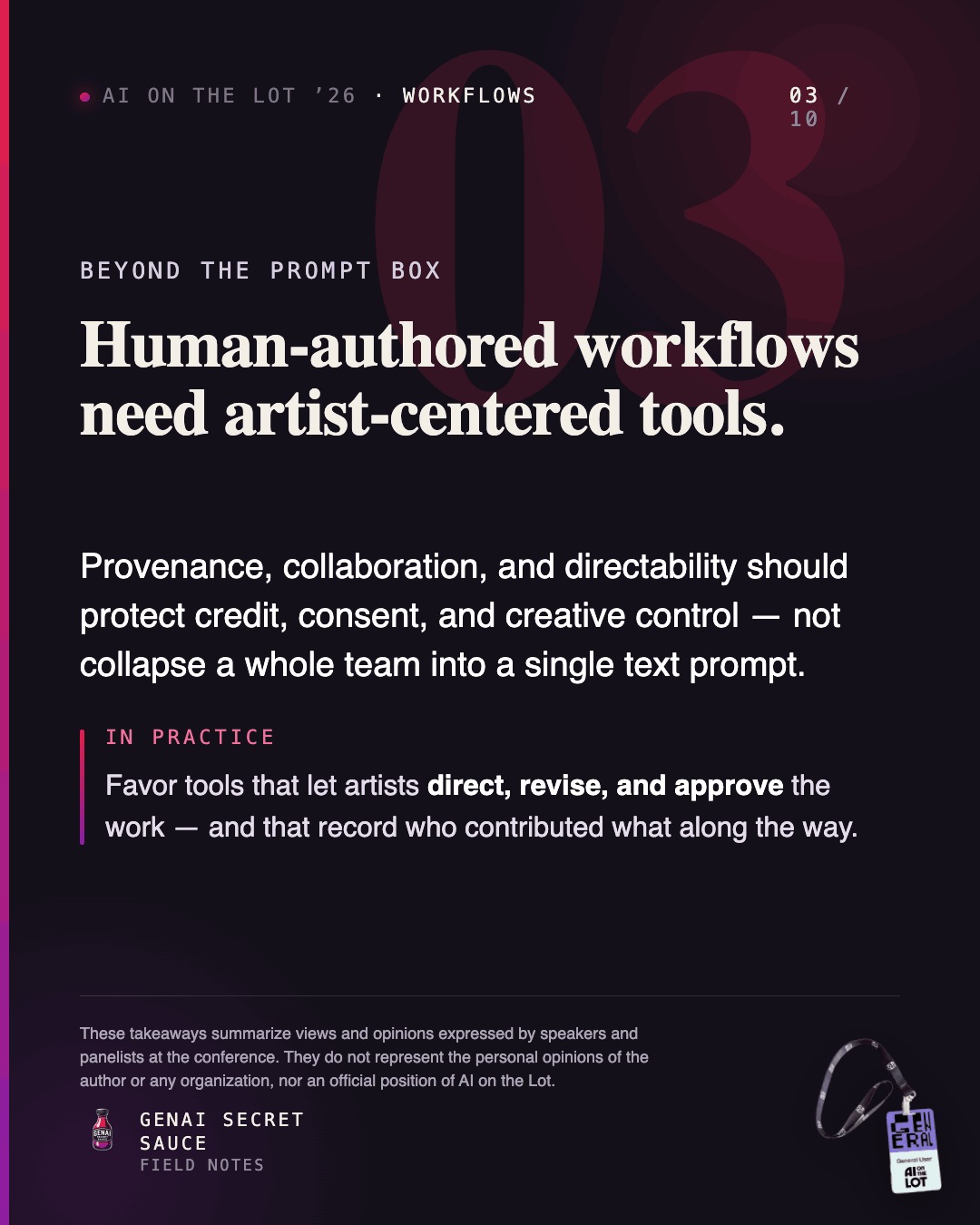
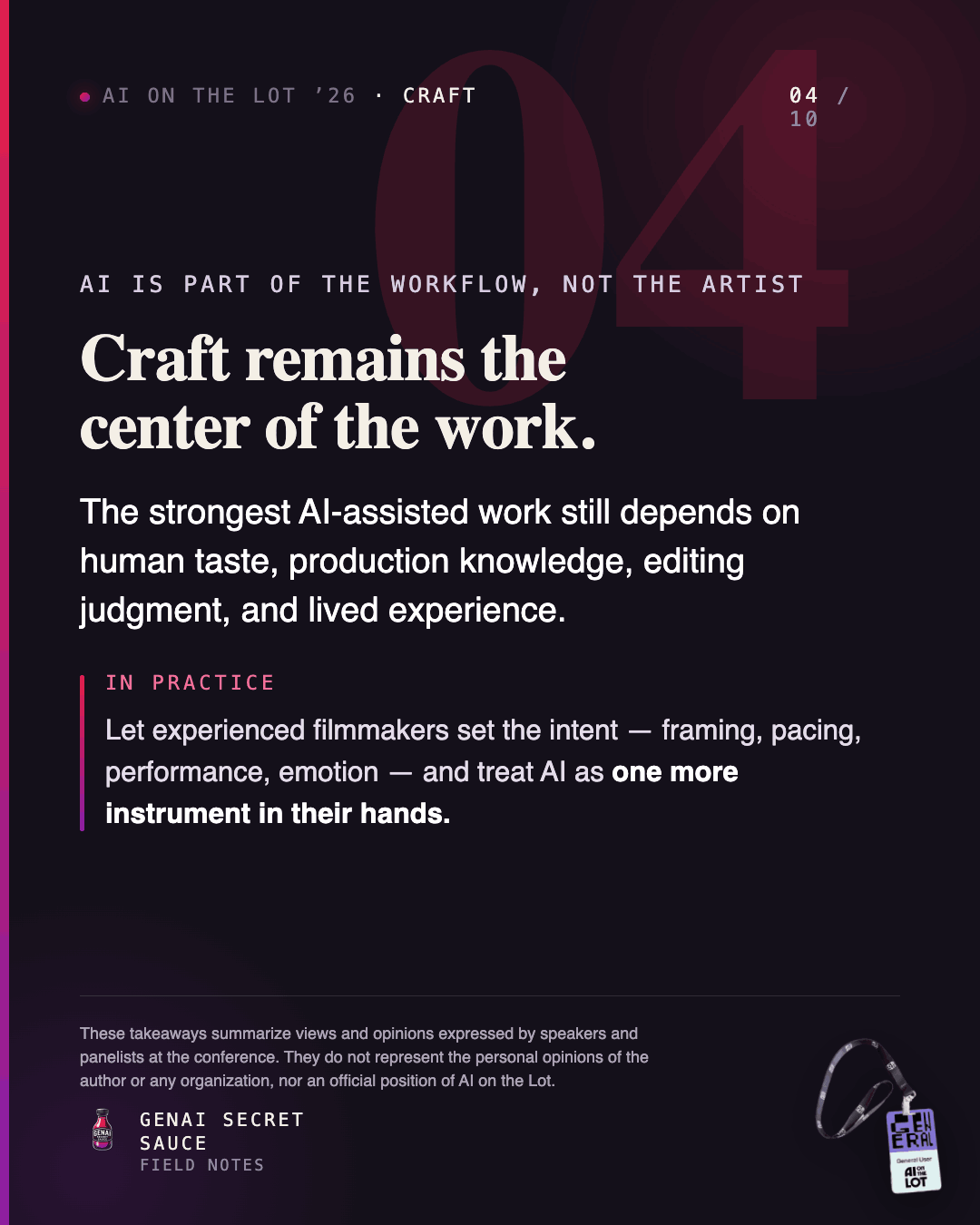
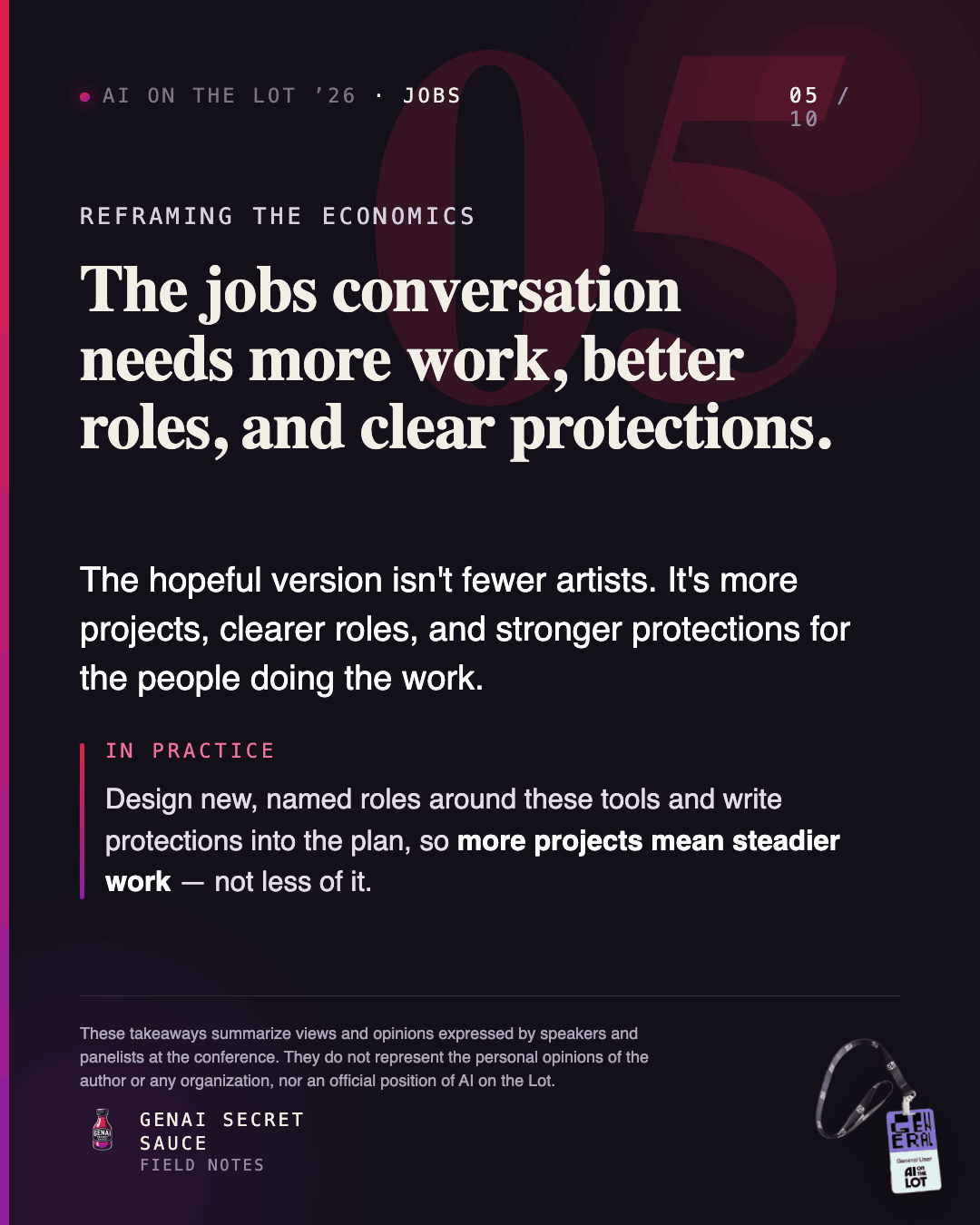
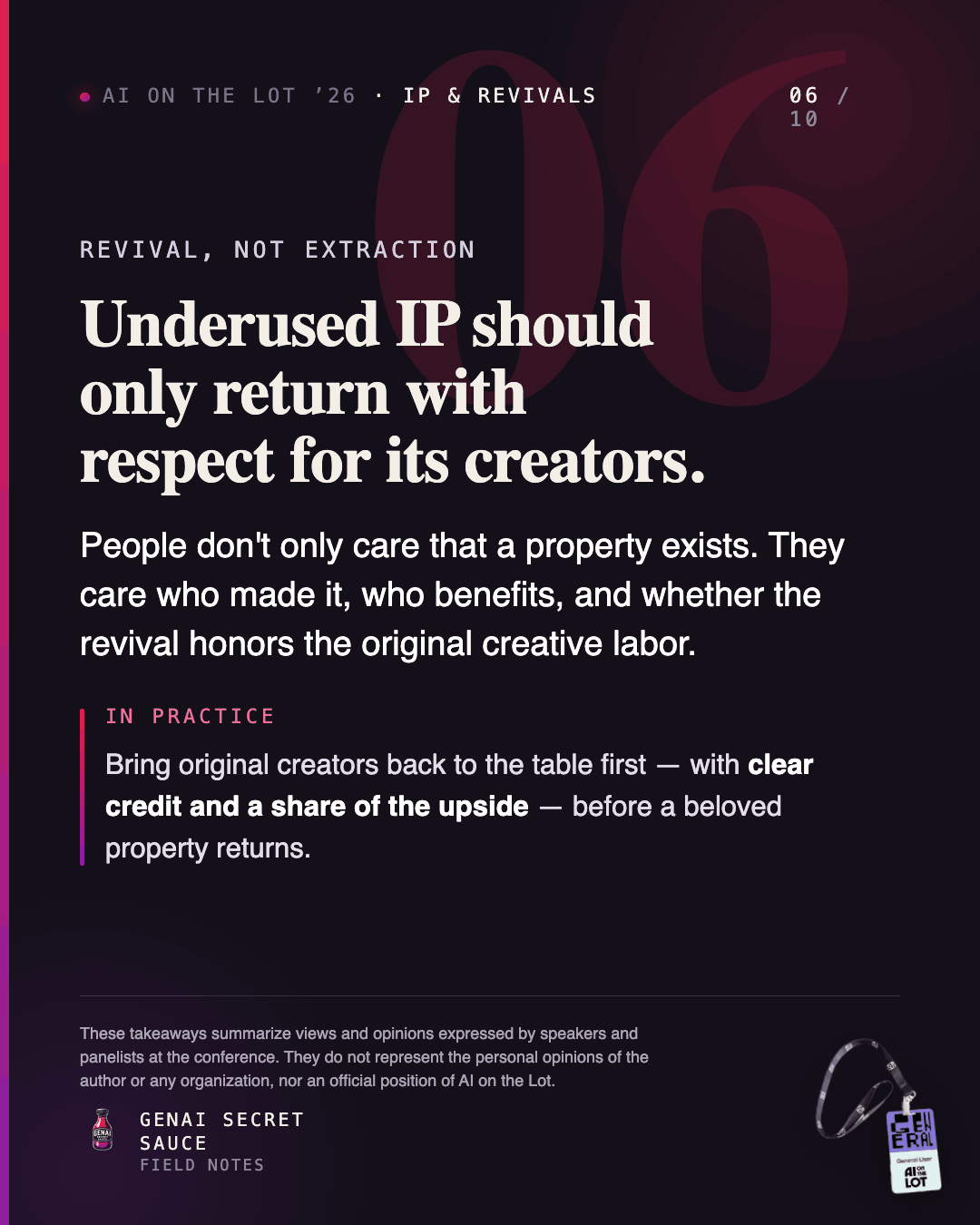
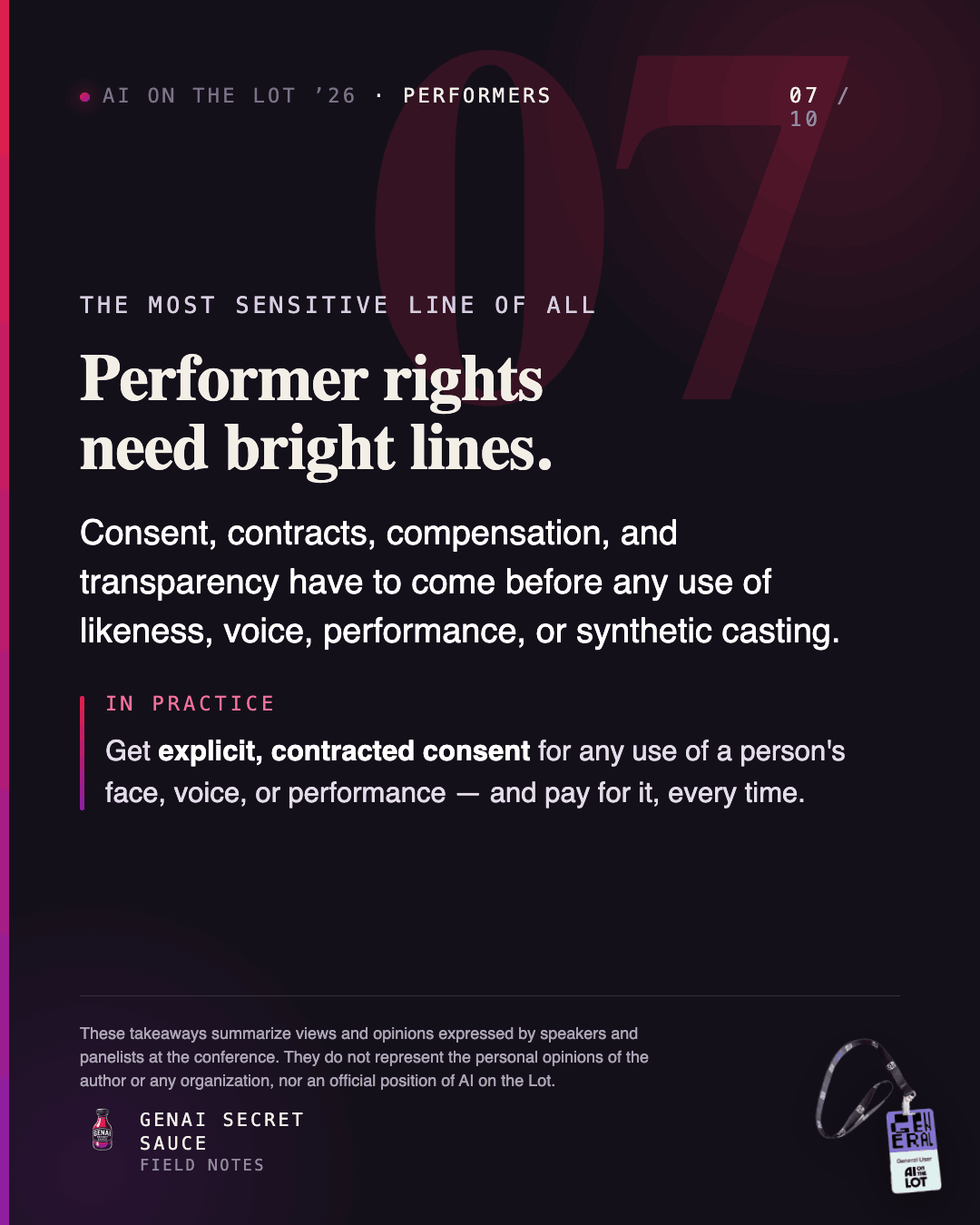


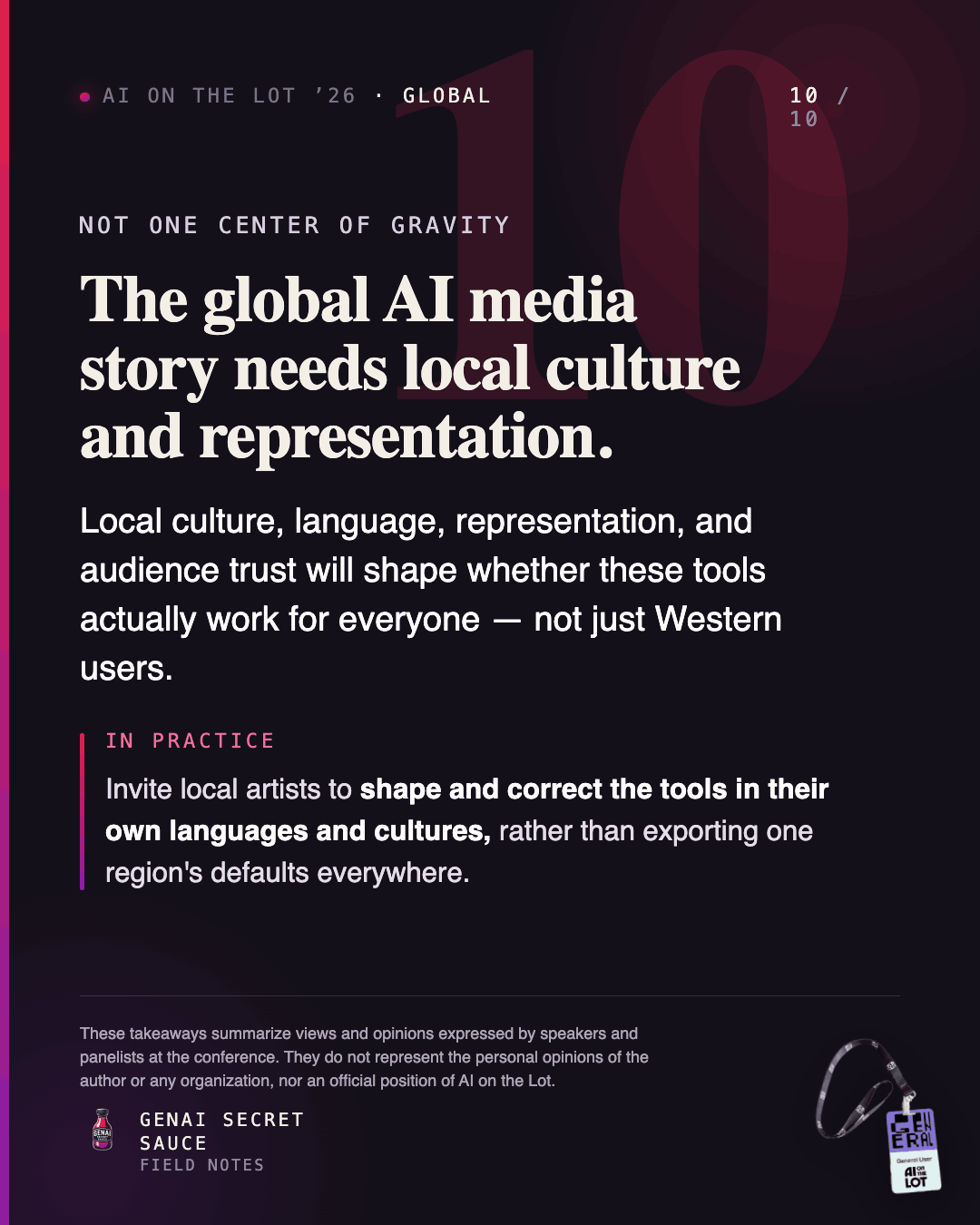
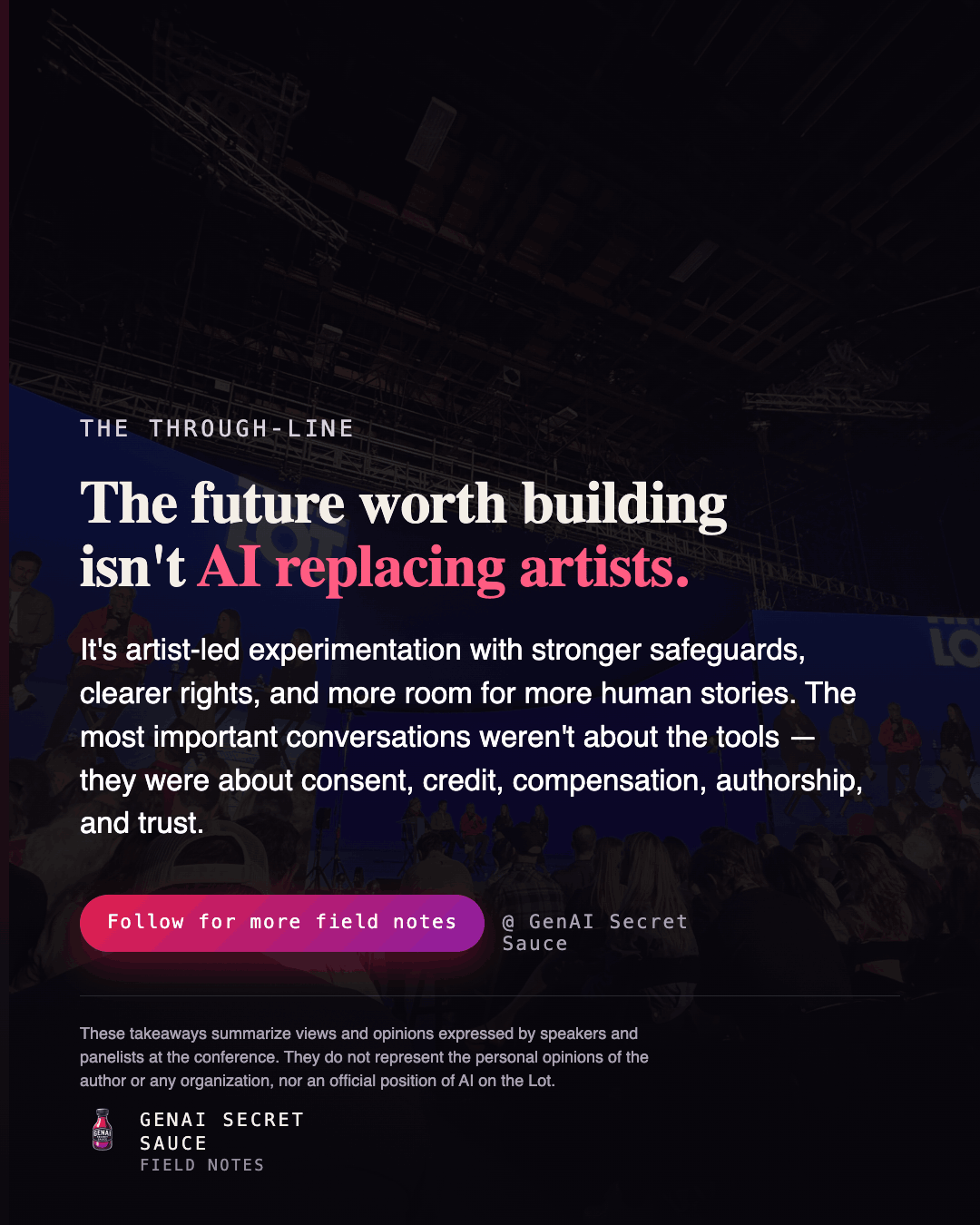
The first step was not design. It was synthesis.
I provided my transcripts to OpenAI’s Codex and asked it to create an outline for the slides.
Prompt:
Act as a senior editorial strategist creating a LinkedIn carousel from conference notes.

Find the 10 strongest ideas from the notes: the ideas that are most important, surprising, specific, and likely to make a thoughtful professional audience stop scrolling.

Do not simply summarize sessions chronologically. Synthesize across the whole conference.

For each takeaway, explain:

* What was said
* Why it is interesting
* Why it matters now
* What example from the conference supports it
* How to phrase it safely for LinkedIn
* What visual metaphor would work for a slide

Return the output as a 10-slide carousel outline with slide title, body copy, examples, and visual direction.
What We Set Out to Make
We had a markdown file of takeaways from the conference and a goal: turn it into a LinkedIn carousel that felt considered, credible, and brand-aligned, not generic AI slop.
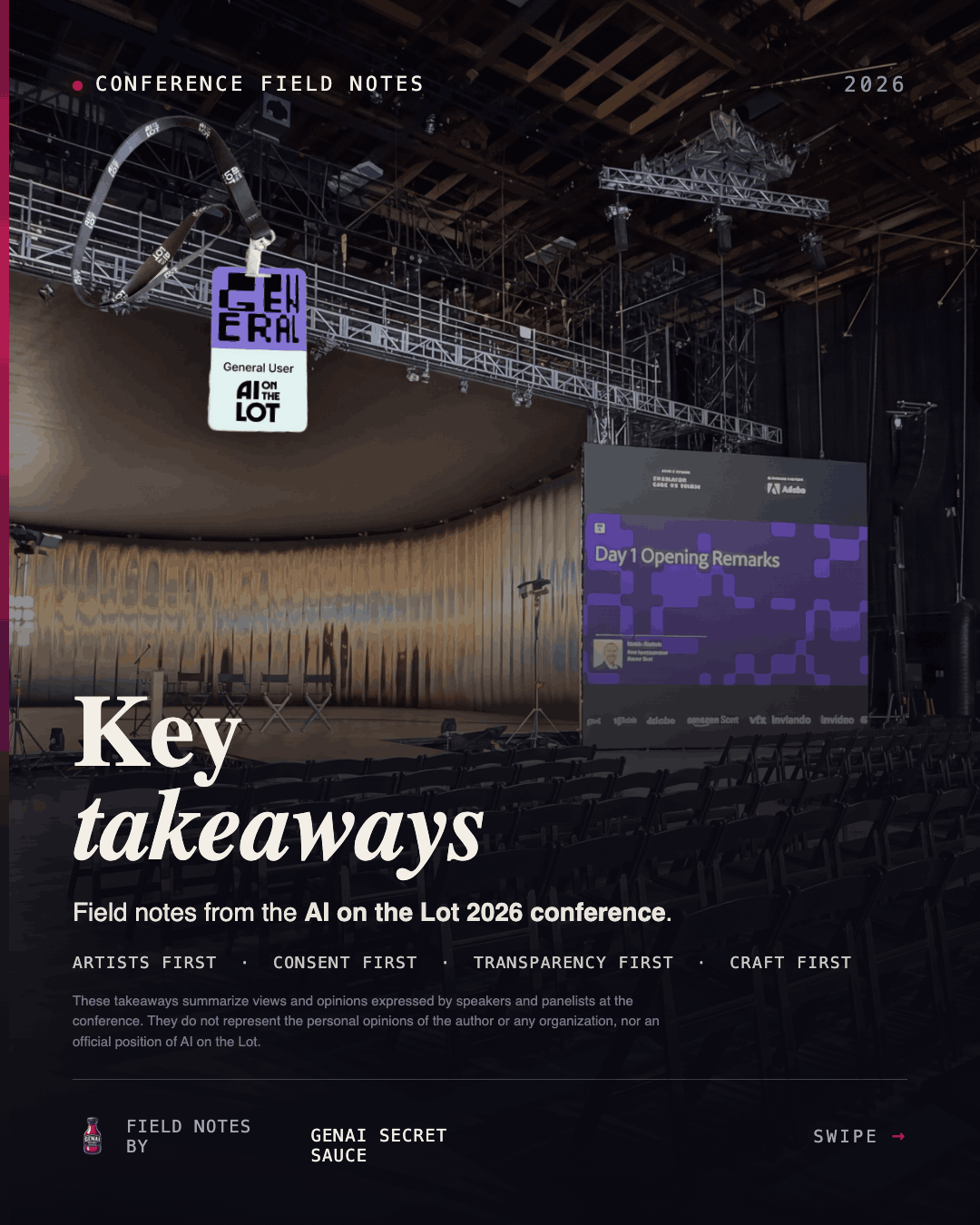
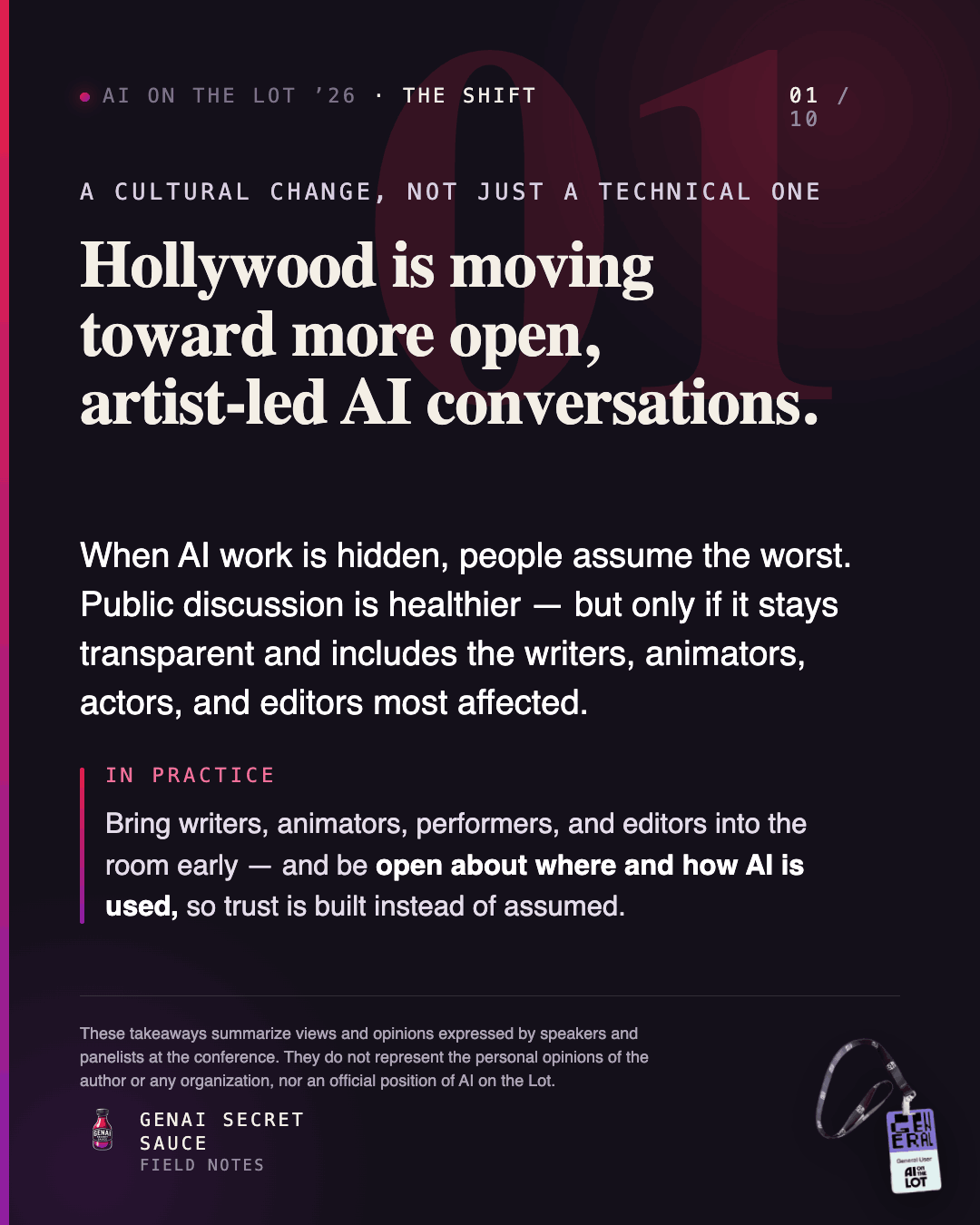
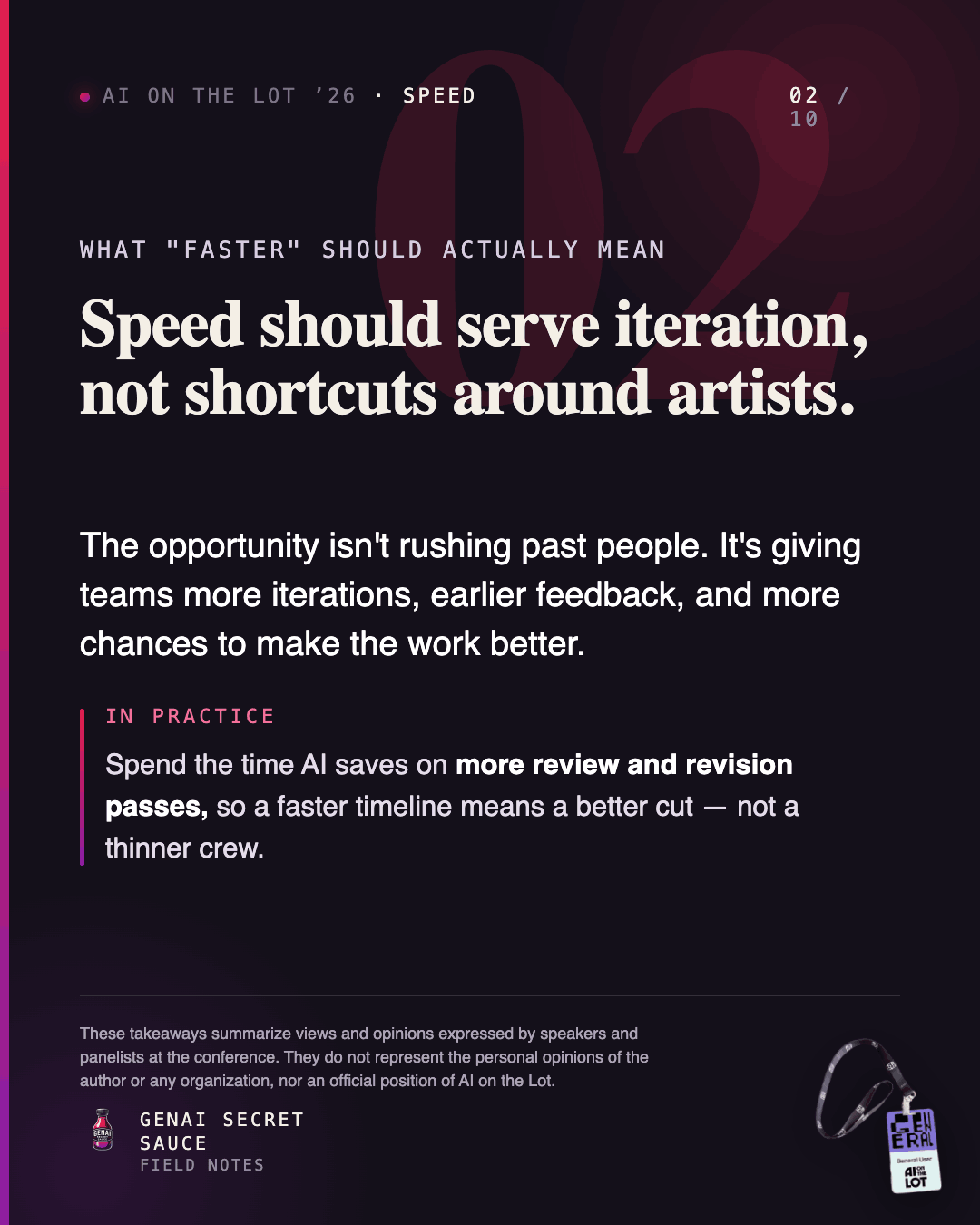
The finished piece was a 12-slide portrait carousel: a photographic cover, ten takeaway slides, and a closing through-line. It used a custom type and color system pulled from the GenAI Secret Sauce logo.
What follows is not just about the design. It is about the process. If you are about to build your own carousel with Claude, these are the lessons that will save you the most round-trips.
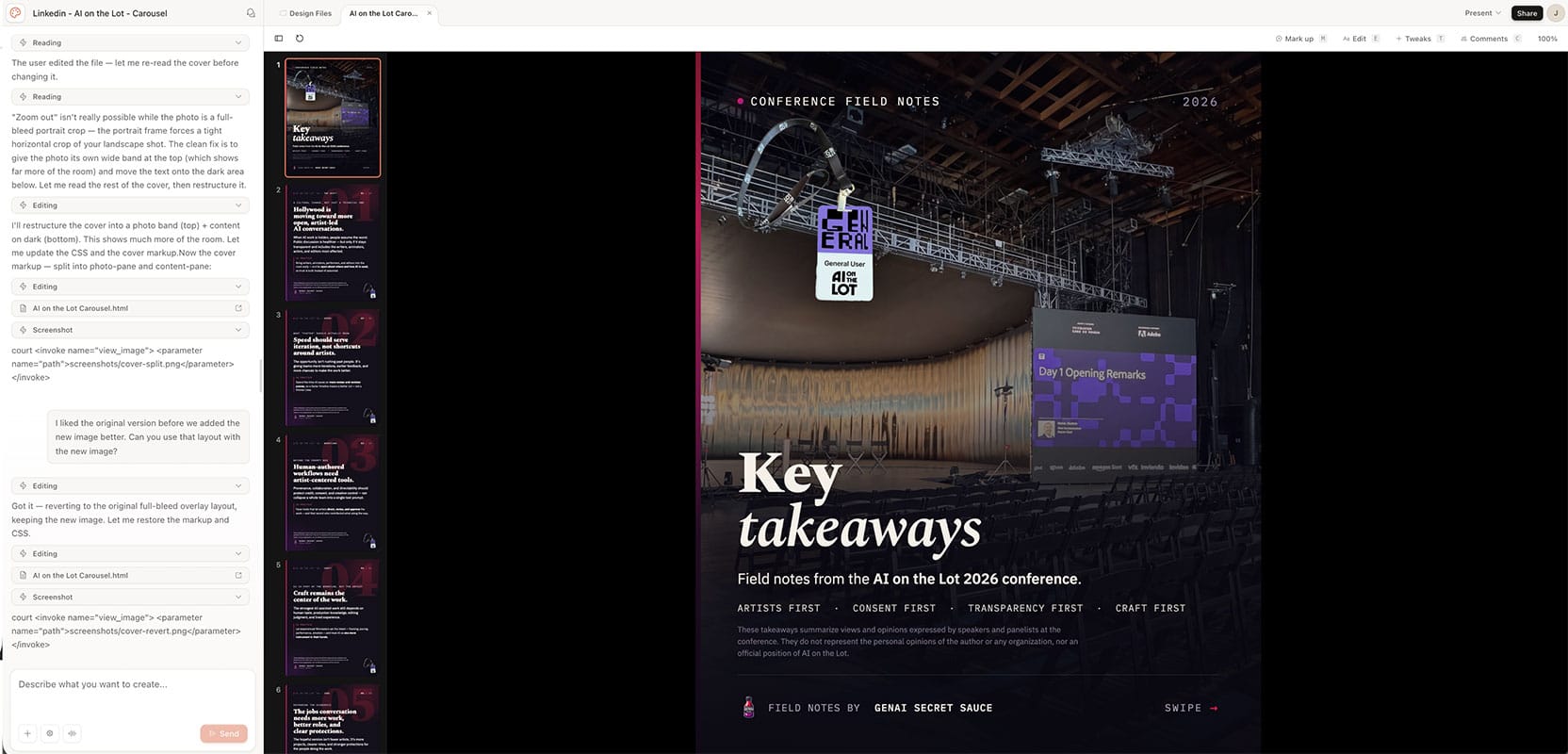
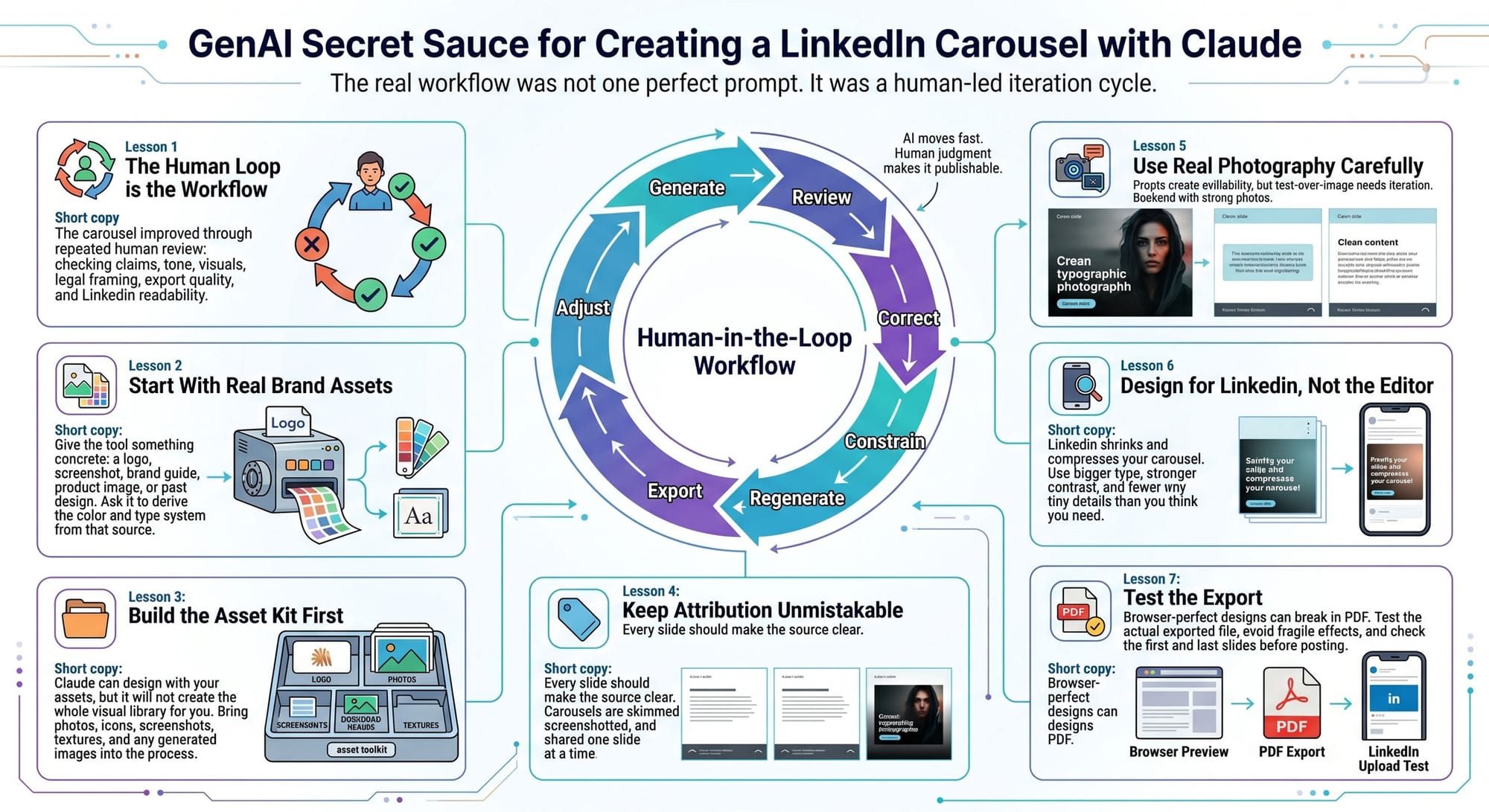
Lesson 1: The Human-in-the-Loop Cycle Is the Real Workflow
This was not a one-prompt miracle.
For a repeatable input pipeline before design starts, use a full transcript-to-slides production workflow.
The finished carousel came from an iteration cycle: generate, review, correct, constrain, regenerate, export, inspect, and adjust again. Claude was useful because it could move fast, but the quality came from human judgment applied repeatedly.
There were human decisions at almost every stage:
- Deciding what was too vague, too spicy, or too easy to misread on LinkedIn.
- Rewriting claims so they were fair to the speakers and legally careful.
- Selecting which photos made the piece feel credible.
- Rejecting visuals that looked polished but off-brand.
- Catching layout issues that only appeared after export.
- Uploading the PDF to LinkedIn and realizing the design needed to survive compression.
That last part matters. The workflow did not end when Claude produced something attractive in the editor. It ended only after a human looked at the exported artifact in the real destination and said: yes, this still works.
Lesson 2: Hand Over Your Brand Assets Early
The single most useful thing you can do at the start is provide a real asset.
We started with the GenAI Secret Sauce logo, and that one image became the foundation for the design system:
- The logo’s crimson-to-magenta sauce gradient became the primary accent.
- A deep plum-black became the background.
- A warm cream became the main type color.
- The type choices were selected to complement the logo instead of competing with it.
Lesson 3: Claude Can Design the Carousel, But It Will Not Invent Your Asset Library
One important constraint: Claude is not going to generate polished image assets for you on the fly.
Claude can help structure the carousel, write the copy, reason through layouts, build an HTML/CSS slide system, and work with images you upload. But if you want photography, illustrations, icons, textures, or branded visual motifs, you need to bring those assets into the process.
You can use ChatGPT or Gemini to generate images one at a time, but then you run into a new problem: consistency.
Ten separately generated images can quickly look like ten different decks. The lighting shifts. The illustration style drifts. The backgrounds change. The level of detail varies. Suddenly you are not just making a carousel; you are art-directing a scattered set of images back into one visual family.
Lesson 4: Make Attribution Unmistakable
A subtle but important request: every slide needed to make clear these were takeaways from a conference, not my personal hot takes.
We solved this with repetition in fixed places:
- A breadcrumb eyebrow on every slide: AI on the Lot '26 · {Theme}.
- A consistent footer label.
- A cover subtitle stating the source clearly.
Lesson 5: Real Photography Earns Trust, But Plan How It Carries Text
The conference photos transformed the piece from commentary into first-hand reporting. But dropping text onto a photo is where much of the iteration happened.
A few hard-won specifics:
- Bookend, don’t wallpaper. We used real photos on the cover and closing, while keeping the ten takeaway slides clean and typographic.
- “Zoom out” has limits. A landscape photo cropped into a tall portrait frame will lose its edges. That is geometry, not a bug.
- Pick the photo for the frame. The real fix was choosing a wide establishing shot whose composition still worked at 1080×1350.
Lesson 6: Design for the Delivered Medium, Not the Editor
This was the biggest surprise.
The slides looked beautiful in the design view, then became hard to read once uploaded to LinkedIn. Why? LinkedIn recompresses the file and shrinks it in-feed. The first casualties are small, low-contrast text.
We did multiple passes:
- Bigger type.
- Higher contrast.
- Heavier weights.
- Brighter muted text.
- More legible fine print.
Lesson 7: PDF Rendering Breaks Things That Work on Screen
Exporting to PDF exposed two CSS techniques that looked fine in the browser but failed in print:
- Gradient-filled text collapsed into a solid colored box.
- Text shadows rendered as dark filled rectangles behind the text.
The fixes were simple once we understood the problem:
- Use solid accent colors for text that needs to survive export.
- Remove text shadows.
- Use proper gradient scrims or overlays for contrast instead.
We also hit clipping on the cover. The content looked fine on screen but got cut off in the PDF. The issue was not the layout itself; it was the PDF being generated at Letter size instead of the slide size.
The export settings that actually worked:
- Use Chrome.
- Set Margins to none.
- Keep Scale at default.
- Turn Background graphics on.
A Reusable Checklist
If you are building your own carousel with Claude, steal this:
- Open the actual PDF and test it where it will live before posting.
- Export from Chrome with margins off, default scale, and background graphics on.
- Avoid print-fragile effects like gradient-clipped text and text shadows.
- Size type for compression — bigger and higher contrast than feels necessary.
- Bookend with real photography and keep content slides clean.
- Anchor attribution and disclaimers in repeating elements — every slide should stand alone.
- Decide the slide system — one layout each for cover, content, and closing.
- Pick your dimensions up front — portrait 1080×1350 maximizes feed space.
- Do not generate slide visuals one by one without a style guide — consistency will drift fast.
- Build an asset kit before layout — logo, photos, screenshots, generated images, textures, and reference visuals.
- Start from a real brand asset and derive the color/type system from it.
- Keep a human review loop at every high-risk point — claims, attribution, visuals, legal language, export quality, and platform upload.
- Plan for iteration — the first output is raw material, not the finished artifact






Member discussion