
On this page
You asked AI to write a comprehensive report, and it delivered. Sharp, clear, well-organized. But when you look at the Google Doc itself? Formatting chaos. Plain tables. Dense text with nothing to break it up. AI gave you great content wrapped in an ugly package.
Sound familiar?
Sure, Google Docs has custom styles. You can manually set up heading formats, adjust spacing, and style your tables cell by cell. But here's the problem: it's tedious, time-consuming, and easy to miss things.
Wouldn't it be nice if you could have your docs beautifully formatted in one click?
But Wait There's More...
Google Doc writers typically overlook that walls of text, no matter how well-formatted, are hard to absorb. Studies consistently show that visuals help readers understand and retain information better. A well-placed infographic can turn a confusing process into an obvious flowchart, or make abstract statistics suddenly click.
But creating custom infographics is expensive and time-consuming. You either need design skills, expensive tools, or a budget to hire someone. So most documents go without.
What if AI could analyze your content, figure out which sections would benefit from a visual, and generate a custom infographic that actually matches what you wrote?
Now it can.
Introducing the Infographic Generator & Book Formatter
I built a Google Apps Script that solves both problems at once:
- One-click document formatting — Transform any Google Doc into a professionally styled document with consistent headings, body text, tables, lists, and links
- AI-powered infographic generation — Gemini analyzes your content, identifies sections that would benefit from visuals, and generates custom infographics—flowcharts, timelines, comparisons, statistics, concept maps that help your readers actually absorb the concepts
Think of it as the styling layer that Google Docs' AI is missing, plus a visual content generator that reads your document and creates graphics designed specifically for your ideas.

Example Before:

Example After:

What It Does
One-Click Document Formatting:
Once the document is polished, turn the content into a presentation.
- Automatically applies consistent styles to every heading, paragraph, list, and table in your document—no manual selection required
- Styles H1-H5 headings with proper hierarchy, visual markers (like ┃ for H1 and → for H2), colors, and spacing
- Formats body text with your chosen font and optimal line spacing
- Transforms plain tables into professional ones with dark header rows, alternating row colors, proportional column widths, and subtle borders—something Google Docs can't do natively with one click
- Auto-bolds definition terms in lists (text before : or -)
- Resizes images to full page width
- Restores link formatting that often gets stripped during import
AI-Powered Infographic Generation:
- Analyzes your entire document to identify sections where visuals would help readers grasp complex concepts
- Determines optimal scope: document-wide overview, multi-section summary, or single-section deep dive
- Generates custom infographics using Gemini's image generation—flowcharts for processes, timelines for sequences, comparisons for options, statistics for data
- Automatically embeds them at full page width with captions, right where they'll have the most impact
- Optionally includes your logo in every infographic for consistent branding
The infographics aren't generic stock images. They're custom visualizations generated from your content, designed to help your readers understand and remember what they've read.
How to Install (5 Minutes)
Step 1: Get the Script
- Download or copy the script from the GitHub repository:
 jazmy
jazmy
Step 2: Add to Your Google Doc
- Open any Google Doc you want to format
- Go to Extensions → Apps Script
- Delete any existing code in the editor
- Paste the entire contents of InfographicGenerator.gs
- Click the Save icon (or press Ctrl/Cmd + S)
- Close the Apps Script tab and refresh your Google Doc
Step 3: Set Up Your API Key (For Infographics)
If you want to generate AI-powered infographics, you'll need a free Gemini API key:
- Visit Google AI Studio
- Sign in with your Google account
- Click Create API Key
- Copy the key
- In your Google Doc, go to 🎨 Infographic Generator → Set API Key
- Paste your key and click OK
How to Use It
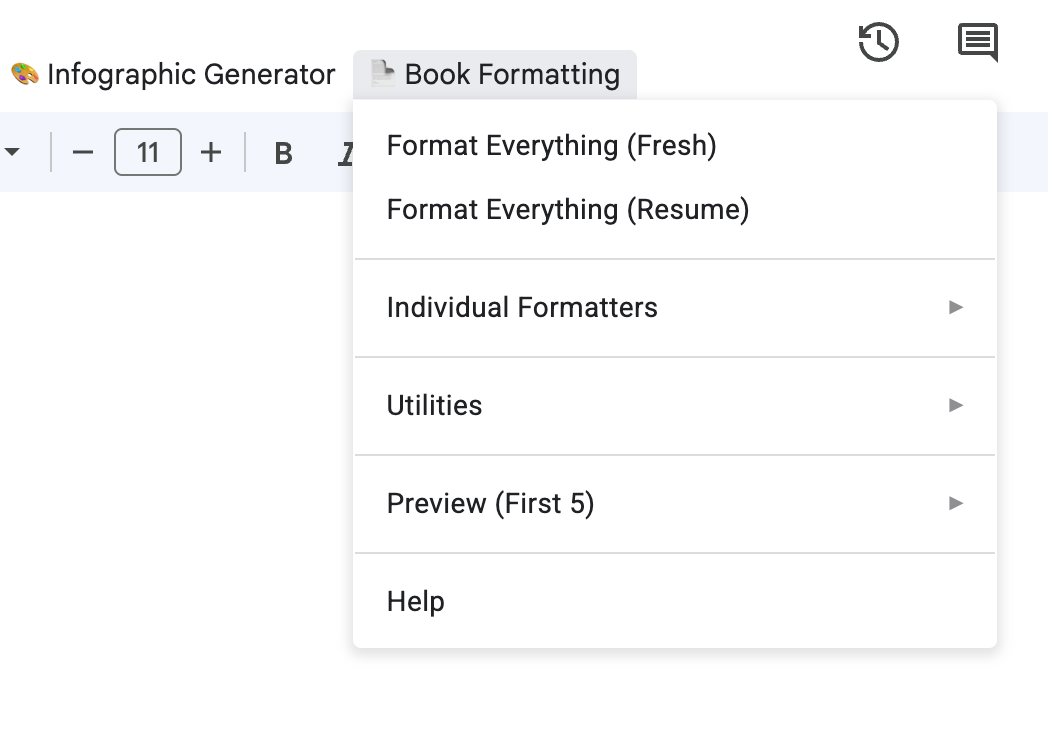
After refreshing your Google Doc, you'll see two new menus:
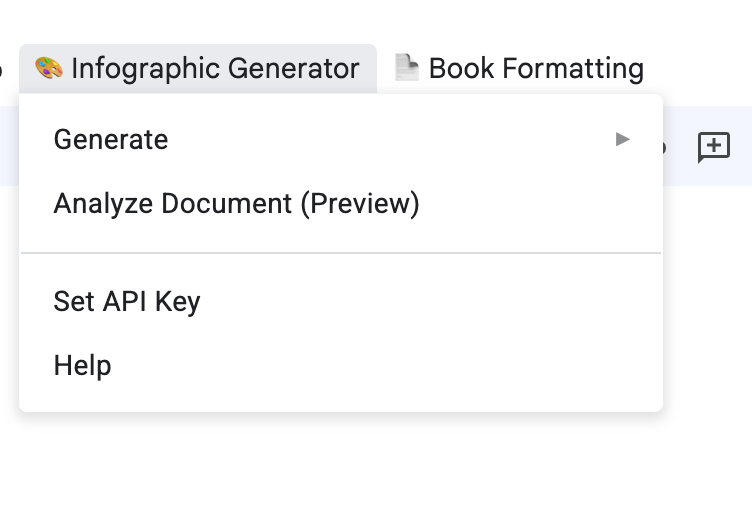
🎨 Infographic Generator
📄 Book Formatting
Customization: Make It Yours
Everything is configurable at the top of the script. No coding knowledge required, just change the values:
Fonts
const FONTS = {
  PRIMARY: 'Google Sans Text',    // Main font for headings and body
  SECONDARY: 'Montserrat',        // Accent font (used for H4)
  CODE: 'Roboto Mono',            // Monospace font for code
};
Colors
const COLORS = {
  PRIMARY_ACCENT: '#B4007D',      // Deep magenta
  SECONDARY_ACCENT: '#7B2D8E',    // Rich purple
  EMPHASIS: '#E50914',            // Red
  // ... and more
};
Branding
const BRANDING = {
  INCLUDE_LOGO: true,
  LOGO_URL: 'https://your-site.com/logo.png',
  LOGO_POSITION: 'bottom-right corner'
};
Want to use your company's brand colors? Swap the hex codes. Prefer a different font? Change the name. The script handles the rest.
Get Started
The full source code is available on GitHub:
 jazmy
jazmy
Clone it, fork it, customize it for your brand. If you build something cool with it, I'd love to hear about it.






Member discussion