You know that feeling after a big conference? There's so much good content, but it's buried in 70+ hours of recordings that nobody has time to watch. The transcripts pile up. People share highlights from the sessions they attended, but nobody sees the full picture.
I tried throwing everything into NotebookLM, but it maxes out at a 12-minute podcast summary. That's fine for a quick taste, but when you have 70 hours of deep technical content? Twelve minutes barely scratches the surface.
So I built something better: a 2-hour narrated video that covers the entire event, with AI-generated infographics for every slide and a cloned version of my own voice reading the speaker notes.
The best part? You can do this too. This guide walks you through the entire process, step by step. Just copy the prompts into Claude Code and it will do the heavy lifting.
Another perfect example of I spent my weekend figuring it out so you don't have to. 😄
What You'll Create
By the end of this guide, you'll have:
When learners need practice rather than a recap, turn that deck into an interactive AI tutor.
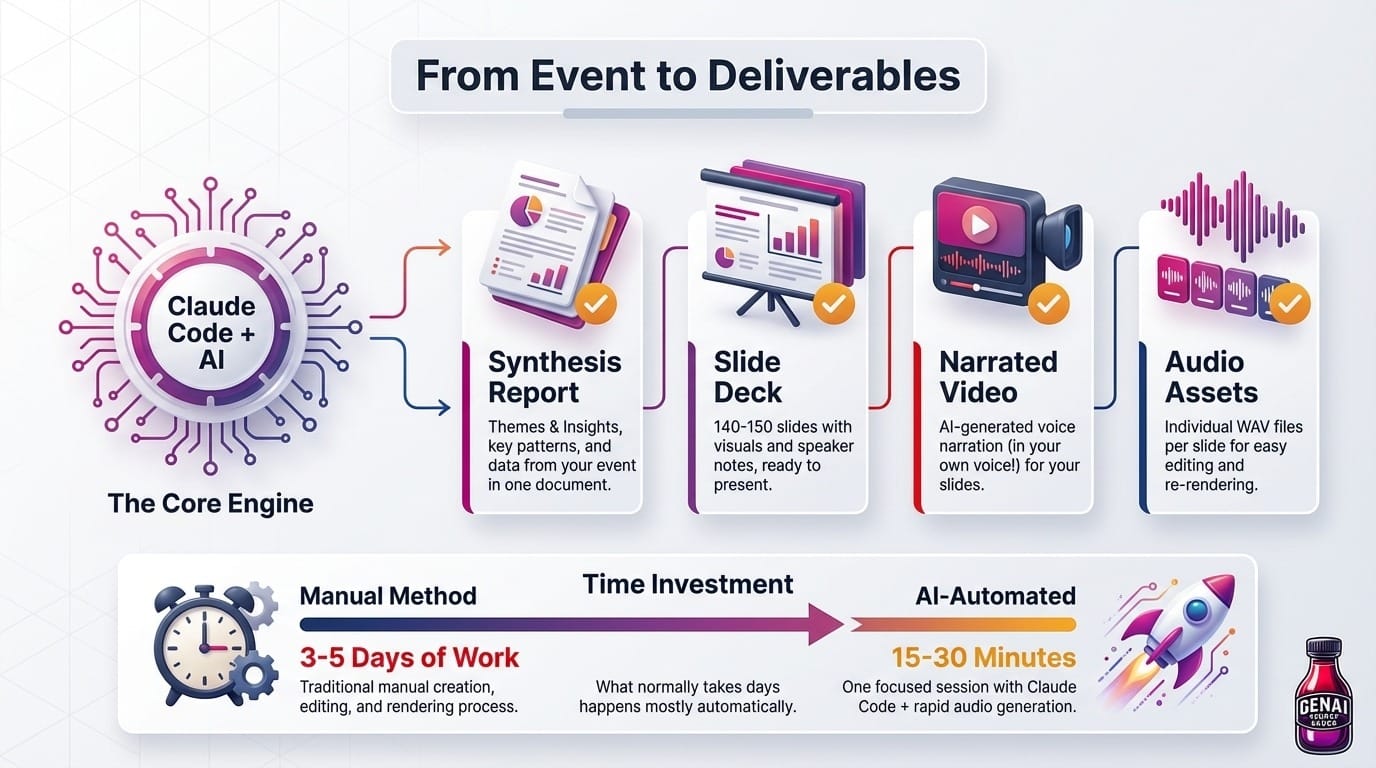
- A synthesis report — All the key themes, patterns, and insights from your event in one document
- A slide deck — 140-150 slides with visuals and speaker notes, ready to present
- A narrated video — Your slides with AI-generated voice narration (in your own voice!)
- Reusable audio files — One WAV file per slide, so you can fix any slide without re-rendering the whole video
Time investment: One focused session with Claude Code for the synthesis and slides, then audio generation (15-30 minutes with cloud TTS, or overnight if running locally). What would normally take days of manual work happens mostly automatically.
Before You Start
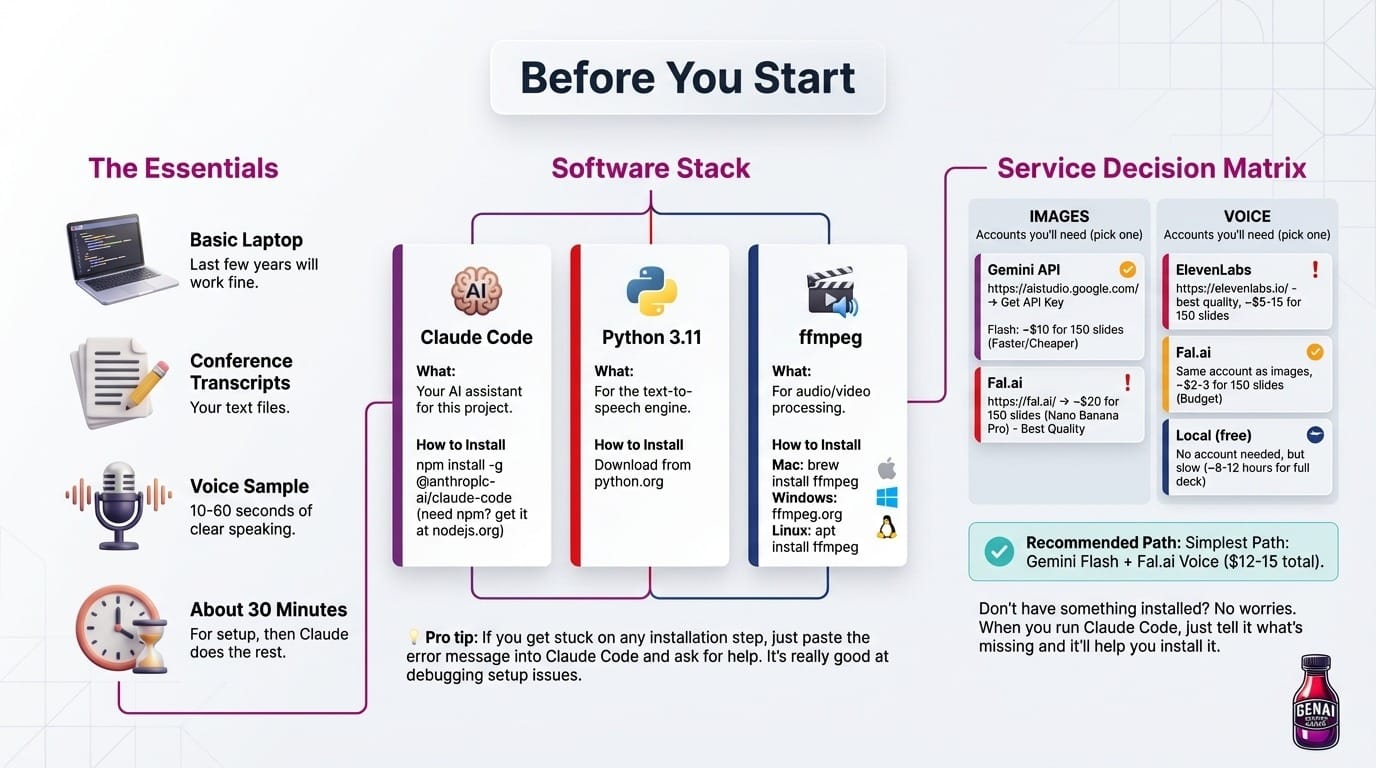
Don't worry — you don't need anything fancy. A basic laptop from the last few years will work fine.
You'll need:
- 📝 Your conference transcripts (text files)
- 🎤 A voice sample (10-60 seconds of you speaking clearly)
- ☕ About 30 minutes for setup, then Claude does the rest
Software to install (all free):
Accounts you'll need (pick one for images, one for voice):
For images:
- Gemini API — https://aistudio.google.com/ → "Get API Key"
- Nano Banana Pro (best quality): ~$20 for 150 slides
- Flash (faster/cheaper): ~$10 for 150 slides
- Fal.ai — https://fal.ai/ — ~$20 for 150 slides (Nano Banana Pro)
For voice:
- ElevenLabs — https://elevenlabs.io/ — best quality, ~$5-15 for 150 slides
- Fal.ai — same account as images, ~$2-3 for 150 slides
- Local (free) — no account needed, but slow (~8-12 hours for full deck)
Don't have something installed? No worries. When you run Claude Code, just tell it what's missing and it'll help you install it.
How It Works (The Simple Version)
Think of it as three main stages:
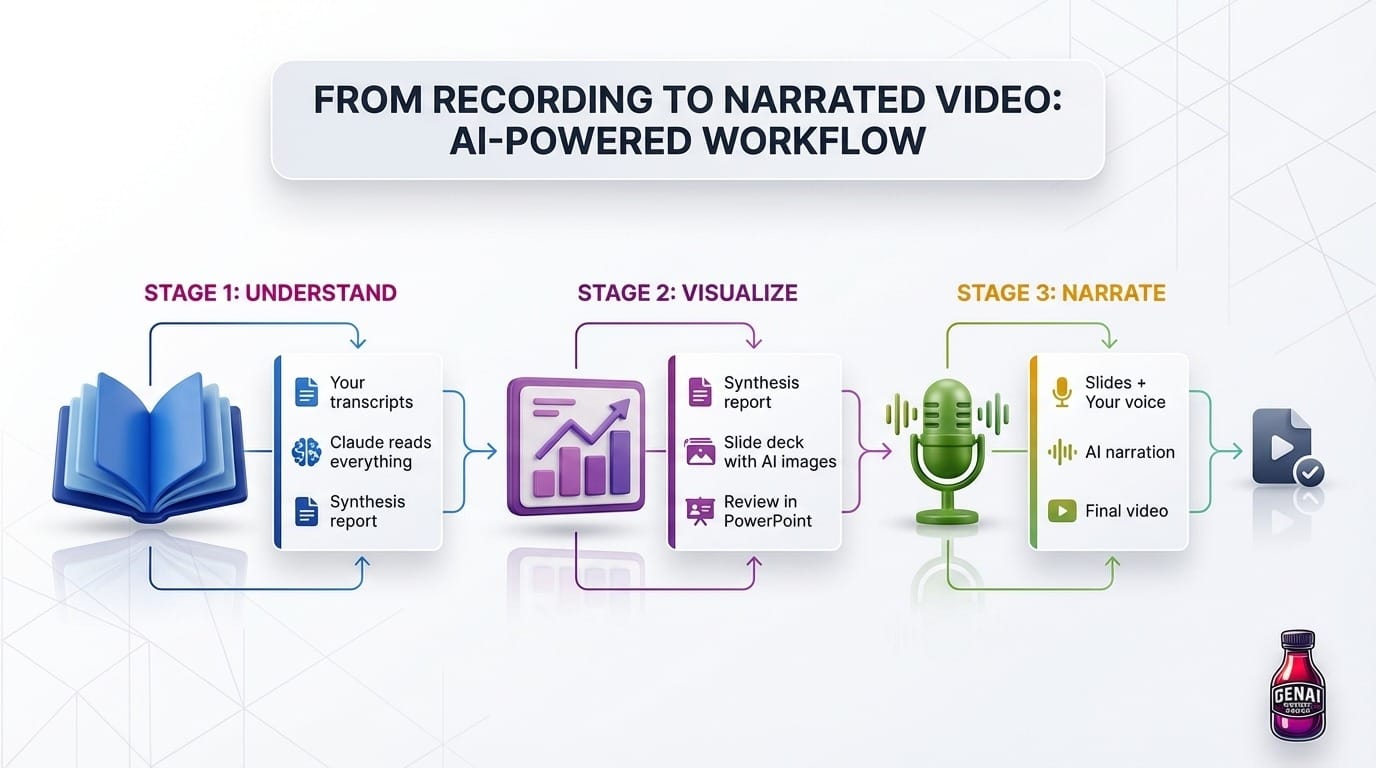
Each stage has a few steps, but don't worry — Claude Code handles most of the work. You just copy prompts and review the output.
Project Folder Structure
Before you start, create a project folder. Everything will live here:
./my-conference-video/
├── transcripts/          # Your source transcripts
├── extractions/          # Batch summaries (from chunking)
├── slide_images/         # Generated infographics
├── voices/               # Your voice profile
│   └── myvoice/
│       └── reference.wav
├── audio/                # Generated audio per slide
├── slides.json           # Slide data for video
├── tts-dictionary.json   # Custom pronunciations
├── [EventName]_Report.md # Synthesis report
├── [EventName]_Deck.md   # Slide deck in Markdown
├── [EventName]_Deck.pptx # PowerPoint for review
└── presentation.mp4      # Final video
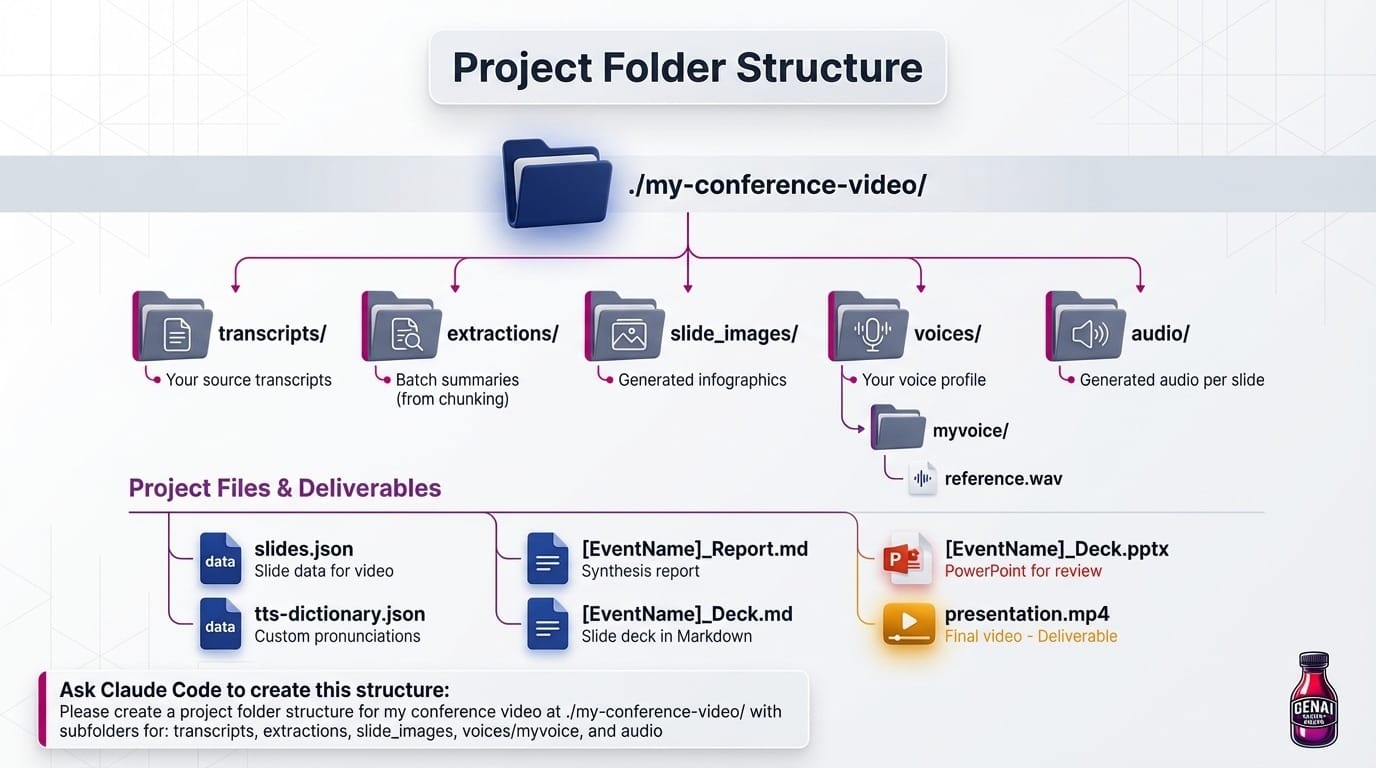
Ask Claude Code to create this structure:
Please create a project folder structure for my conference video at
/my-conference-video/
with subfolders for: transcripts, extractions, slide_images, voices/myvoice, and audio
Quick Start: The Cheat Sheet
Want to jump right in? Copy this entire block and paste it into Claude Code. It's a summary of every step — Claude will guide you through each one.
PART 1: TRANSCRIPTS TO SLIDES (Phases 1-7)
- Phase 1 — Gather transcripts (text, video, or YouTube links)
- Phase 2 — Process in batches (map-reduce for accuracy)
- Phase 3 — Generate Markdown slide deck (140-150 slides)
- Phase 4 — (Optional) Audit terminology for first-mention explanations
- Phase 5 — Clean speaker notes for TTS (remove URLs, formatting)
- Phase 6 — Create PowerPoint for review
- Phase 7 — Generate AI infographics (Fal.ai or Gemini)
PART 2: SLIDES TO VIDEO (Phases 8-14)
- Phase 8 — Set up TTS (ElevenLabs, Fal.ai, or local)
- Phase 9 — Clone your voice from a 10-60 second sample
- Phase 10 — Prepare slides.json and slide images
- Phase 11 — Create pronunciation dictionary
- Phase 12 — Generate audio and build video
- Phase 13 — Review and fix individual slides
- Phase 14 — Watch in VLC and share!
Part 1: From Transcripts to Slides
This is where the magic happens — Claude reads everything and creates your slide deck.
Phase 1: Gather Your Transcripts
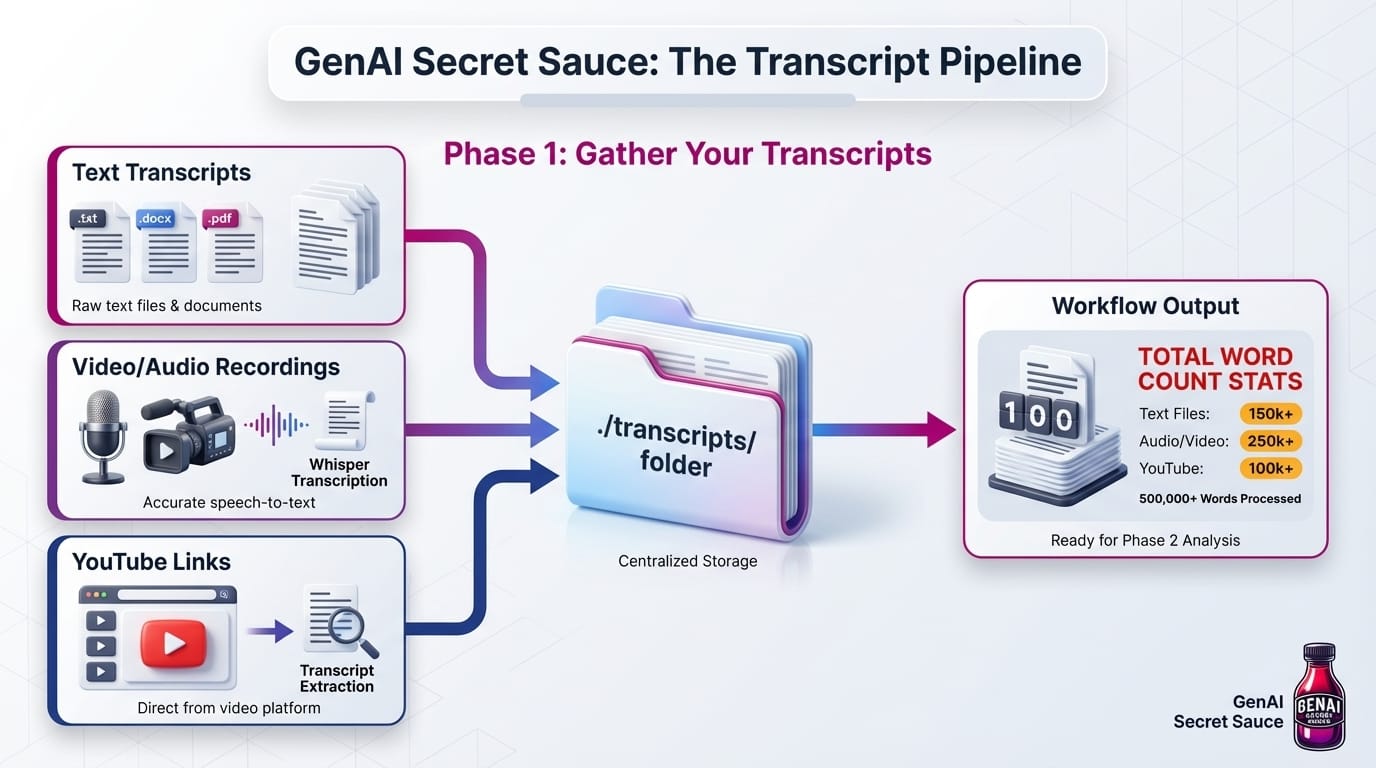
First things first: let's get all your content in one place. People usually have one of three situations: Text Transcript, Video Files or YouTube Links.
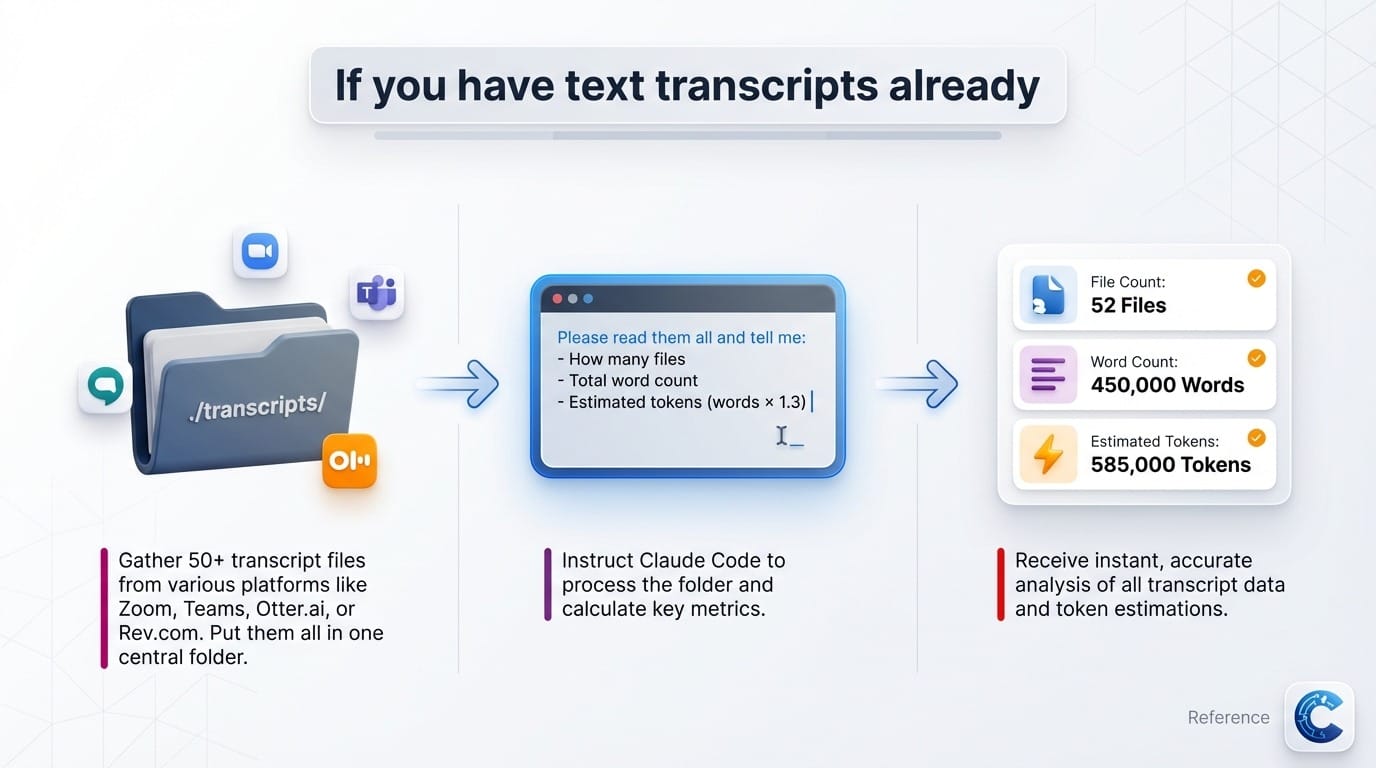
If you have text transcripts already
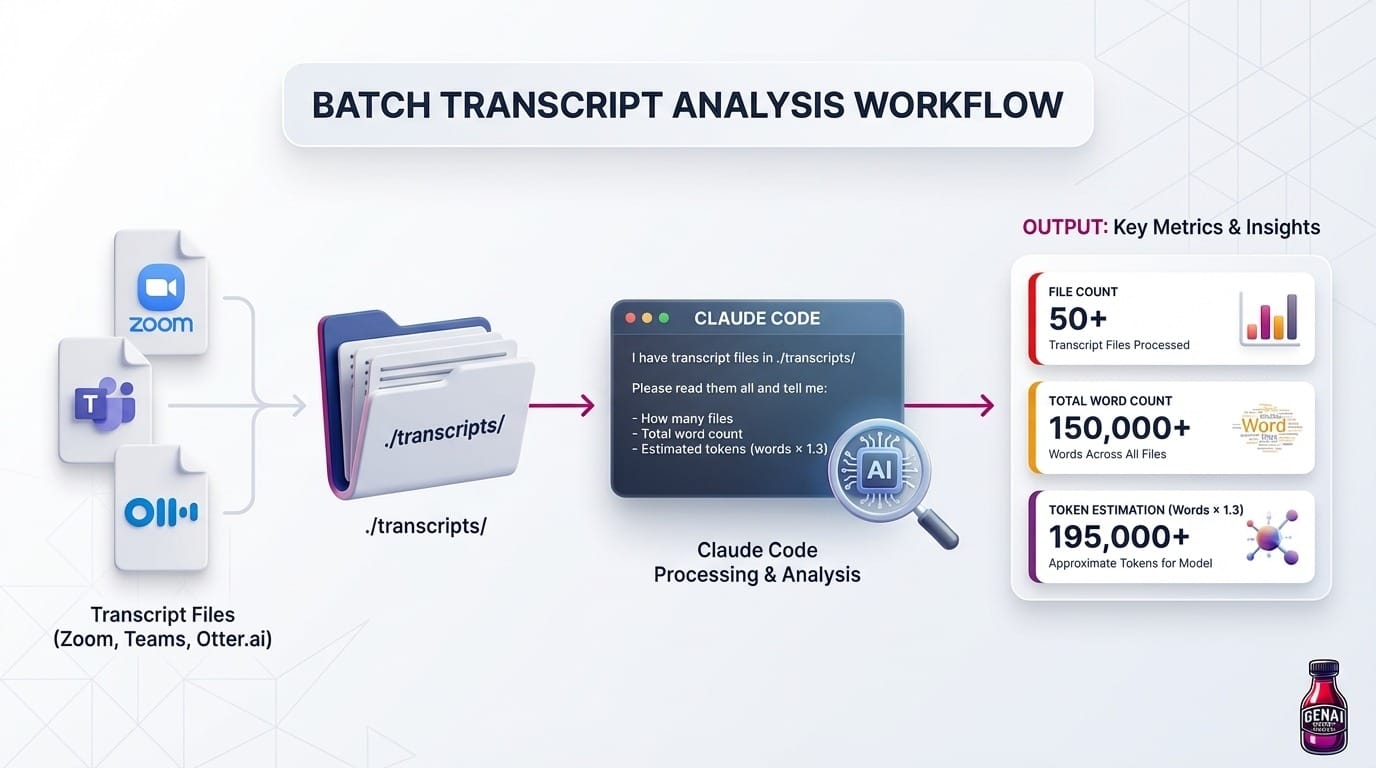
Maybe you have 50+ transcript files from Zoom, Teams, Otter.ai, or Rev.com. Just put them all in one folder and ask Claude Code:
I have transcript files in ./transcripts/
Please read them all and tell me:
- How many files
- Total word count
- Estimated tokens (words × 1.3)
If you have video/audio recordings
I have video recordings in ./recordings/ (mp4, m4a, webm files).
Please:
1. Install Whisper if needed
2. Transcribe all recordings to text
3. Save each transcript to ./transcripts/ with the same filename but .txt extension
4. Tell me the total word count when done
If you have YouTube links
I have a list of YouTube video URLs in ./youtube-links.txt (one URL per line).
Please:
1. Fetch the transcript for each video (use youtube-transcript-api or yt-dlp)
2. Save each transcript to ./transcripts/ named by video title
3. Tell me the total word count when done
Phase 2: Why We Process in Chunks (And How)
Wait, can't Claude just read everything at once?
Technically, yes — Claude can handle massive contexts now. But here's the thing: when you dump 500,000 words into an AI, it tends to focus on the beginning and the end, and kind of... zone out in the middle. (Sound familiar? 😄)
The solution: process in batches, then combine.
This "map-reduce" approach means:
- Claude gives full attention to each batch
- You get accurate frequency counts ("MCP was mentioned 47 times")
- If something looks wrong, you only redo one batch
- Works even if your total content exceeds context limits
How It Works
Small event (under ~20 sessions)? You can skip chunking and give Claude everything at once.
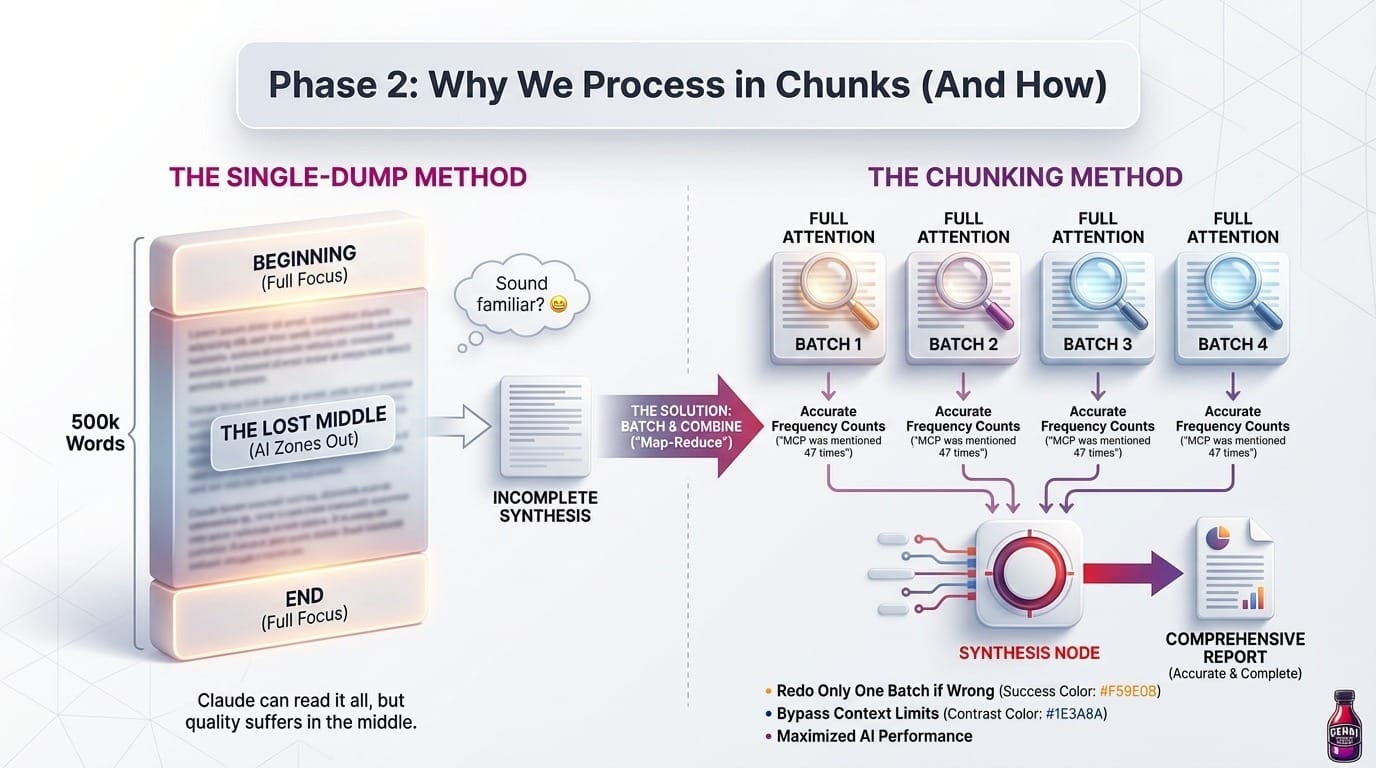
The Map-Reduce Workflow
Here's the exact workflow to give Claude Code. Copy this entire block and paste it:
I need to process conference transcripts using a map-reduce strategy
to avoid the "lost in the middle" accuracy problem with large contexts.

Here's my setup:
- Transcript folder: ./transcripts/ (contains 50+ session transcripts)
- Output directory: ./extractions/

Please execute this workflow:

STEP 1: ANALYZE AND BATCH
- Read all files in ./transcripts/
- Calculate total word count
- Group files into batches of ~80K words each (roughly 100K tokens)
- Tell me how many batches you'll process

STEP 2: MAP PHASE - PROCESS EACH BATCH
For each batch, read all the transcripts in that batch and extract:

THEMES AND CONCEPTS
- List each distinct theme (with frequency count within this chunk)
- Note which sessions/speakers mentioned each

TOOLS AND TECHNOLOGIES
| Tool Name | Description | Sessions Mentioning | Count |

NOTABLE QUOTES (5-10 best)
"Quote" — Speaker, Session

METRICS AND DATA POINTS
| Metric | Value | Context | Source |

PRACTICAL PATTERNS
What practitioners are actually doing — real workflows, not theory

LIMITATIONS AND CAVEATS
What doesn't work yet, common pitfalls, warnings from experience

FAQs (ANSWERED QUESTIONS)
Questions that came up repeatedly across sessions WITH their answers
| Question | Answer Summary | Sessions |

UNANSWERED QUESTIONS (FUTURE FOCUS)
Questions raised in Q&A that weren't fully resolved — these are
opportunities for future exploration or content gaps to address

KEY TAKEAWAYS
The "if you remember nothing else" insights — what would a speaker
want the audience to walk away knowing?

GET STARTED TODAY
Concrete first steps someone could take immediately:
- Tools to install, links to try, experiments to run
- Low-effort/high-impact starting points
- "Do this Monday morning" actions

Save each batch extraction to: extractions/batch_[N]_extraction.md

STEP 3: REDUCE PHASE - SYNTHESIZE ALL EXTRACTIONS
After all batches are processed, read all files in ./extractions/ and create
a final synthesis report with these sections:

EXECUTIVE SUMMARY
The 5 most important things that emerged from the entire event

MAJOR THEMES (ranked by frequency)
| Theme | Frequency | Why It Matters |

TOOLS AND TECHNOLOGIES (ranked by mentions)
| Tool | Description | Sessions Mentioning | Count |

KEY SPEAKERS AND INSIGHTS
Named, attributed insights from specific people

PRACTICAL PATTERNS
What the most effective practitioners are actually doing

HONEST LIMITATIONS
What doesn't work yet — preserving the caveats and warnings

FAQs (CONSOLIDATED)
The questions that came up repeatedly, with best answers
| Question | Answer | Frequency |

UNANSWERED QUESTIONS (FUTURE FOCUS)
What the event raised but didn't fully resolve — areas for exploration

ROLE-SPECIFIC TAKEAWAYS
What matters most for each audience:
- Engineering
- Data/ML
- Design
- Product Management
- Leadership

KEY TAKEAWAYS (PRIORITIZED)
The "if you remember nothing else" list, ranked by importance

GETTING STARTED
Concrete first steps anyone can take immediately:
- Tools to try
- Resources to read
- Experiments to run
- "Do this Monday morning" actions

Save to: [EventName]_Comprehensive_Report.md

Execute this now, starting with Step 1.
This prompt handles the entire map-reduce process. Claude will batch your files, extract from each batch, and synthesize into a final report.
Why This is the Secret Sauce
Here's the thing that makes this approach different from just "summarizing a conference": frequency reveals what actually matters.
When you process 70+ hours of content, you're not just looking for "what topics were covered." You're looking for signal — what did the community collectively care about? What came up again and again across different sessions, different speakers, different contexts?
Frequency is your compass:
- A tool mentioned once in a keynote? Interesting, but maybe just that speaker's preference.
- A tool mentioned 47 times across 23 sessions by 15 different speakers? That's a trend. That's something your audience needs to know about.
The synthesis report should answer these questions:
- What are the top 10 themes by frequency? These become your major sections.
- Which tools/technologies appeared most often? These get dedicated slides.
- What patterns emerged across sessions? "Everyone is struggling with X" or "Teams that did Y saw results."
- What quotes capture the zeitgeist? The memorable lines that stick with people.
- What metrics and data points were shared? Concrete numbers give your video credibility.
- What questions kept coming up? FAQs reveal what the audience actually cares about — and the answers are gold.
- What questions went unanswered? These are your "areas for future exploration" — valuable for framing what's still unknown.
- What are the key takeaways? The "remember this if nothing else" insights that make your video memorable.
- How can someone get started today? Concrete actions transform your video from "interesting" to "useful."
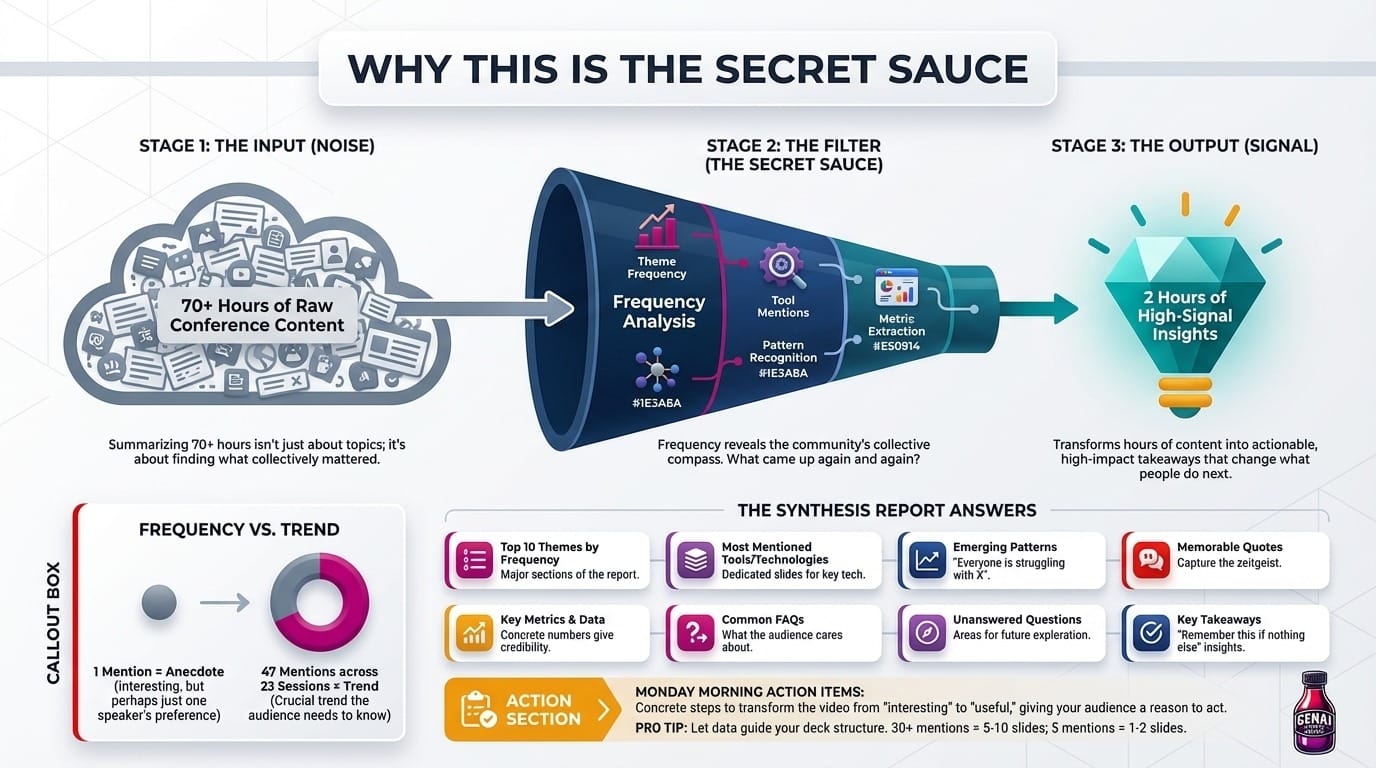
This is what makes your video worth watching. Anyone can skim transcripts and bullet-point what happened. But a video that says "MCP was mentioned 47 times across 23 sessions — here's why everyone is excited about it" — that tells your audience where to pay attention.
And crucially: a video that ends with "here are 5 things you can do Monday morning" gives your audience a reason to act. The FAQs answer the questions they're already wondering. The unanswered questions show them where the frontier is. The key takeaways give them talking points to share with their team.
This turns 70 hours of content into 2 hours of signal — and 2 hours that actually change what people do next.Review Your Synthesis Report
Human in the Loop
Before moving to slides, take 10 minutes to review [EventName]_Comprehensive_Report.md. Ask yourself:
- Do the top themes match your intuition? If something feels off, you might need to reprocess a batch.
- Are the frequency counts plausible? "MCP mentioned 200 times" when you only have 50 sessions might indicate double-counting.
- Are the best quotes actually good? These will appear in your slides — make sure they're quotable.
- Is anything missing? If you know a major topic was discussed but it's not in the report, check the batch extractions.
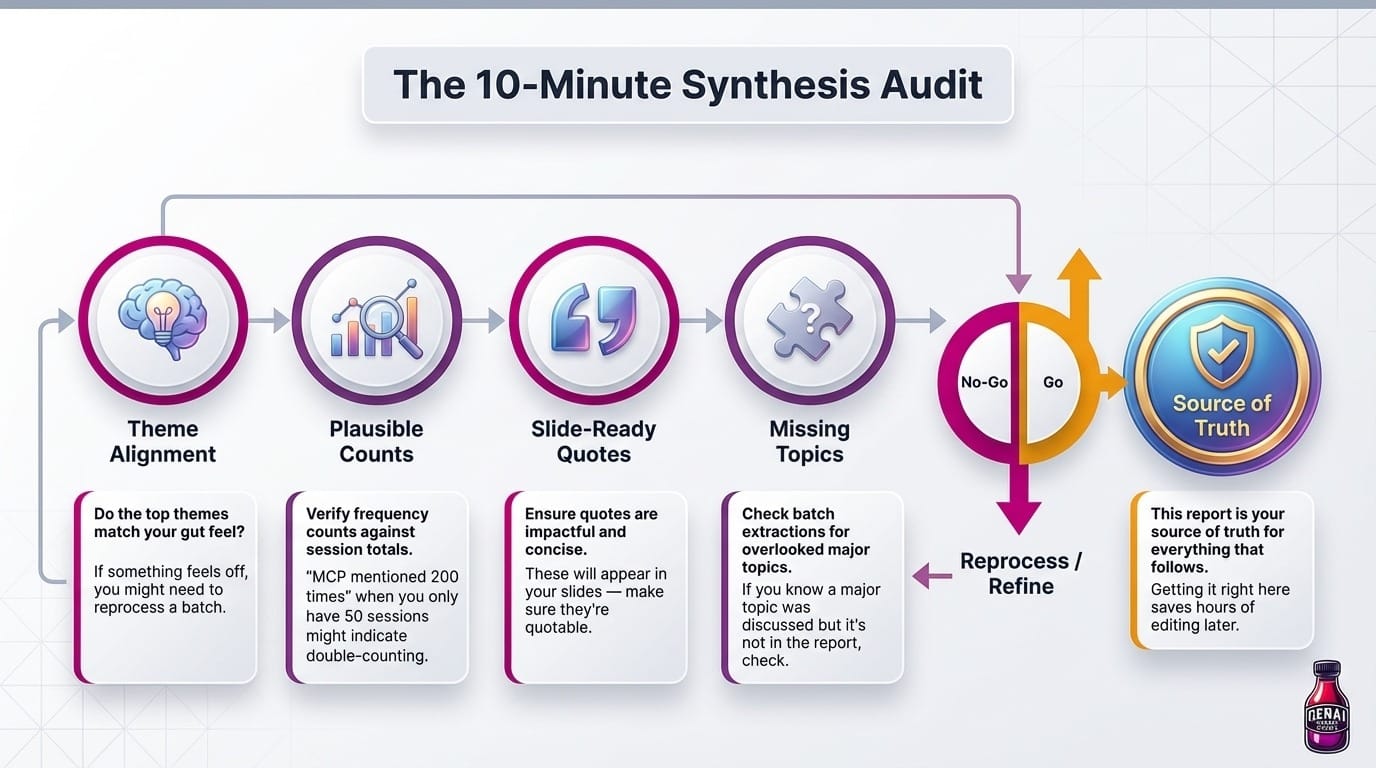
This report is your source of truth for everything that follows. Getting it right here saves hours of editing later.
Phase 3: Build the Initial Slide Deck
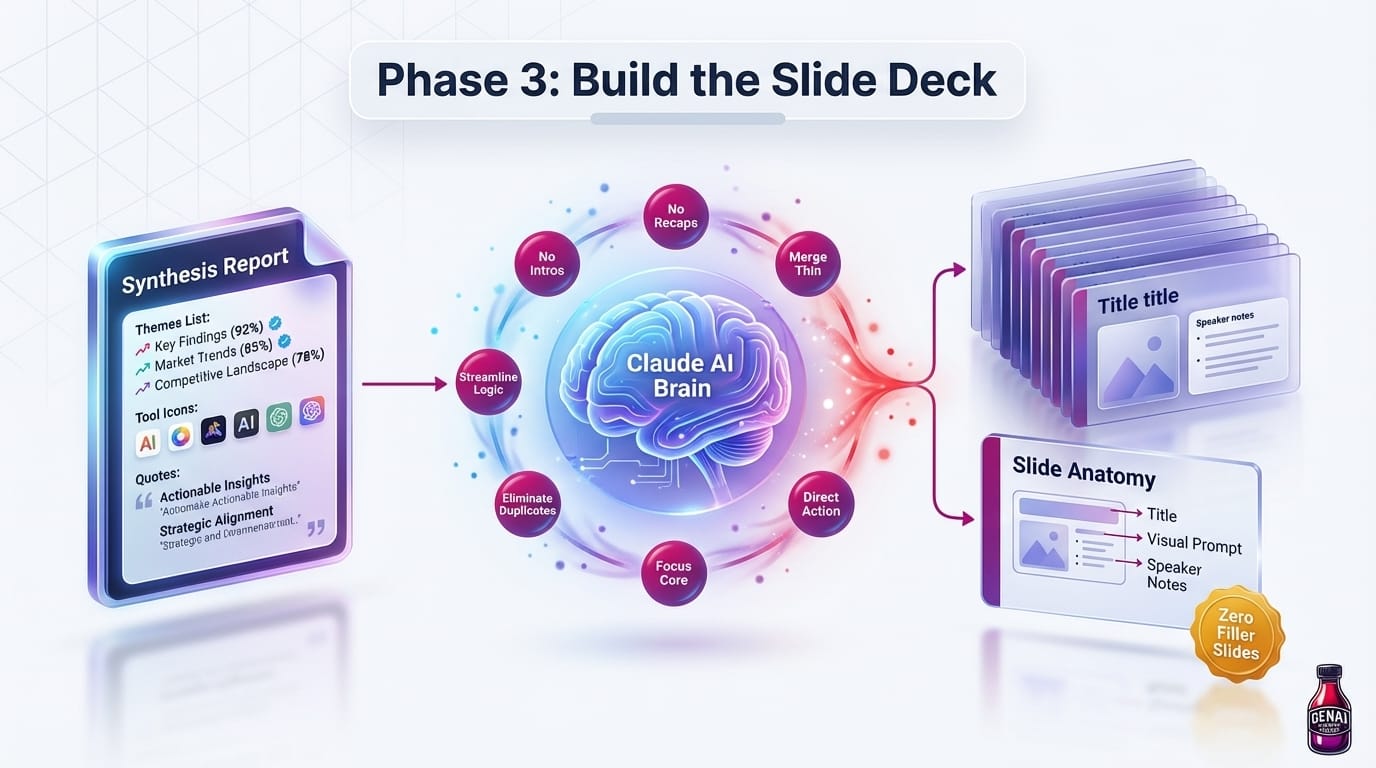
This is where your synthesis turns into something visual. Claude will create a complete slide deck — titles, visual descriptions, and speaker notes for every slide.
Why Markdown first? It's easier to review and edit text before putting it into slides. You can scan 150 slides in minutes, make tweaks, and then convert to PowerPoint.
The secret sauce here is the anti-redundancy rules built into the prompt. Without them, you'd get 200+ slides with lots of "let's talk about..." filler. With them, you get ~145 slides of actual content.
Using [EventName]_Comprehensive_Report.md as your source of truth, create a
comprehensive workshop slide deck in Markdown format.

TARGET: 140-150 slides maximum (~2 hours of presentation time)
AUDIENCE: Mixed (engineers, PMs, designers, leaders)
PRIORITY: Highest-signal content — named patterns with frequency counts,
key practitioner insights, tools with links, concrete next steps

FORMAT every slide exactly like this:

SLIDE N: Title of Slide

Visual Prompt: A detailed description of what the slide should look like
visually. Be specific about layout, icons, colors, charts, and diagrams.
This will be used to generate an AI infographic.

Speaker Notes:
Conversational speaker notes written as if being read aloud by a presenter.
Full sentences. Natural flow. Include specific names, quotes, and data points.

---

STRUCTURE the deck with these sections:
1. Opening & Orientation (title, what happened, key stats, how to use this deck)
2. The Big Picture (major themes, paradigm shifts, mindset changes)
3. Core Tools (what tools exist, when to use each, how to get started)
4. Deep Dives on Top Topics (based on frequency from synthesis)
5. Role-Specific Sections (Engineering, Data, Design, Leadership)
6. Security & Governance
7. Getting Started (ONE consolidated guide, not per-role)
8. Closing

=== CRITICAL: ANTI-REDUNDANCY RULES ===

These rules prevent bloat and eliminate the need for a consolidation pass:

1. NO STANDALONE SECTION INTROS
   Wrong: A slide that just says "Now let's talk about Security"
   Right: Jump directly into the first substantive point of the section.
   The section title IS the intro.

2. NO UNNECESSARY RECAPS
   Only include recap slides at MAJOR transitions (e.g., end of "Core Tools"
   before moving to "Deep Dives"). Do NOT recap after every sub-section.
   Maximum 3-4 recap slides in the entire deck.

3. NO SEPARATE FAQ SECTION
   Distribute FAQ content into the relevant sections where the question
   naturally arises. A question about security goes in the Security section,
   not in a separate "FAQ" section at the end.

4. NO THIN SLIDES
   Every slide must have substantial content. If a point can be made in
   2-3 sentences, combine it with a related point on the same slide.
   Minimum: 3-4 sentences of speaker notes per slide.

5. NO REPETITIVE ROLE GUIDES
   Instead of separate "Getting Started for Engineers," "Getting Started for
   PMs," etc., create ONE consolidated getting started section with a single
   slide per key action, noting which roles it applies to.

6. MERGE RELATED CONCEPTS
   If two topics are closely related (e.g., "What is MCP" and "Why MCP matters"),
   combine them into one slide rather than creating two thin slides.

7. ONE SLIDE PER TOOL
   When covering tools, don't create separate slides for "What it is" and
   "How to use it" — combine into one comprehensive slide per tool.

=== QUALITY RULES ===

- Never create a slide that is just a list of bullets — each slide should tell
  a story or make a single clear point
- Preserve all named metrics (e.g., "24 engineering weeks saved", "$750K")
- Preserve all speaker attributions
- Every tool/concept must be explained at first mention

Before finalizing, COUNT your slides. If you exceed 150, identify and merge
the thinnest slides until you're at or below 150.

Save to [EventName]_Deck.md
With these anti-redundancy rules built in, mine came out at 146 slides on the first pass — no consolidation phase needed.
Phase 4: (Optional) Audit Terminology
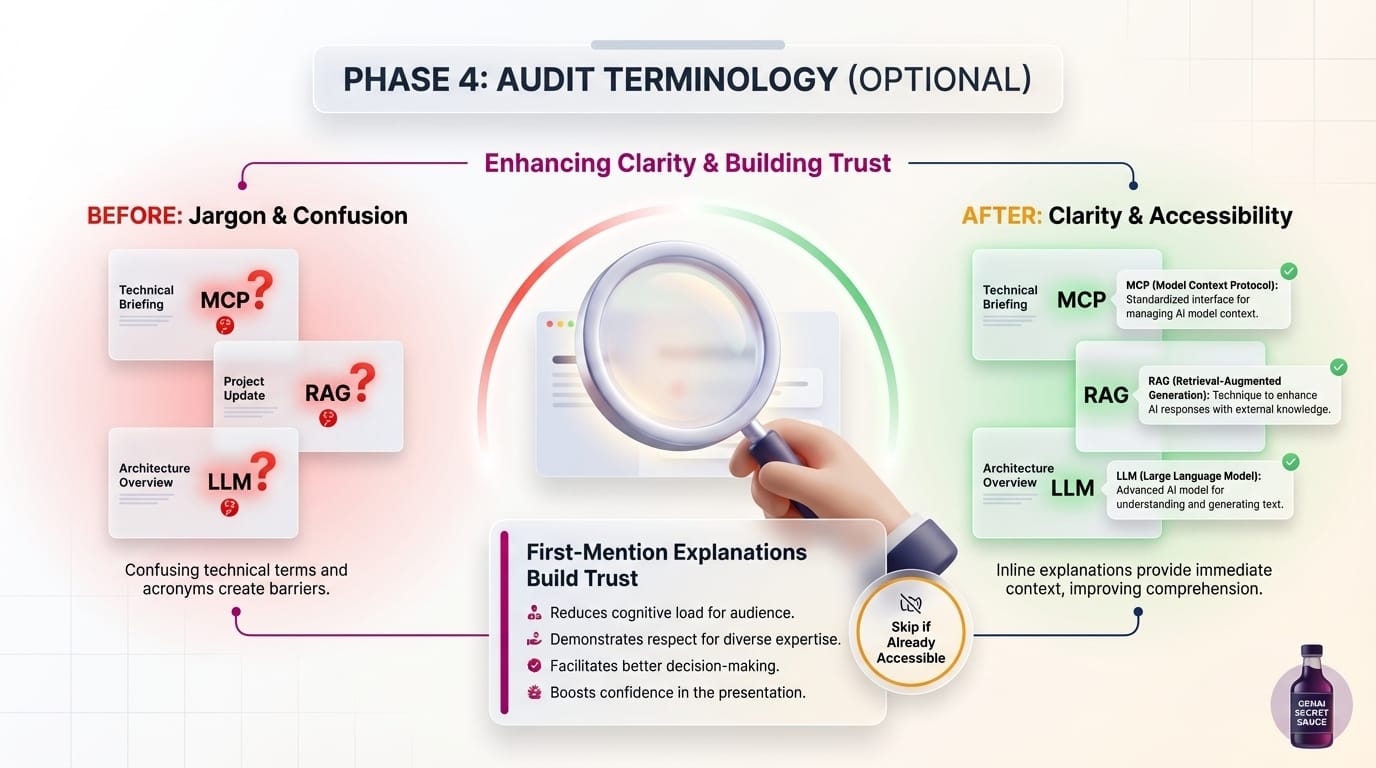
If your content has lots of internal jargon or acronyms, run a quick audit to make sure everything is explained on first mention:
Please audit [EventName]_Deck.md for any tools, acronyms, or concepts that
aren't explained on first use. For each one, add a brief parenthetical
definition (under 20 words) that explains what it is and why it matters.
Skip this if your content is already accessible to a general audience.
Phase 5: Clean Speaker Notes for Spoken Delivery
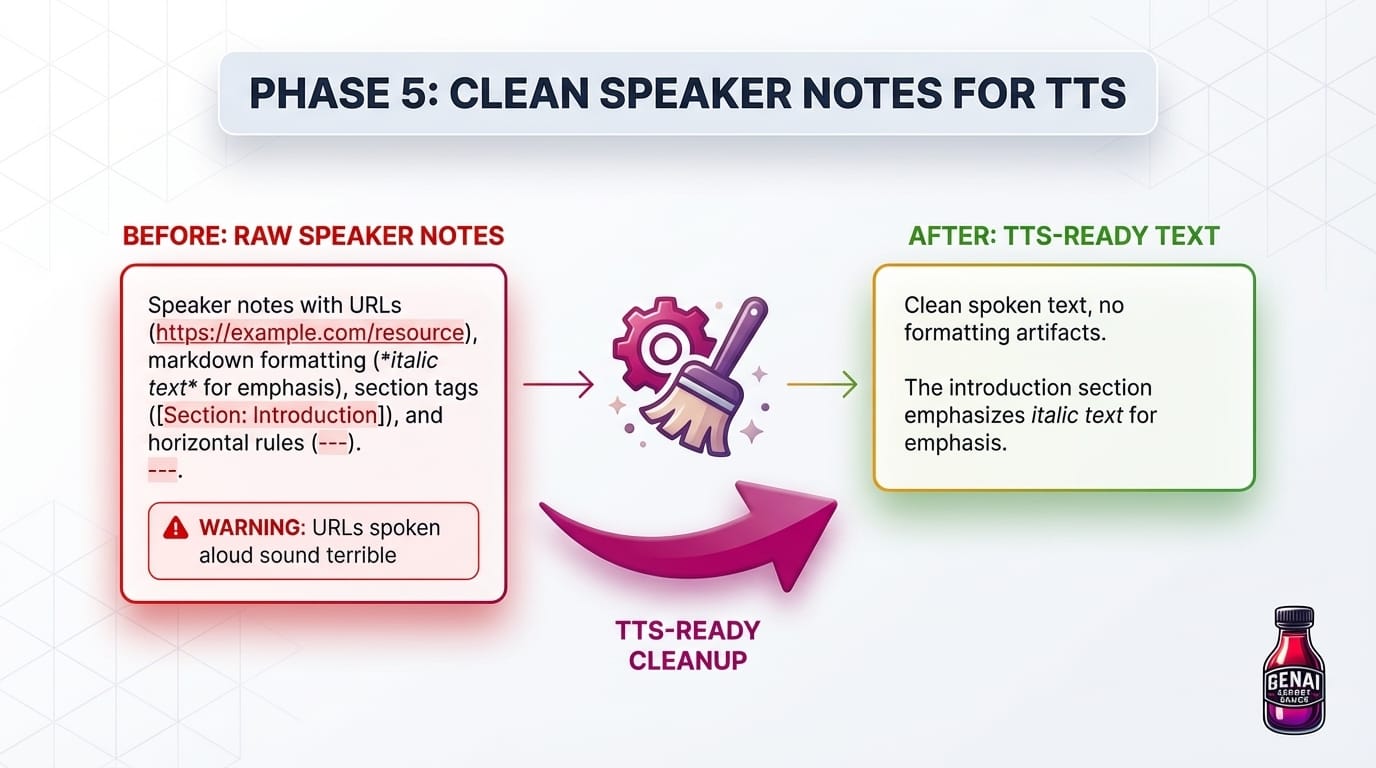
This step is easy to skip — and you'll regret it if you do.
Your speaker notes probably have URLs, markdown formatting, and other stuff that looks fine in text but sounds terrible when read aloud. Imagine the AI saying: "Check out the docs at H-T-T-P-S colon slash slash..."
Yeah, let's avoid that.
The speaker notes in [EventName]_Deck.md will be read aloud
word-for-word by a TTS system. Please audit every speaker notes block and:

1. Remove any *[Section: ...]* annotation tags left from slide merges
2. Remove all full https:// URLs — keep short links since those are
   meant to be spoken
3. Remove all "Recording: https://..." lines entirely
4. Remove markdown formatting like *italic* markers (strip the asterisks,
   keep the text)
5. Remove any --- horizontal rules within notes blocks
6. Clean up any double blank lines left by removals
7. Do NOT change the actual content — only remove the artifacts

After cleaning, verify that zero instances of each artifact type remain.
Report the count of slides affected per type.
Phase 6: Create PowerPoint for Review
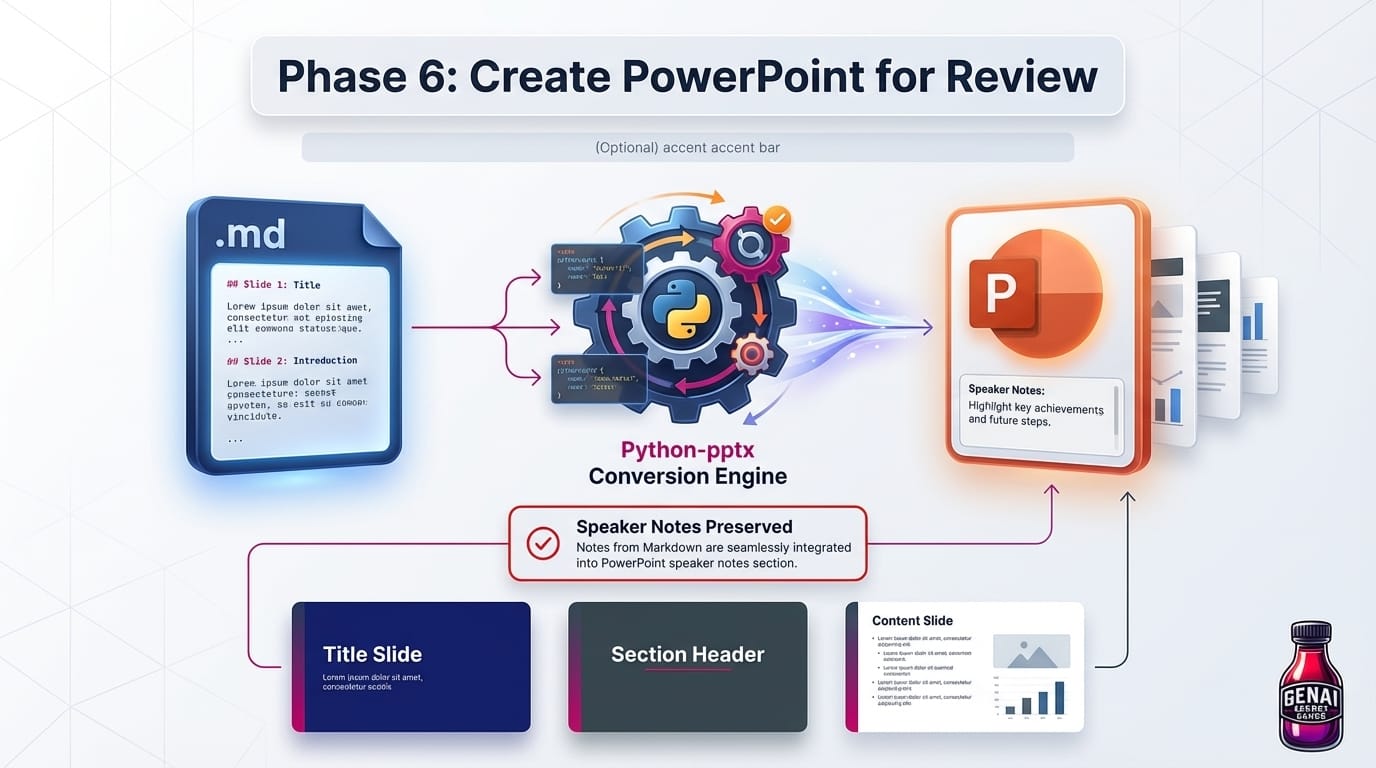
Time to turn your Markdown into real slides. This creates a PowerPoint file you can open and review — see your titles, speaker notes, and later your images all together.
Please convert my Markdown slide deck into a PowerPoint file.

Input: ./[EventName]_Deck.md
Output: ./[EventName]_Deck.pptx

For each ## Slide N: block:
1. Create a slide with the title
2. Add the Speaker Notes to the notes pane
3. Leave the slide body empty (we'll add images later)

Apply background colors:
- Dark navy (#1a237e) for title slide and closing slide
- Dark slate (#37474f) for section header slides
- White for all other slides

Use python-pptx. Install it if needed.
Open the PowerPoint to review your deck. This is your chance to:
- Check that speaker notes read well
- Spot any slides that need merging or splitting
- Make edits before generating images
Want to use Google Slides instead? Just upload the `.pptx` to Google Drive and open it with Google Slides. It converts automatically and preserves your speaker notes.
Phase 7: Generate Slide Infographics
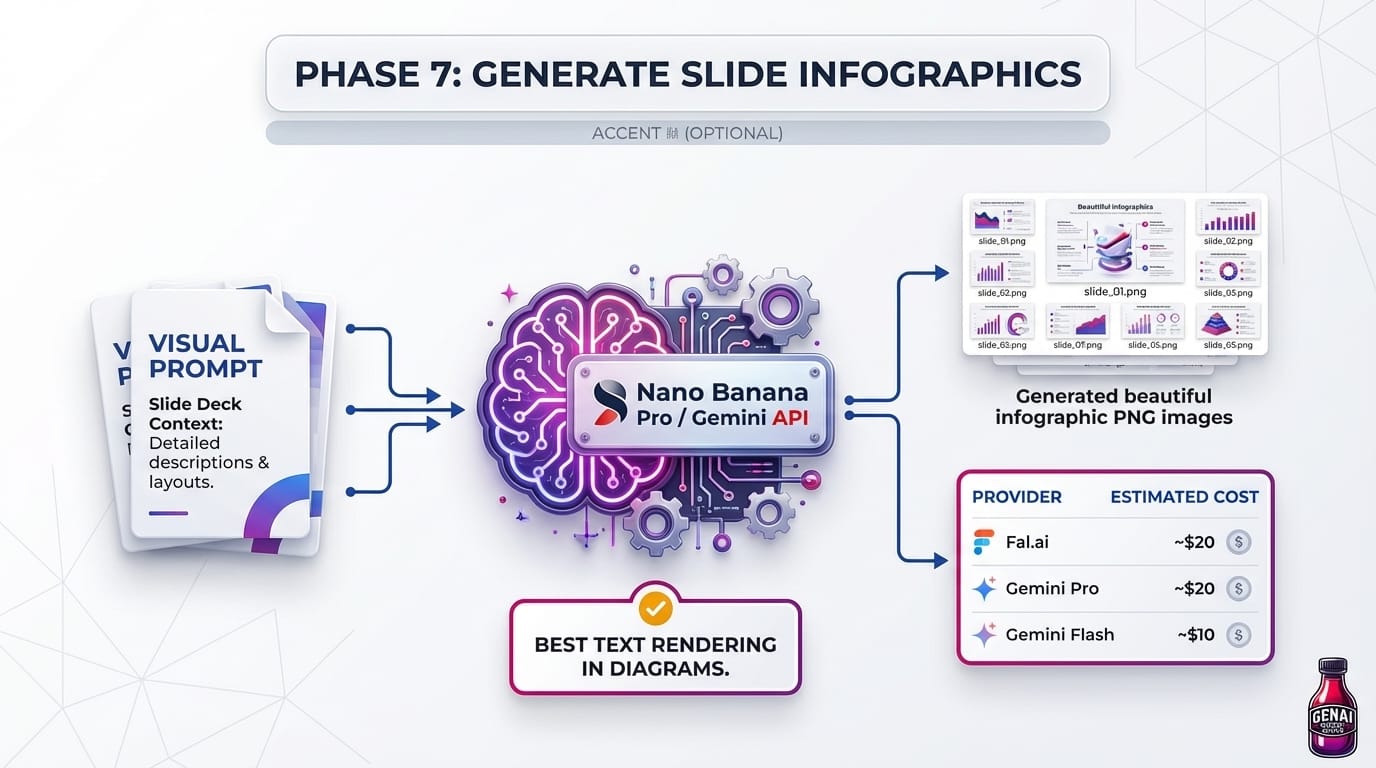
Now for the visual magic. Remember those "Visual Prompt" descriptions Claude wrote for each slide? We're going to turn them into actual images using AI image generation.
- The result: every slide gets a professional-looking infographic. No design skills required.
- The model you want: Nano Banana Pro (gemini-3-pro-image-preview). It's Google's specialized image generation model offering studio-quality precision for complex design, product mockups, and — critically — accurate text rendering in images. Other models struggle with text on diagrams, but Nano Banana Pro handles charts, labels, and technical diagrams reliably.
You can access it two ways:
My recommendation: Use Fal.ai if you're already using it for TTS. One platform, one API key, simpler setup.
Option A: Fal.ai + Nano Banana Pro (Simplest)
If you're using Fal.ai for TTS (Phase 8), use it for images too. Same API key.
Generate images:
I need to generate infographic images for my slides using Fal.ai's Nano Banana Pro model.

Setup:
- Slide deck markdown: ./[EventName]_Deck.md (contains Visual Prompt per slide)
- Output directory: ./slide_images/
- FAL_KEY is set in my environment

Please create a Python script that:
1. Parses the markdown file to extract Visual Prompts for each slide
2. For each slide:
   - Calls Fal.ai's Nano Banana Pro endpoint (fal-ai/nano-banana-pro) with the Visual Prompt
   - Downloads the generated image
   - Saves as slide_XX.png
3. Uses 5 concurrent requests for speed
4. Skips slides that already have images (for incremental runs)
5. Logs progress

Run the script and report progress.
Cost: ~$0.13-0.14/image → ~$20-21 for 150 slides.
Option B: Google Gemini API Direct
Access Nano Banana Pro directly through Google's API. Same price, but requires a separate API key.
Pricing (as of March 2026):
Batch API: 50% discount on all prices (24-hour processing window)
Setup:
- Go to https://aistudio.google.com/
- Sign in with your Google account
- Click "Get API Key" → "Create API key"
- Save it:
- Mac/Linux: export GEMINI_API_KEY="your-key-here" (add to ~/.zshrc or ~/.bashrc)
- Windows: Set as environment variable
Generate images:
I need to generate infographic images for my slides using Google's Gemini API
with Nano Banana Pro.

Setup:
- Slide deck markdown: ./[EventName]_Deck.md (contains Visual Prompt per slide)
- Output directory: ./slide_images/
- GEMINI_API_KEY is set in my environment
- Model: gemini-3-pro-image-preview

Please create a Python script that:
1. Parses the markdown file to extract Visual Prompts for each slide
2. For each slide:
   - Calls the Gemini API with gemini-3-pro-image-preview
   - Downloads the generated image
   - Saves as slide_XX.png
3. Uses ThreadPoolExecutor with 3 workers for parallel processing
4. Skips slides that already have images (for incremental runs)
5. Logs progress

Run the script and report progress.
If a slide fails, ask Claude Code to regenerate just that slide:
Please regenerate the infographic for slide 22.
Want to save money? Use the Batch API (50% off) if you can wait 24 hours for processing.
Want faster/cheaper generation? Use gemini-3.1-flash-image-preview — $0.067/image at 1K resolution (~$10 for 150 slides). It's faster but slightly lower quality for complex text rendering.
Insert Images into Your Slides
Once your images are generated in ./slide_images/, add them to your PowerPoint:
Please insert the generated images into my PowerPoint deck.

PowerPoint file: ./[EventName]_Deck.pptx
Images folder: ./slide_images/

For each slide, insert the corresponding slide_XX.png image.
Size it to fill the slide content area.
Save the updated PowerPoint.
Now open the PowerPoint and review everything together — titles, images, and speaker notes. This is your last chance to make edits before generating the video.
Using Google Slides? You can insert images manually (Insert → Image) or upload the updated PowerPoint to Google Drive.
Part 2: From Slides to Narrated Video
You've got slides. Now let's make them talk.
Phase 8: Set Up Text-to-Speech
Time to set up the voice. You have three options:
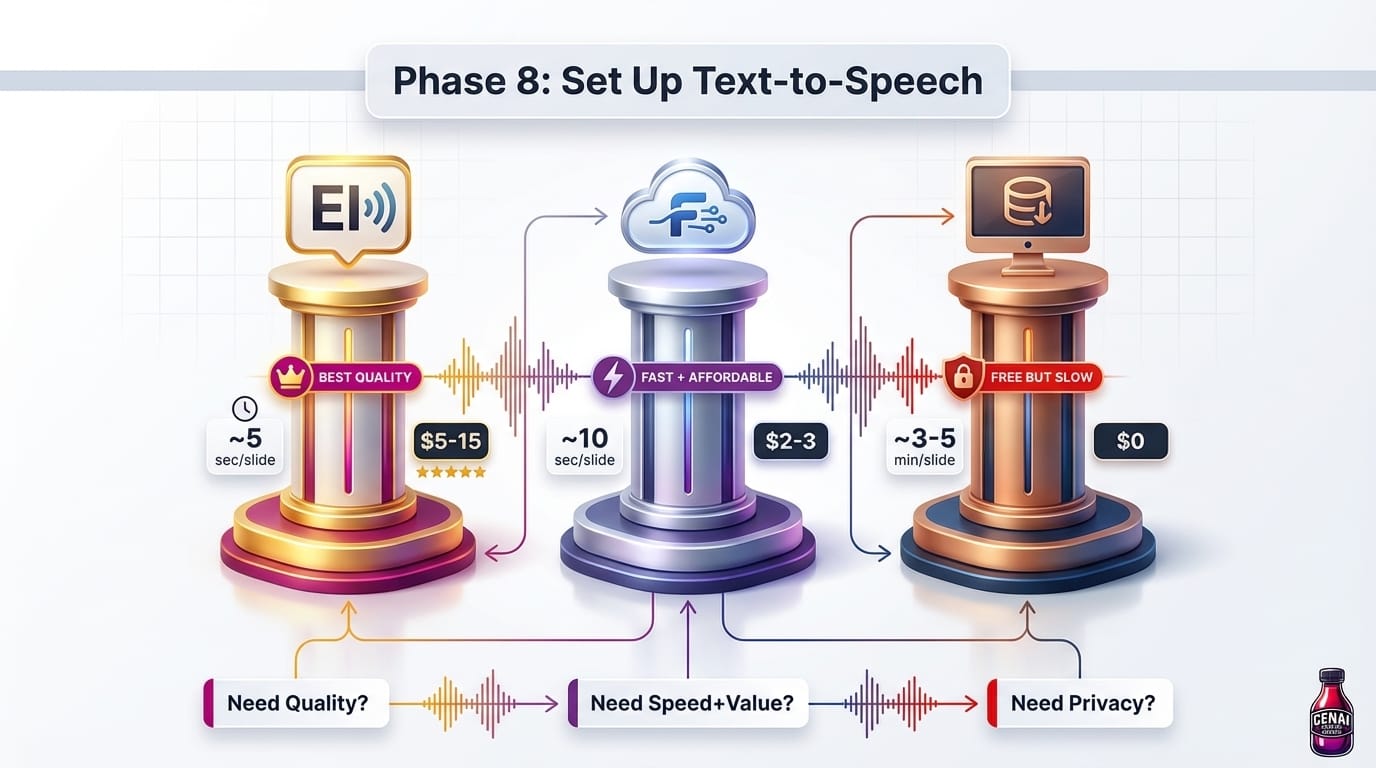
Option A: ElevenLabs (Best Quality)
ElevenLabs is the industry standard for AI voice cloning. Highest quality output, simple API, great voice cloning from short samples.
Setup:
- Create an account at https://elevenlabs.io/
- Go to Profile → API Key
- Set it as an environment variable:
- Mac/Linux: export ELEVEN_API_KEY="your-key-here"
- Windows: Set as environment variable
I want to clone my voice using ElevenLabs.
My voice sample is at: ./voices/myvoice/reference.wav

Please:
1. Use the ElevenLabs API to create a voice clone from my sample
2. Save the voice_id for later use
3. Generate a test clip saying "Hello, this is a test of my cloned voice"
4. Play the test clip so I can hear it
Cost: ~$5-15 for a 150-slide deck depending on your plan. Free tier gives you 10,000 characters/month.
Option B: Fal.ai (Fast + Affordable)
Fal.ai runs ChatterboxTTS on cloud GPUs. Good voice cloning, much faster than local.
Setup:
- Create an account at https://fal.ai/
- Get your API key from the dashboard
- Set it: export FAL_KEY="your-key-here"
Cost: ~$2-3 for a 150-slide deck.
Option C: ChatterboxTTS (Local — Free)
ChatterboxTTS runs entirely on your computer — no cloud, no ongoing costs. But it's slow (~3-5 minutes per slide) and has limitations.
Setup:
Please install ChatterboxTTS locally:
1. Create a Python 3.11 virtual environment at ~/.venvs/chatterbox/
2. Install chatterbox-tts and dependencies (num2words, inflect, torchaudio, etc.)
3. Let me know when it's ready

I'm on [Mac/Windows/Linux].
The first run downloads ~2GB of model files. If installation fails, paste the error into Claude Code — it's good at debugging Python environment issues.
Phase 9: Clone Your Voice
This is the cool part — the AI learns to speak like you.
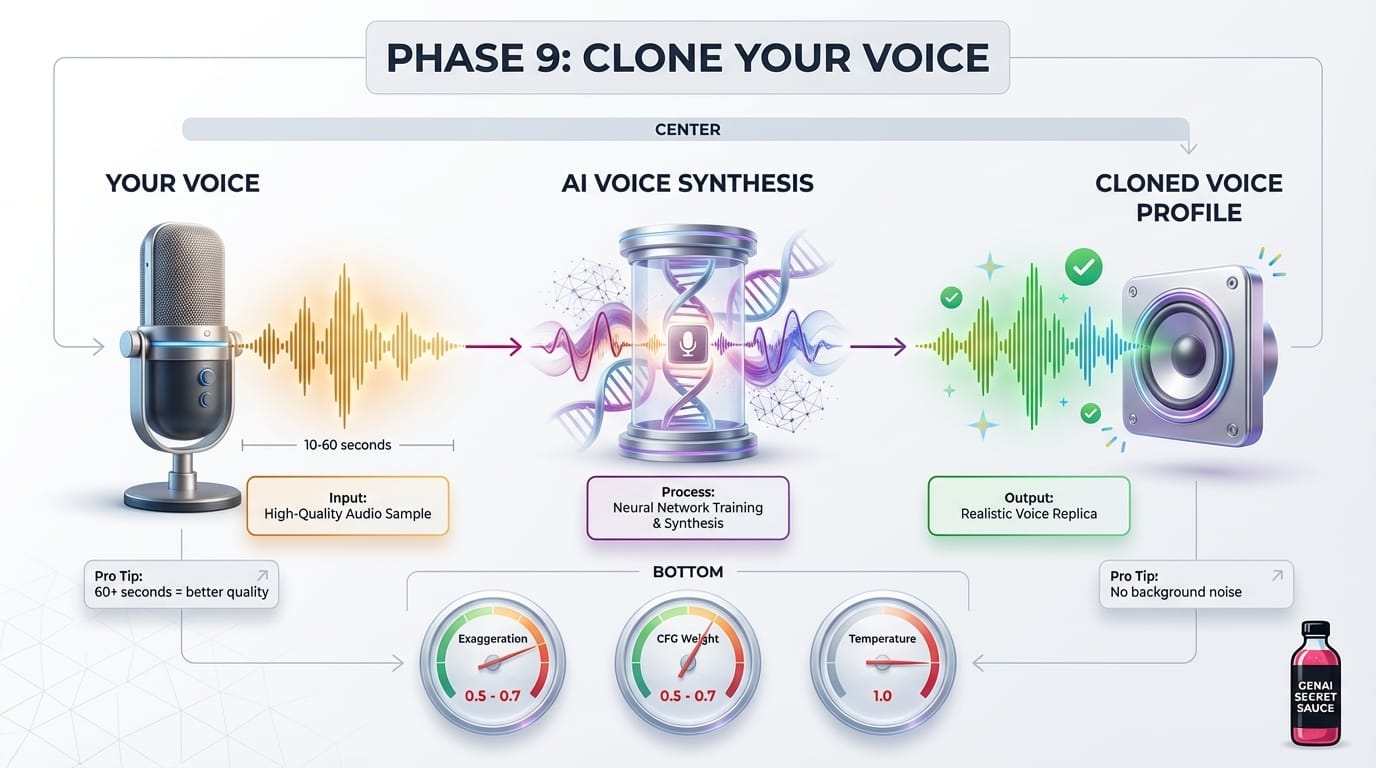
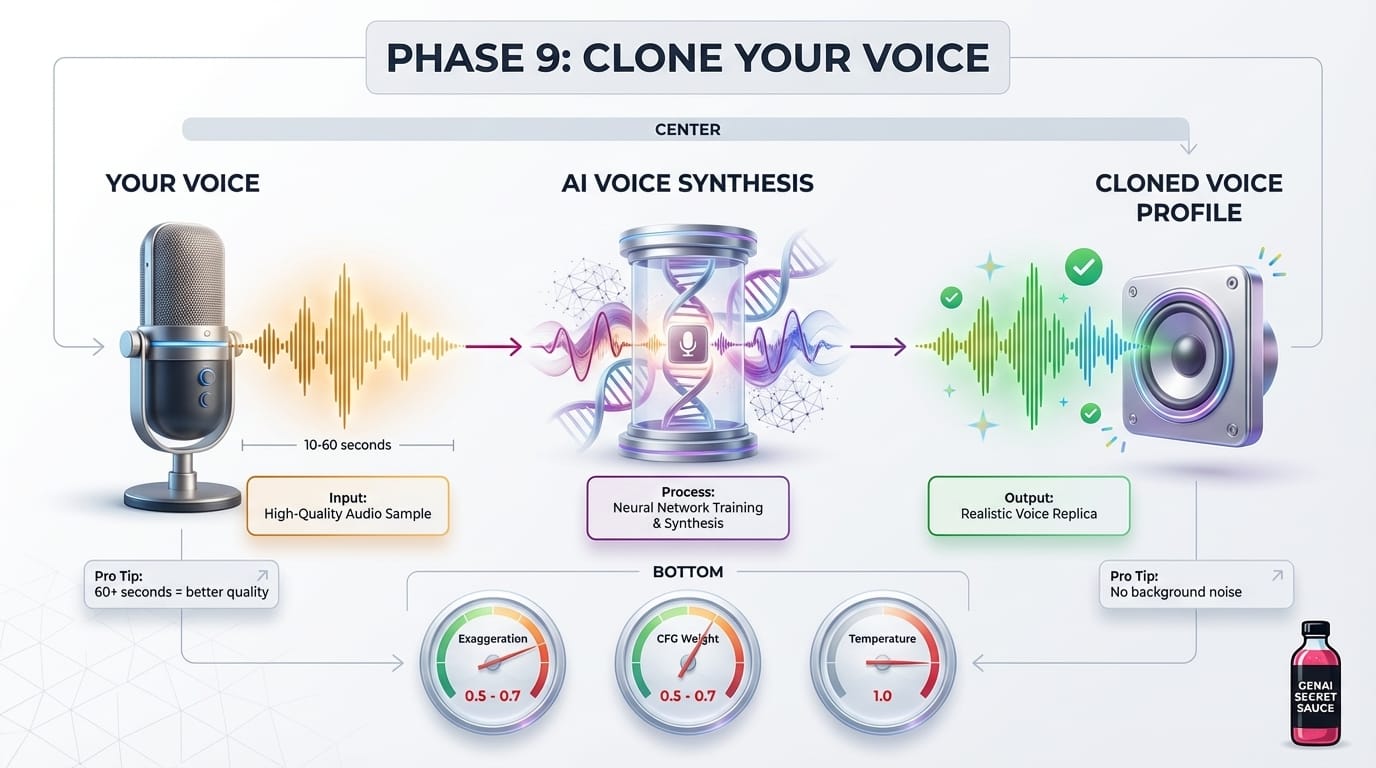
What you need:
A recording of yourself talking. At least 10 seconds of clear speech (60+ seconds is even better). No background noise, no music, just you talking normally.
Don't have one? Record a voice memo on your phone reading a few paragraphs from an article. That works great.
Ask Claude Code to set up your voice profile:
I have a voice sample at [path to your audio file, e.g., ~/Downloads/my-voice.m4a].

Please:
1. Create a voice profile directory at ./voices/myvoice/
2. Convert my audio to the right format (24kHz mono WAV)
3. Save it as ./voices/myvoice/reference.wav
Test it out
Ask Claude Code to generate a test clip:
Please generate a test audio clip using my voice profile at ./voices/myvoice/reference.wav.
Use the text: "Hello, this is a test of my cloned voice."
Save it to ./voice-test.wav and play it so I can hear it.
Tuning your voice settings
These three parameters control how your voice sounds:
Common issues:
- Sounds robotic? Lower cfg-weight to 0.3-0.4 and raise temperature to 0.9
- Too exaggerated? Lower exaggeration to 0.3-0.5
- Doesn't sound like you? Raise cfg-weight to 0.7 (but too high can sound stiff)
Phase 10: Prepare Slides for Video
Almost there! We need to get everything into the right format for video generation.
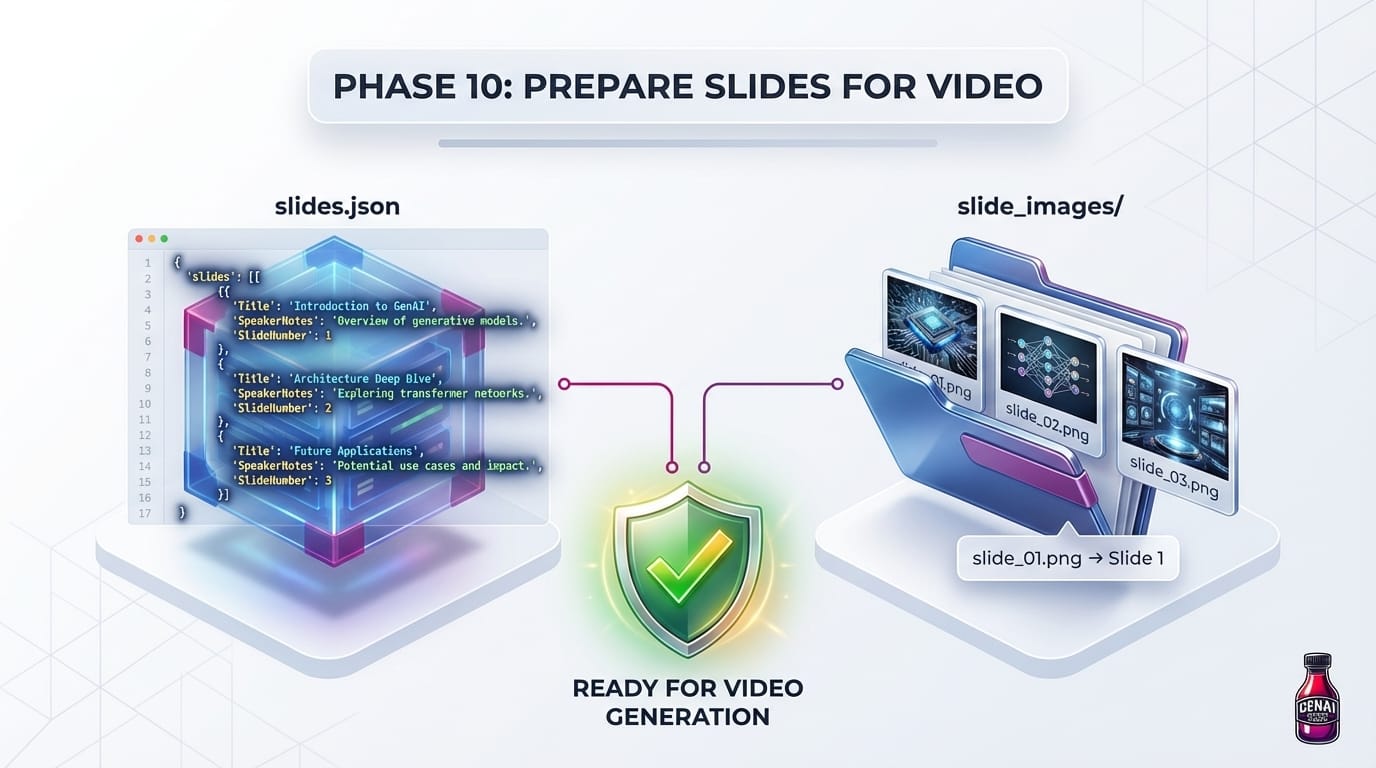
You need two things:
- A slides.json file containing slide titles and speaker notes
- A folder of slide images (one PNG per slide, named slide_01.png, slide_02.png, etc.)
Create slides.json from your Markdown
Please parse [EventName]_Deck.md and create a slides.json file with
this structure:

[
  {
    "Title": "Title from ## Slide N: Title",
    "SpeakerNotes": "The full speaker notes for this slide",
    "SlideNumber": 1
  },
  ...
]

Strip any remaining markdown formatting from the speaker notes.
Save to slides.json.
Export Slide Images from PowerPoint
If your images are already in ./slide_images/ from Phase 7, you can skip this step. Otherwise, export from PowerPoint:
- Open your PowerPoint file
- File → Export → File Format: PDF
- Ask Claude Code to convert it:
I downloaded my slides as a PDF at ./my-slides.pdf.
Please convert it to individual PNG images named slide_01.png, slide_02.png, etc.
Save them to ./slide_images/
Slide image naming
Your images must be named so the pipeline can match them to slides:
- slide_01.png or slide_001.png matches slide 1
- slide_02.png or slide_002.png matches slide 2
- etc.
Phase 11: Set Up Your Pronunciation Dictionary
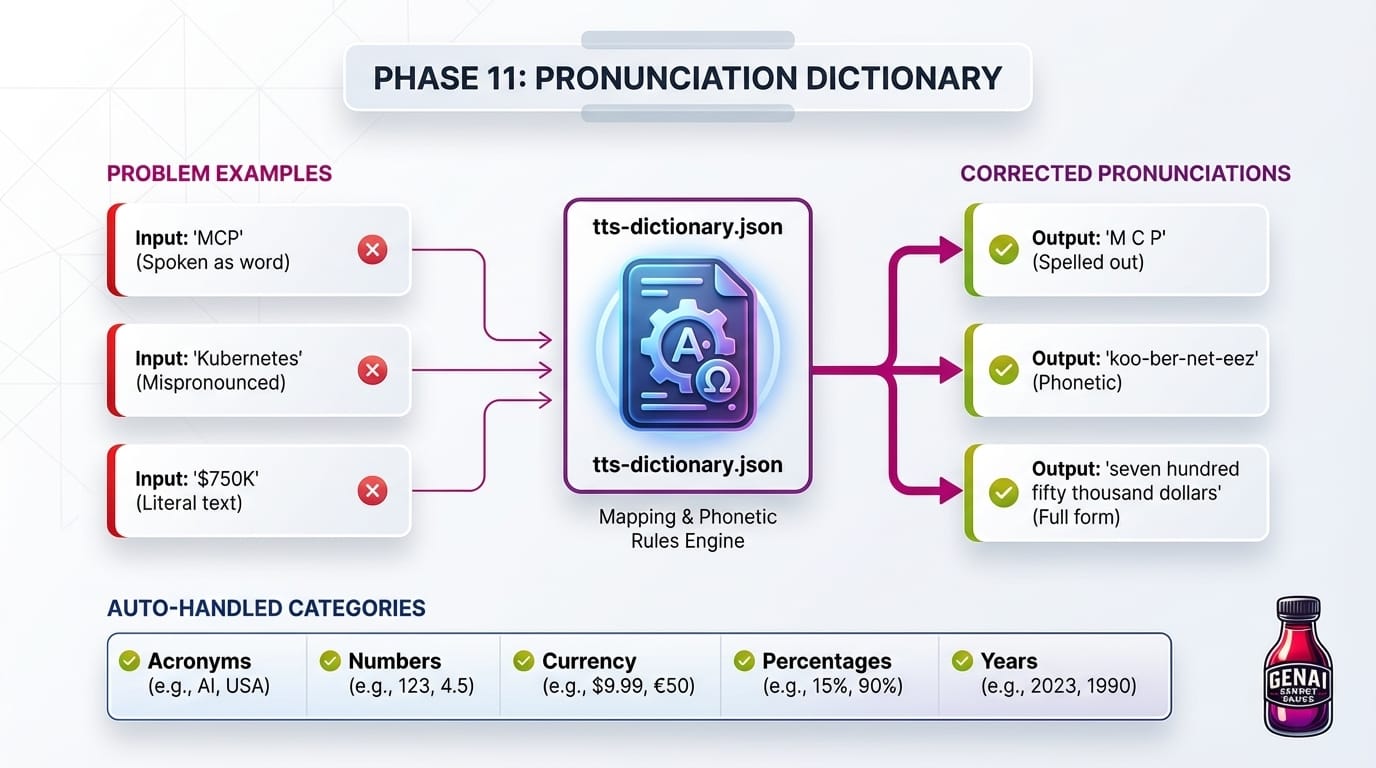
Why this matters (especially for ChatterboxTTS):
ChatterboxTTS has zero built-in pronunciation control. No SSML markup, no phoneme hints, nothing. When it mispronounces a word, your only option is text substitution — replace "Kubernetes" with "koo-ber-net-eez" before sending it to the model.
ElevenLabs and other commercial TTS services handle pronunciation much better out of the box, but you'll still hit edge cases with brand names and technical terms.
Start with an empty dictionary:
Please create an empty pronunciation dictionary at ./tts-dictionary.json like this:
{
  "_comment": "Add mispronounced words here. Format: 'word': 'phonetic-spelling'"
}
You'll add entries as you find issues during review. When you hear a mispronunciation:
The TTS mispronounced "Anthropic". Please add it to tts-dictionary.json
with the pronunciation "Ann-throw-pick" and regenerate slide 42.
What the preprocessor handles automatically
You don't need to put these in your dictionary:
Phase 12: Generate the Video
This is the home stretch! Claude Code will generate audio for each slide, then stitch everything together into a video.
How long will this take?
- ElevenLabs: ~5 seconds per slide → 15-20 minutes for a full deck
- Fal.ai: ~10 seconds per slide → 20-30 minutes for a full deck
- ChatterboxTTS (local): ~3-5 minutes per slide → 8-12 hours for a full deck
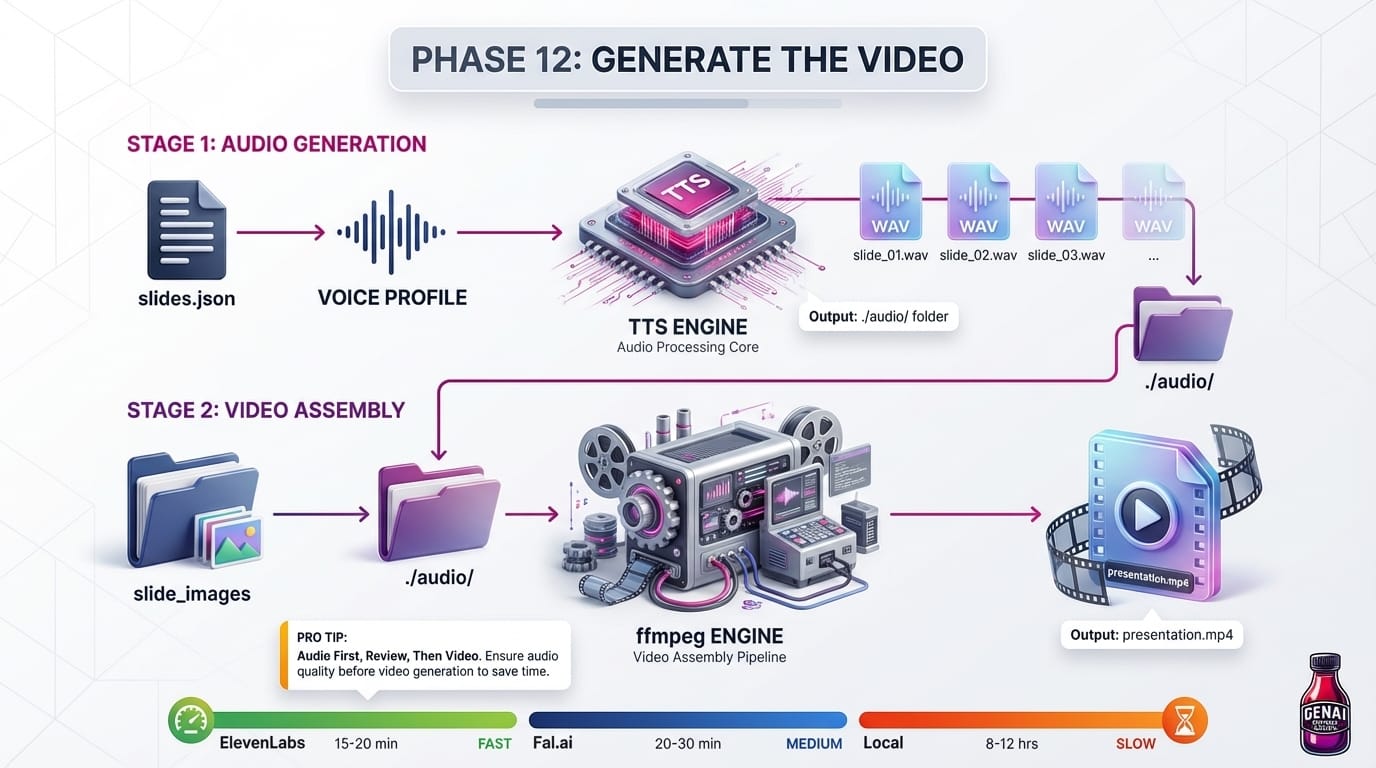
Generate Audio (choose your method)
If using ElevenLabs (best quality):
I need to create narrated audio for my slides using ElevenLabs.

Setup:
- slides.json: ./slides.json (contains Title and SpeakerNotes per slide)
- My ElevenLabs voice_id: [YOUR_VOICE_ID from Phase 8]
- Output directory: ./audio/
- ELEVEN_API_KEY is set in my environment

Please create a Python script that:
1. Reads slides.json
2. For each slide with SpeakerNotes:
   - Applies text preprocessing (expand acronyms, numbers)
   - Checks if ./tts-dictionary.json exists and applies custom pronunciations
   - Calls ElevenLabs API with my voice_id
   - Saves audio to ./audio/slide_XX_[title].wav
3. Uses concurrent requests (respect rate limits)
4. Skips slides that already have audio files

Run the audio generation first. I'll review before building the video.
If using Fal.ai (fast + affordable):
I need to create narrated audio for my slides using Fal.ai's ChatterboxTTS.

Setup:
- slides.json: ./slides.json (contains Title and SpeakerNotes per slide)
- Voice reference: ./voices/myvoice/reference.wav
- Output directory: ./audio/
- FAL_KEY is set in my environment

Please create a Python script that:
1. Reads slides.json
2. For each slide with SpeakerNotes:
   - Applies text preprocessing (expand acronyms, numbers)
   - Checks if ./tts-dictionary.json exists and applies custom pronunciations
   - Calls Fal.ai's ChatterboxTTS endpoint (fal-ai/chatterbox/tts)
   - Saves audio to ./audio/slide_XX_[title].wav
3. Uses 5-10 concurrent requests for speed
4. Skips slides that already have audio files

Run the audio generation first. I'll review before building the video.
If using ChatterboxTTS (local, free):
I need to create narrated audio for my slides using local ChatterboxTTS.

Setup:
- slides.json: ./slides.json (contains Title and SpeakerNotes per slide)
- Voice reference: ./voices/myvoice/reference.wav
- Output directory: ./audio/
- ChatterboxTTS venv: ~/.venvs/chatterbox/

Please create a Python script that:
1. Reads slides.json
2. For each slide with SpeakerNotes:
   - Applies text preprocessing (expand acronyms, numbers)
   - Checks if ./tts-dictionary.json exists and applies custom pronunciations
   - Generates audio using ChatterboxTTS with the voice reference
   - Saves to ./audio/slide_XX_[title].wav
3. Uses multiprocessing with 3 workers for parallelization
4. Skips slides that already have audio files
5. Uses device='cpu' to avoid MPS memory leaks on Mac

Run the audio generation first. I'll review before building the video.
Build the Final Video
Once you've reviewed the audio files in ./audio/, ask Claude Code:
The audio files look good. Now please run the video assembly phase to create ./presentation.mp4 from the slide images and audio files.Phase 13: Review and Fix Individual Slides
Here's the magic of this approach: you can fix any slide without re-rendering the whole video.
Each slide's audio is saved as a separate file:
./audio/
├── slide_01_welcome_to_my_talk.wav
├── slide_02_the_big_picture.wav
├── slide_03_key_findings.wav
└── ...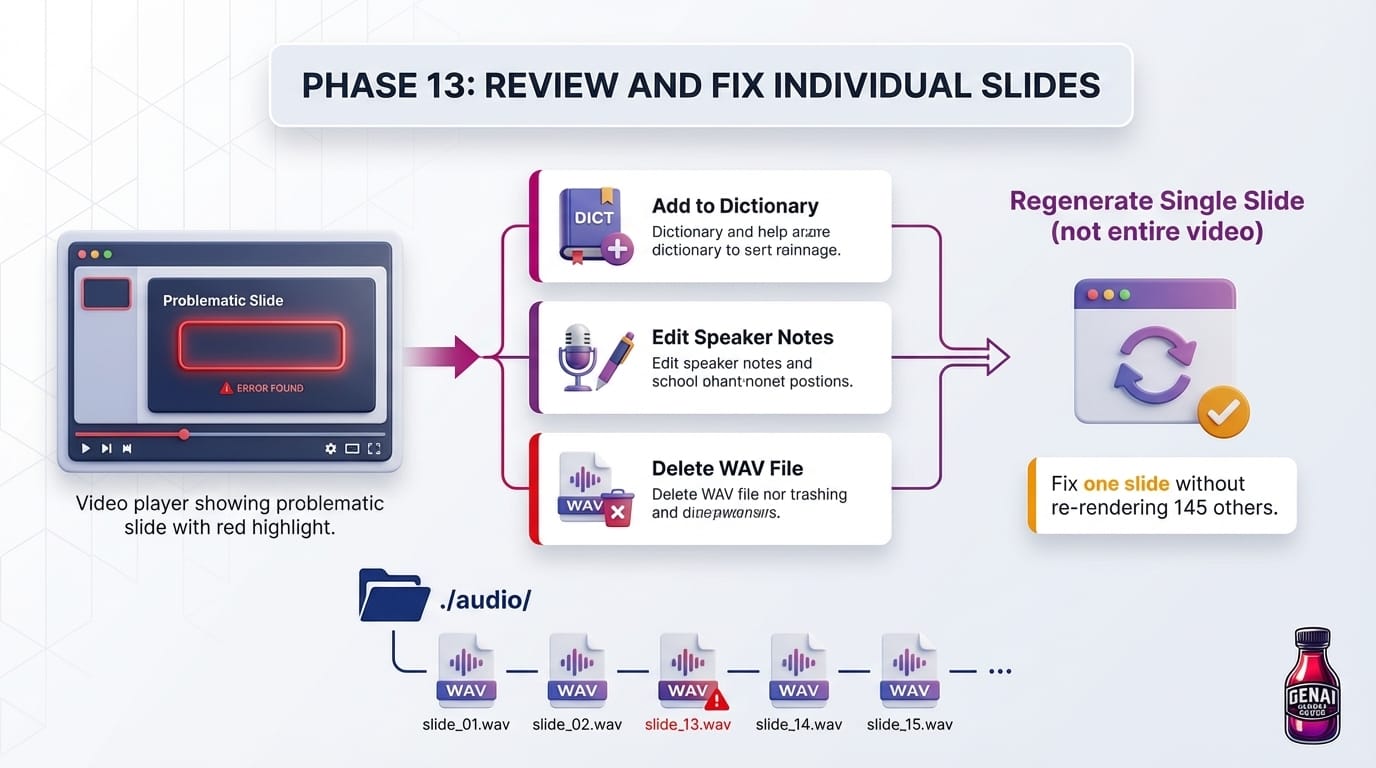
Fix a mispronunciation
- Listen to the problematic slide's audio file
- Add the mispronounced word to ./tts-dictionary.json
- Ask Claude Code to fix it:
Slide 42 mispronounces "Kubernetes". I've added it to tts-dictionary.json.
Please delete the audio file for slide 42 and regenerate it, then rebuild the video.
Fix speaker notes content
If you want to change what the narrator says for a slide:
- Edit the SpeakerNotes field in slides.json for that slide
- Delete the corresponding WAV file
- Re-run audio generation
- Re-run video build
Phase 14: Watch Your Video
You did it! Time to watch your creation.
Please install VLC if I don't have it, then open ./presentation.mp4 in VLC.Or just download VLC from https://www.videolan.org/ and open the video manually.
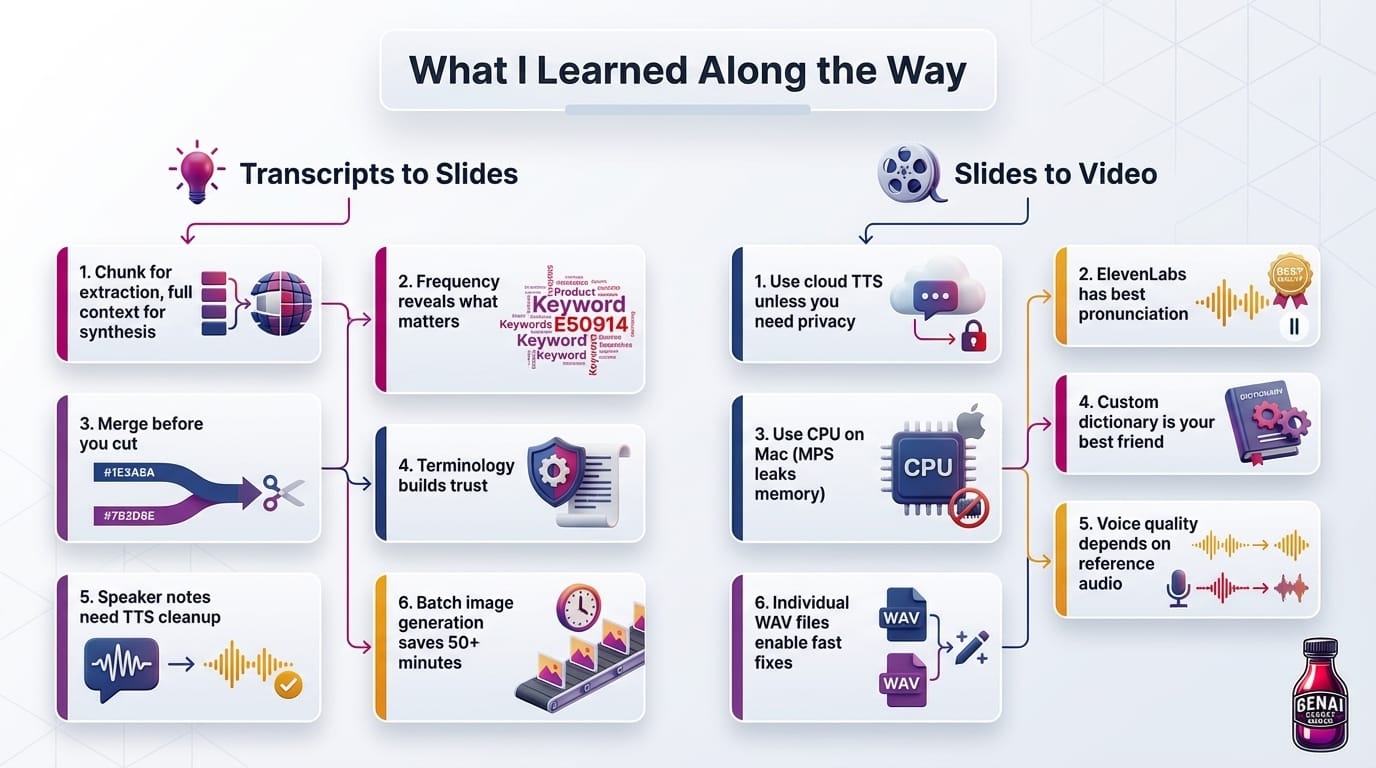
What I Learned Along the Way
After doing this with 70+ hours of content, here's what I wish I'd known from the start.
On turning transcripts into slides
Chunk for extraction, use full context for synthesis. Even with the 1M context window, chunking remains a best practice. LLMs suffer from "lost in the middle" — accuracy degrades on content buried in long contexts. Process transcripts in batches to get focused extractions with accurate frequency counts, then load all extractions together for cross-document synthesis. This hybrid approach gives you the best of both worlds.
Start with frequency, not just coverage. The most valuable thing the synthesis report revealed was frequency — MCP appeared in 20+ sessions, which told me immediately where to focus the deck. Any synthesis that just lists what happened misses the signal. Ask Claude to count.
Merge before you cut. My first instinct was to delete slides. The better move was to merge — two thin slides become one substantive one, and you lose nothing. I saved 35 slides through merging alone before I removed a single one outright.
Terminology is a trust problem. Every time a reader hits an unexplained acronym, they lose a little confidence in the material. Auditing for first-mention explanations took one prompt and a few search lookups — but it transformed the deck from something that felt internal into something any new person could follow.
Speaker notes are a different document. If your notes will be read aloud, they need to be written differently than notes you would read silently. Run the spoken-delivery cleanup pass even if the notes feel "good enough" — the URLs and section tags are invisible until someone says them out loud.
Batching image generation matters more than you think. The difference between serial and 3-concurrent generation on a 150-slide deck is roughly 80 minutes vs. 30 minutes.
On generating the video
Use cloud TTS unless you have a reason not to. Local ChatterboxTTS takes 3-5 minutes per slide — that's 8-12 hours for a full deck. ElevenLabs or Fal.ai finish in under an hour for a few dollars. If your time is worth more than $5, use the cloud.
ElevenLabs has the best pronunciation. It handles most words correctly out of the box. ChatterboxTTS has zero pronunciation control — no SSML, no phonemes, nothing. Everything must be handled by text substitution (spelling words phonetically). This works but requires trial and error.
If running locally, choose your device wisely. On Apple Silicon, use device='cpu' because the MPS backend leaks memory unboundedly (I saw 137GB consumed on a 150-slide deck). On Windows/Linux with an NVIDIA GPU, use device='cuda' for faster generation.
The custom dictionary is your best friend. Every domain has words TTS gets wrong. Keep ./tts-dictionary.json updated as you find issues. It takes 10 seconds to add a word and regenerate one slide.
Voice quality depends on the reference audio. Use 60+ seconds of clear, single-speaker speech. Background noise and multiple speakers degrade cloning quality.
Generate audio first, video second. Audio generation is the slow part. Video stitching is fast. Always do --audio-only first, review, fix issues, then build the video.
Individual WAV files are the key to iterability. The pipeline saves and skips existing audio files. You can fix one slide's pronunciation without re-rendering the other 145 slides. This makes the whole process practical for real-world use.




Member discussion