
On this page
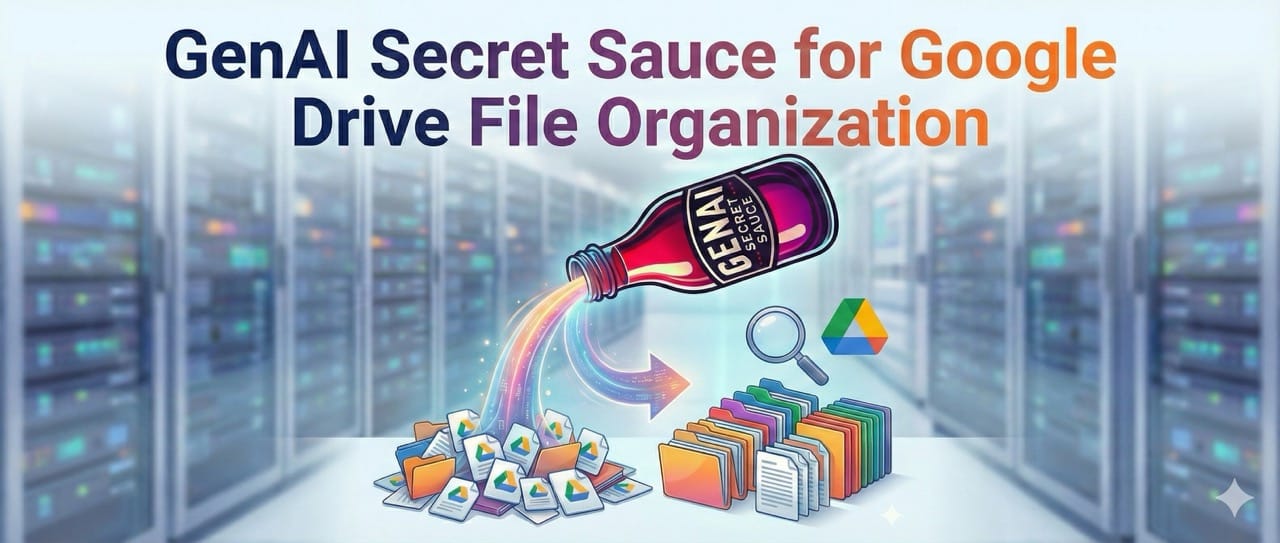
Reviewed July 2026. AI can make a crowded Google Drive easier to understand, but a safe workflow begins with a small folder and a reviewable inventory—not an automatic reorganization. First capture what each file is, who owns it, when it changed, and why it might matter. Then use AI to create short, consistent summaries that a person can approve before any rename, move, or deletion.
The short answer
Start with one non-sensitive folder. Build a spreadsheet or database that links back to each original file and records a concise summary, file type, modified date, owner, confidence, and recommended next action. Do not let an AI summary become the only record of what a file contains, and do not grant a script permission to reorganize a Drive before you have reviewed its outputs.
Start with a small, reviewable scope
- Choose a folder that you own or are explicitly authorized to analyze.
- Exclude HR, legal, customer, financial, health, and other restricted material until your organization has approved the workflow.
- Set a stop rule: for example, process 25 files, review the results, then decide whether to continue.
- Keep the original file name and link in the inventory even if you later suggest a better name or category.
Apps Script can iterate through Drive collections, and its iterator model supports continuation tokens for work that cannot finish in one execution. That makes a reviewable batch workflow safer than a single script that tries to scan everything at once.
Design the inventory before automation
Decide exactly what a useful row looks like before you ask a model to create a summary. A practical inventory usually includes:
- file name, Drive URL, MIME type, owner, and last-modified date;
- short factual summary based only on extracted content;
- suggested category and confidence level;
- an optional next action such as keep, review, archive candidate, or rename candidate;
- an empty human-approval column.
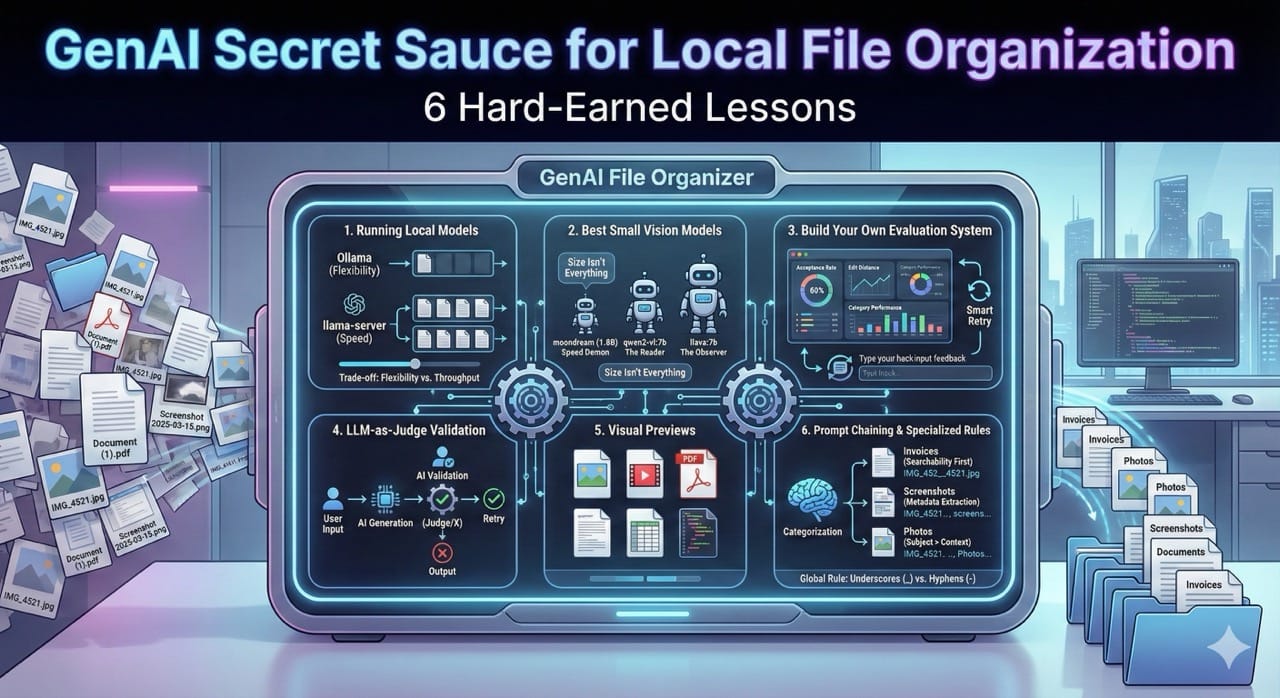
The goal is discoverability, not autonomous cleanup. If you mainly need better names, follow the companion workflow for AI-powered Google Drive file organization. If files must remain on your computer, consider the separate local file organization approach instead.
Use a structured summary contract
Summarize this file for a private inventory.

Return only these fields:
- summary: 2–3 factual sentences based on the supplied text
- category: choose from [APPROVED CATEGORIES]
- confidence: high, medium, or low
- missing_or_unclear: facts that could not be determined
- suggested_next_action: keep, review, archive candidate, or rename candidate

Do not invent details. Do not include confidential information that is not needed for the inventory. If the source is empty, unsupported, or ambiguous, say so clearly.
Use a fixed schema so every row is comparable. For unsupported file types or image-heavy documents, record that the content was not extracted rather than pretending the model reviewed it.
Automate in batches and preserve human approval
For a repeatable script, separate the work into small jobs: list files, extract allowed text, request a structured summary, write the inventory row, and save a continuation token if more files remain. Check Apps Script service quotas and execution limits, log failures without exposing file contents, and make retries idempotent so you do not create duplicate rows.
Do not automatically move, rename, share, or delete files from the first pass. Let a human approve each proposed action. Automation is most useful when it makes the review queue smaller and clearer—not when it hides irreversible changes behind a model-generated label.
Permissions, privacy, and key safety
Use least-privilege access and understand whether the workflow can see My Drive, shared drives, or only one selected folder. Script Properties can hold configuration for an Apps Script project, but they are not a substitute for organization-approved secret management in a production system. Never place an API key in the script source, a shared spreadsheet, a published tutorial, or client-side code. Rotate any key that may have been exposed.
Before sending file text to an external model, confirm your data controls, retention settings, contractual obligations, and internal policy. Redact or skip sensitive files rather than relying on a prompt to make an unsafe transfer safe.
Keep building
A good inventory makes later organization more deliberate: you can search by purpose, spot duplicates, choose clear names, and decide which files deserve deeper review.
Update history
- October 27, 2024: Originally published.
- July 12, 2026: Major refresh: replaced the hard-coded-key, old-model script with a reviewable inventory workflow; added batching, permission, privacy, quota, and key-safety guidance.



Member discussion