On this page
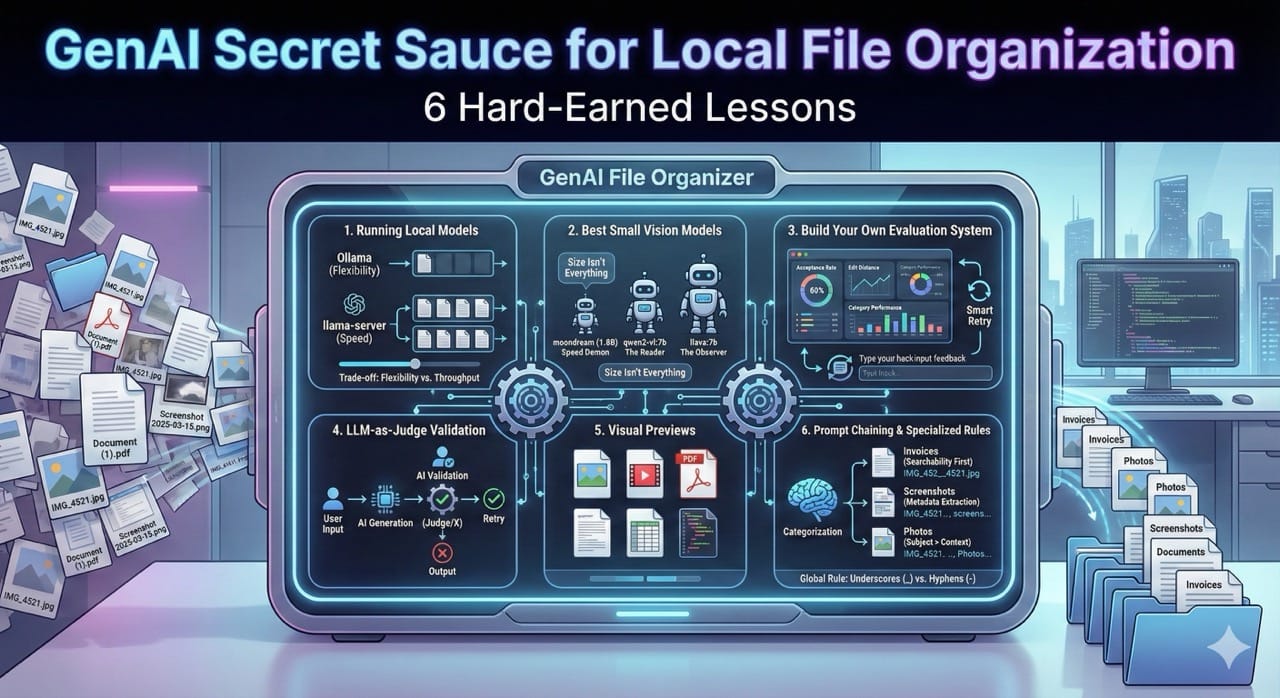
I Built a Local GenAI File Organizer: Here are my 6 Hard-Earned Lessons.
As 2025 comes to a close, I found myself staring at the digital chaos accumulated over the last twelve months: thousands of files with names like IMG_4521.jpg, Document (1).pdf, and Screenshot 2025-03-15 at 10.42.33 AM.png. Sound familiar?
Every year I tell myself I'll be more organized. Every year I end up with a Desktop and Downloads folder that looks like a digital junk drawer. This year, I decided to engineer my way out of it.
Instead of spending hours manually renaming files, I built a GenAI File Organizer, a local AI-powered tool that "looks" inside your files and renames them intelligently. No cloud APIs, no data leaving my machine, just pure local AI magic.
GitHub: https://github.com/jazmy/genai-file-organizer
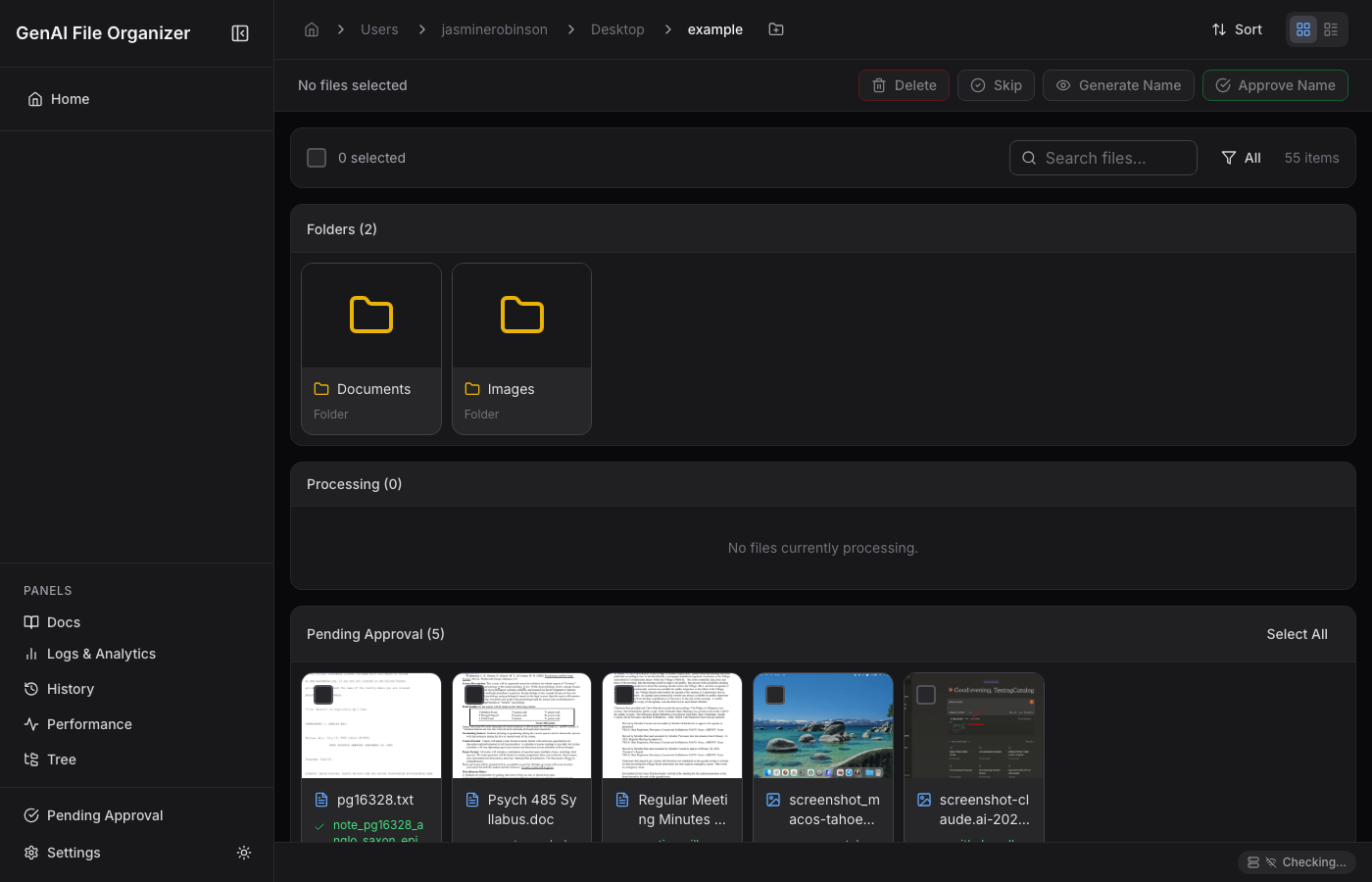
It works with 30+ file types. Clone it, point it at your messy folder, and watch the magic happen. Running this app yourself requires advanced coding skills but this post isn't just about the tool. It's about the six most important lessons I learned building it. These are architectural patterns that I will apply to every GenAI application I build in 2026.
1. Running Local Models
I’ve spent the last year playing with the latest models from OpenAI, Anthropic, and Google, but I hadn't kept up with how far open-source models have come. Since I was dealing with sensitive personal files, such as tax documents, medical records, family photos, I didn't want to send them to a cloud API that could potentially leak data or use it for training.
For a cloud-based counterpart, see AI-powered Google Drive file organization.
I needed to keep everything local.
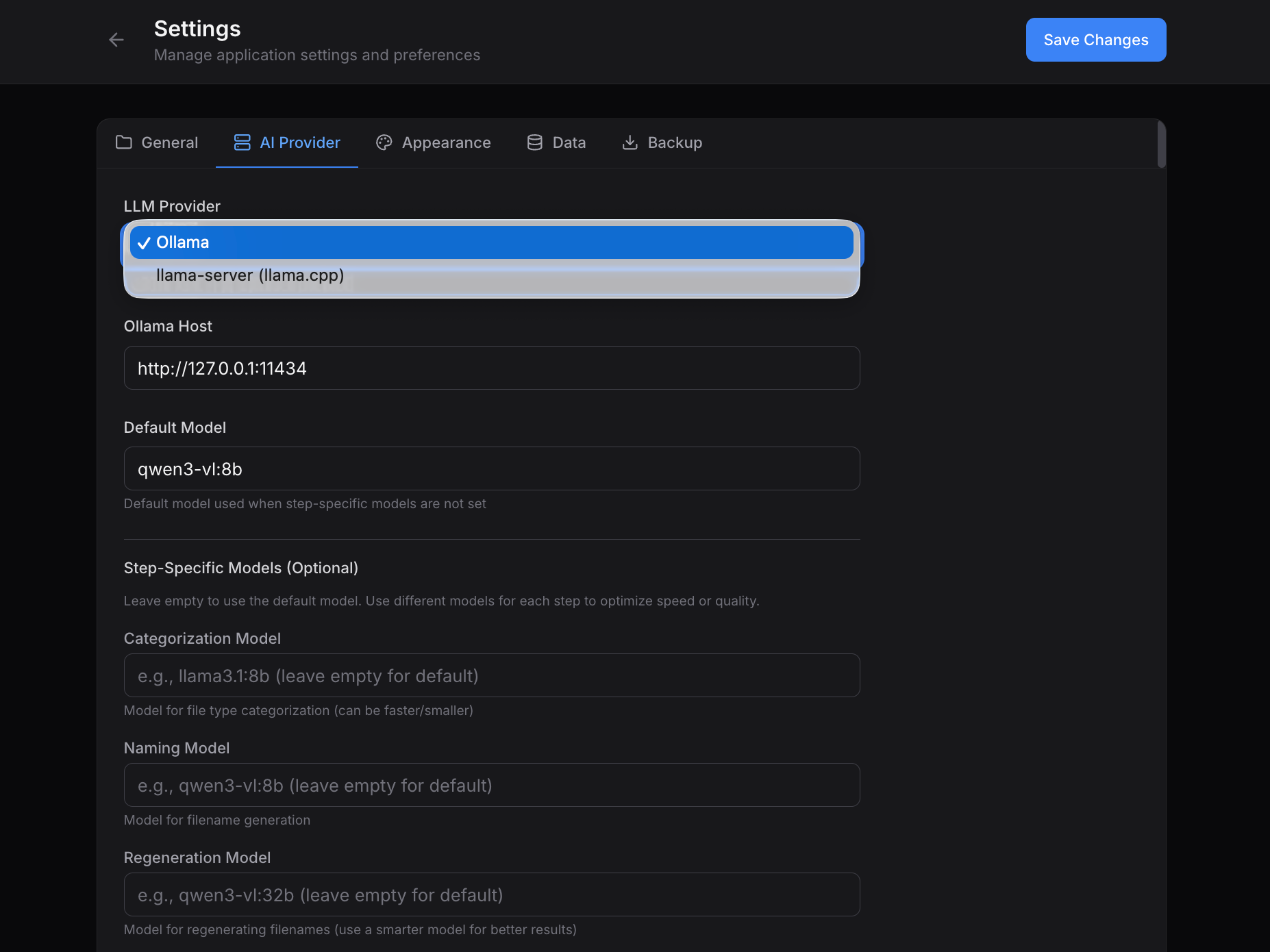
When I started, Ollama was the obvious choice. It’s easy to set up, has a fantastic CLI, and the developer experience (DX) is unbeatable. But as I scaled up to processing hundreds of files, I hit a wall.
The hidden problem: Ollama handles requests sequentially. When you're processing a batch of 50 files, each waiting 2–3 seconds for inference, the latency stacks up. A batch that should take 30 seconds ends up taking over 2 minutes.
The solution: llama.cpp's llama-server with continuous batching.
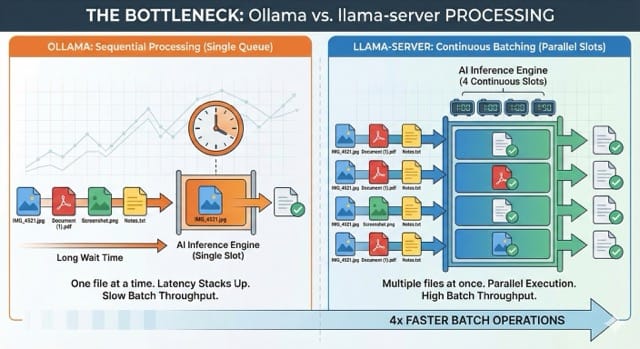
Comparison: The Trade-offs
For a local file organizer, you have to choose between flexibility (Ollama) and raw batch throughput (llama-server).
| Feature | Ollama | llama-server |
| Primary Use Case | Chatbots, experimentation, dev tools | High-throughput batch processing |
| Concurrency | Sequential (mostly). Queues requests one by one. | Parallel. Processes multiple files simultaneously using "slots." |
| Model Swapping | Instant. Swap models via API on the fly. | Locked. Server loads one model at startup. Must restart to switch. |
| Throughput | Lower (Latency stacks up). | 4x Faster for batch operations. |
| Setup Difficulty | Easy (1-click install). | Medium (Command line flags required). |
The Verdict:
- Use Ollama when you need to switch models constantly (e.g., using a small model for categorization and a large model for tricky OCR).
- Use llama-server when you have a folder of 1,000 images and you want to crunch through them as fast as possible using a single model.
In my final architecture, I actually support both, allowing the user to choose between the "smart & flexible" path (Ollama) or the "speed demon" path (llama-server).
2. The Best Small Vision Models (Size Isn't Everything)
Not all vision-language models (VLMs) are created equal, and benchmarks can be misleading. I tested dozens of models to find the sweet spot between speed, accuracy, and VRAM.
| Model | Role | Why it works |
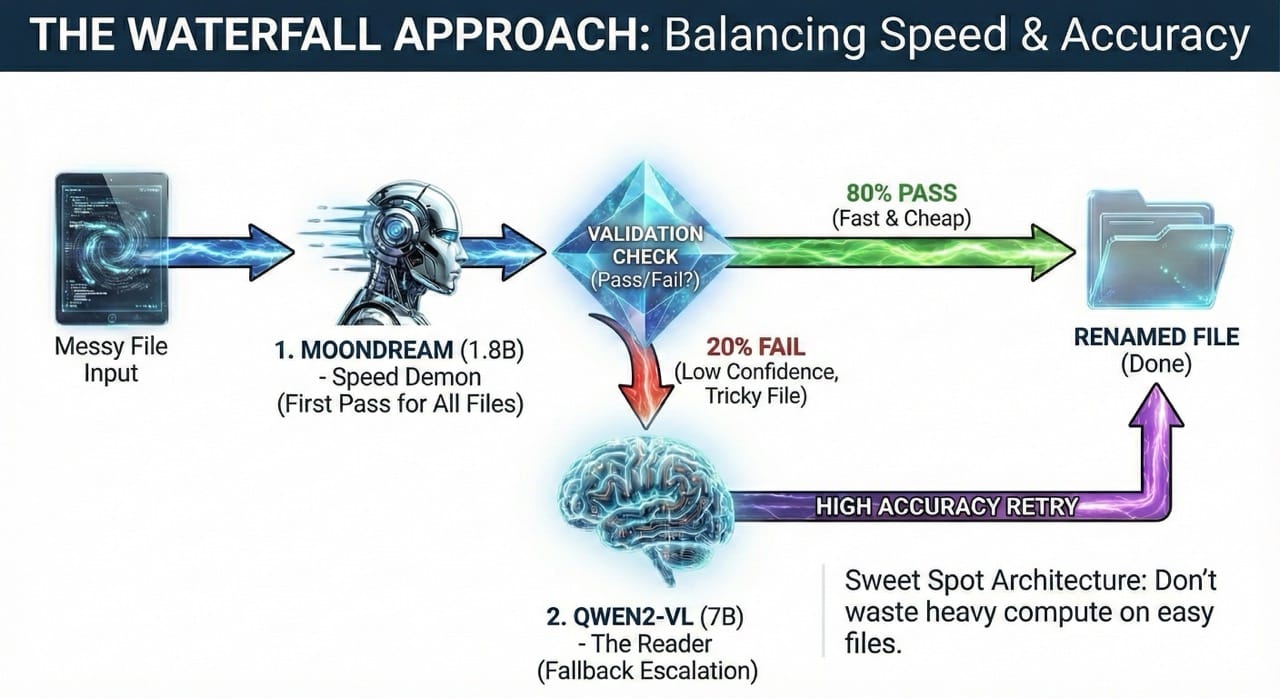
| moondream (1.8B) | The Speed Demon | Absurdly fast. Perfect for high-volume categorization where "good enough" is acceptable. |
| qwen2-vl:7b | The Reader | Best accuracy for documents/text. My default for anything with words. |
| llava:7b (v1.6) | The Observer | Excellent for natural images and photos. |
Unexpected Insight: I expected llava:13b to crush the 7B version. It didn't. For screenshots of code, the 7B model was often more accurate. The 13B model was trained on more diverse data, making it slightly worse at specific UI text reading tasks.
Architecture Pattern: When using Ollama, I built a hybrid model approach. 80% of files are processed by the blazing-fast moondream. Only the tricky 20% that fail validation escalate to the slower, more capable qwen2-vl. You get the speed of a small model with the accuracy of a large one.
3. Build Your Own Evaluation System
As I was iterating on my prompts, I realized I was flying blind. I would generate a batch of filenames, reject half of them, and then tweak the code, but I wasn't tracking why they failed.
Normally, I would wire up an enterprise LLM evaluation platform to log every prompt and completion. But since I was "vibe coding" this project, I didn't want the overhead of external tools. Instead, I built a lightweight, internal evaluation system directly into the app.
The "Smart Retry" Pattern
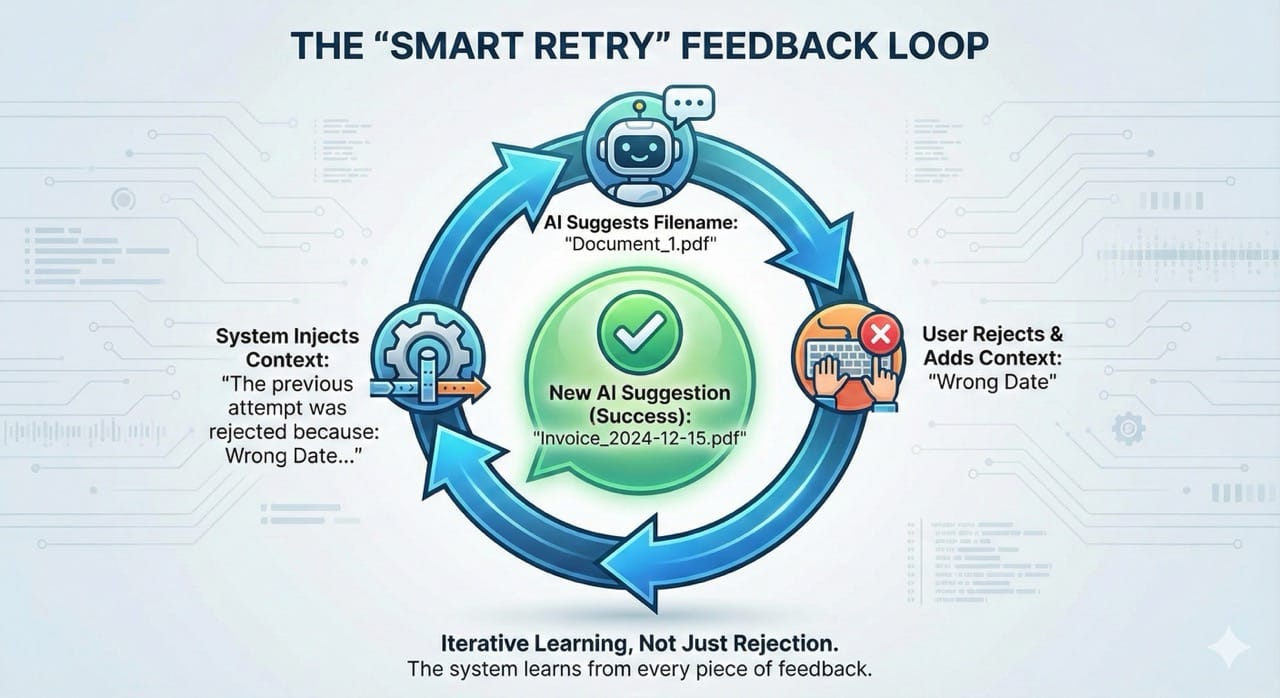
I didn't just want a retry button; I wanted an opportunity to coach the model.
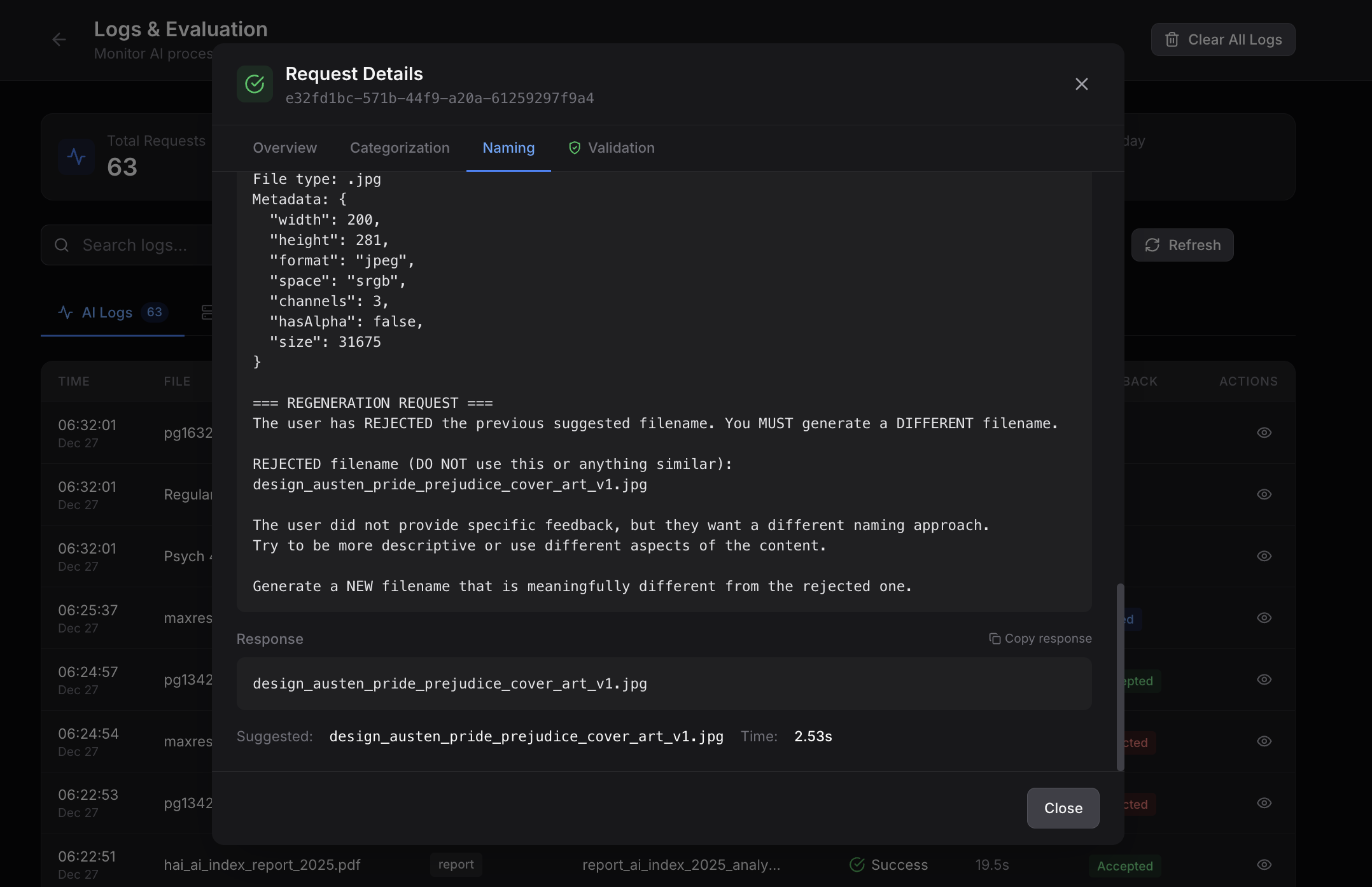
- Log the Rejection: When I (or my automated judge) rejected a filename, the system logged the failure.
- Inject Context: I added a text field to explain why I was rejecting it (e.g., "Wrong Category," "Wrong Date").
- Context-Aware Regeneration: The app feeds that specific feedback into the prompt for the next attempt: "The previous attempt 'Document_1.pdf' was rejected because 'The date does not match what was in the original file name'. Try again."
The Payoff:
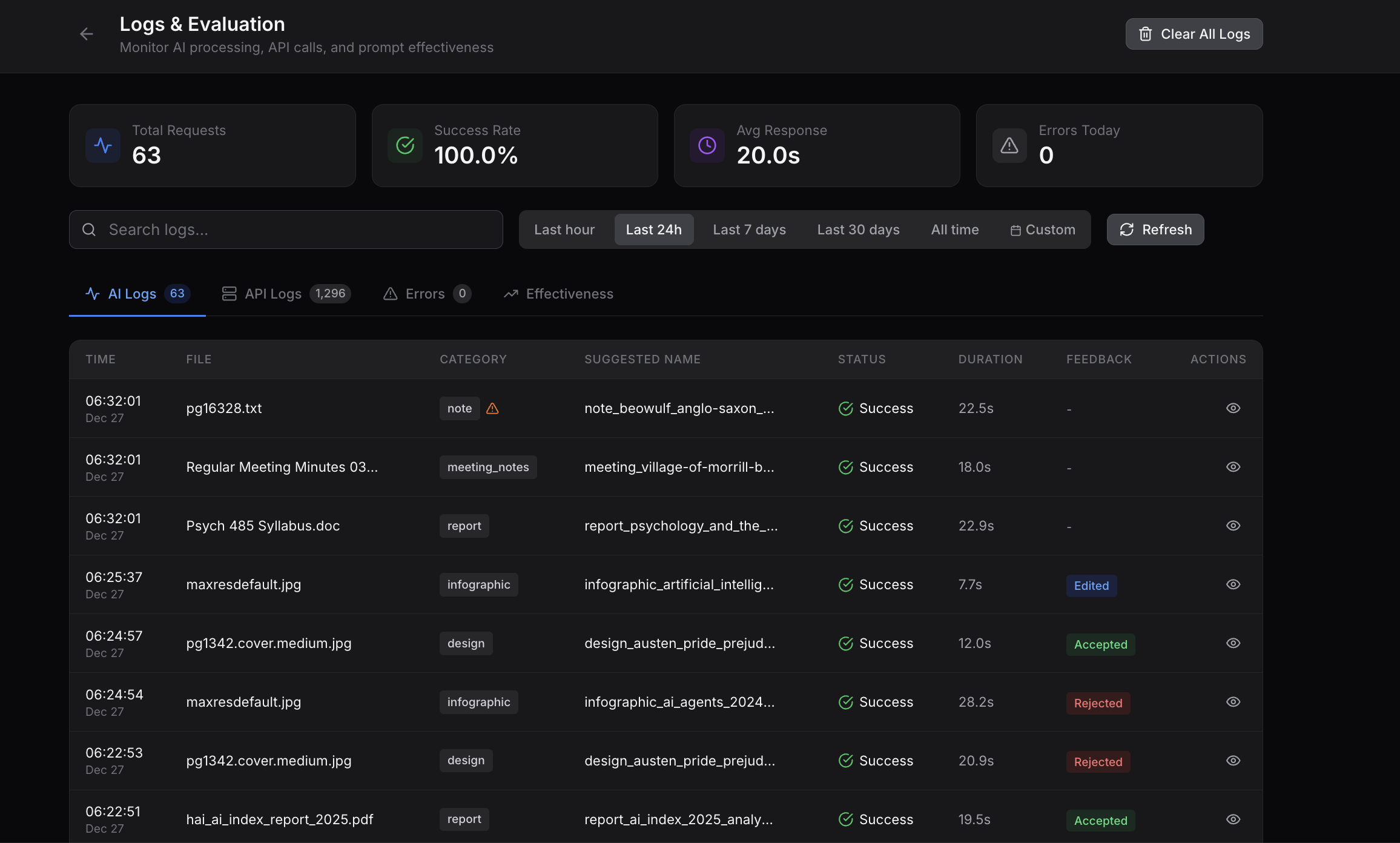
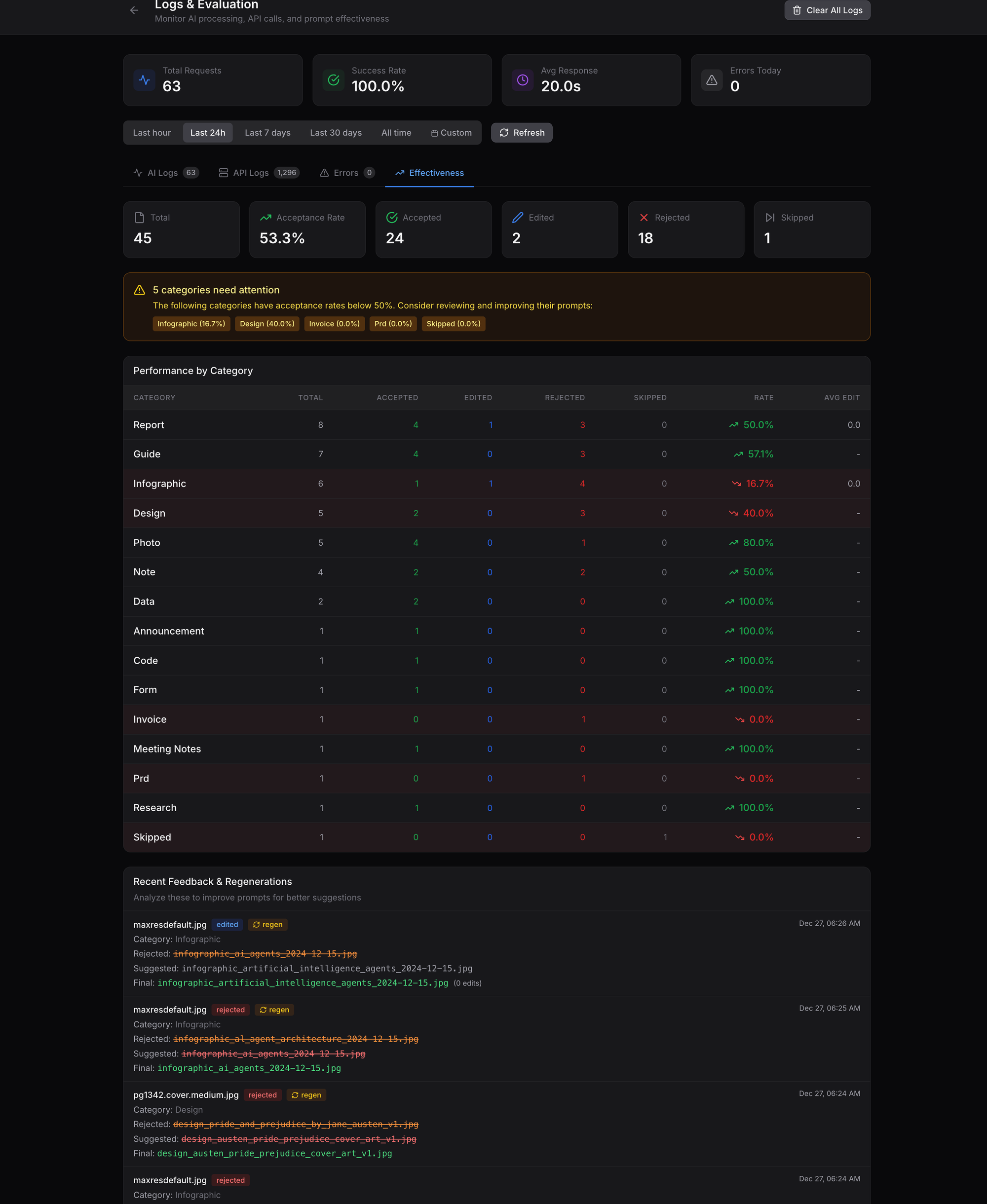
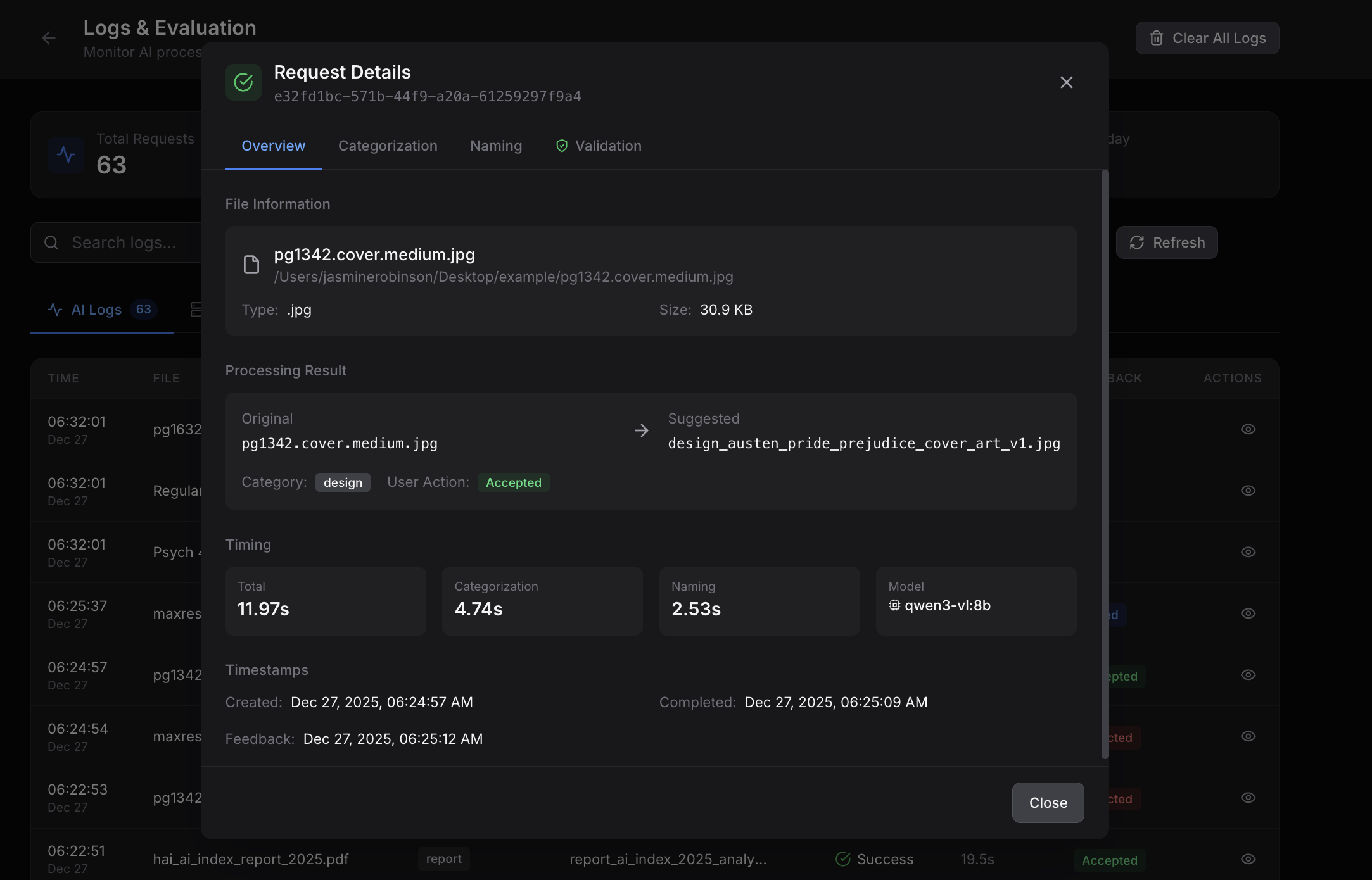
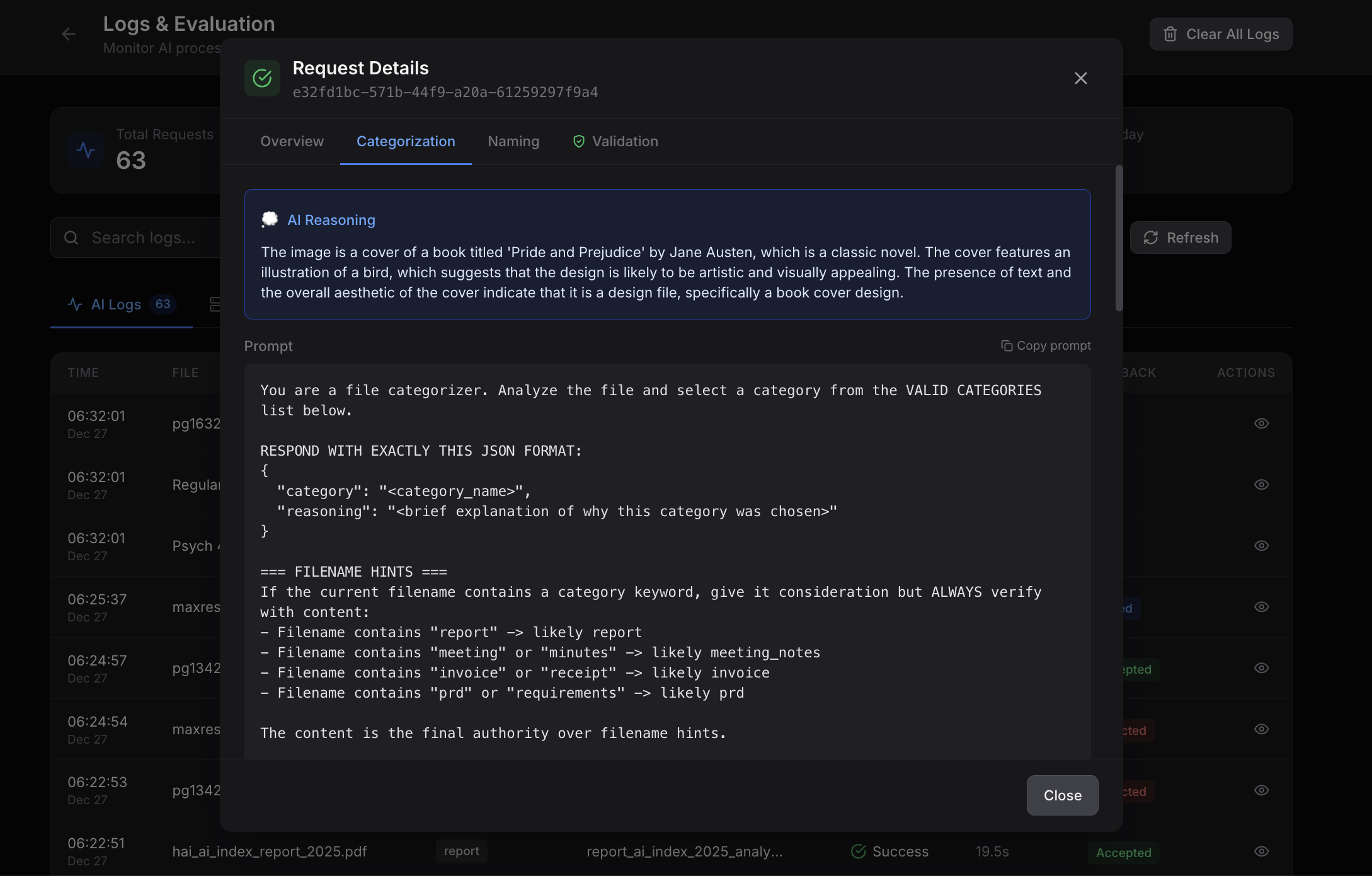
With this data, I could see patterns in my own acceptance rates. I discovered that my invoice prompt had a 40% failure rate (because they were being categorized incorrectly and the wrong rules applied). My evals included the submitted categorization prompt, response, filename generation prompt, the response and the validation score.
Instead of guessing, I used this data to have an LLM rewrite the failing prompts based on my actual rejection logs. It turned a manual chore into a self-improving system.
I built a system to track three specific metrics:
- Acceptance Rate: % of suggestions accepted unchanged.
- Edit Distance: How many characters did the user change? (Levenshtein distance).
- Category Performance: Which file types fail the most?
This revealed that my infographic prompts had a 16.5% acceptance rate which was extremely low so I knew that I needed to tweak my prompt.
If you want to add an evaluation tool to your own GenAI powered apps, here’s a starting prompt.
Example Evaluation Tool Builder Prompt
You are a senior software engineer building an evaluation and feedback system for a GenAI-powered application. The goal is to track AI output quality, collect user feedback, and enable continuous prompt improvement.

=== SYSTEM REQUIREMENTS ===

1. DATABASE SCHEMA
Create a comprehensive logging table that captures:
- Complete prompt chain (every prompt and response in the pipeline)
- AI outputs (suggested values, confidence scores if available)
- User actions (accepted, edited, rejected, skipped)
- User feedback (free-text rejection reasons, edited values)
- Edit distance (Levenshtein distance between AI suggestion and final value)
- Categorization/classification results
- Processing metadata (model used, latency, tokens consumed)
- Timestamps for time-series analysis

2. LOGGING MIDDLEWARE
Implement logging that:
- Captures every AI call with full prompt and response
- Records user interactions with AI suggestions
- Calculates edit distance automatically when user modifies output
- Stores rejection reasons when user provides feedback
- Tracks the complete prompt chain for multi-step pipelines

3. FEEDBACK UI COMPONENTS
Build UI elements that:
- Allow users to accept/reject/edit AI suggestions
- Capture optional rejection reasons via text input or preset categories
- Show users what the AI suggested vs. what they chose
- Enable "regenerate with feedback" that passes rejection reason to next attempt

4. ANALYTICS QUERIES
Implement queries for:
- Acceptance rate by category/type (accepted / total * 100)
- Average edit distance for edited items
- Rejection rate trends over time
- Most common rejection reasons by category
- Model performance comparison (if using multiple models)
- Processing time percentiles

5. EFFECTIVENESS DASHBOARD
Create a dashboard showing:
- Overall acceptance rate (target: >80%)
- Category-level breakdown with visual indicators (red/yellow/green)
- Trend lines showing improvement or regression over time
- Low-performing categories ranked by rejection count
- Recent rejections with full context for debugging

6. PROMPT IMPROVEMENT WORKFLOW
Build a system that:
- Exports rejection logs with full prompt chains for analysis
- Groups failures by category and failure pattern
- Generates prompt modification suggestions based on failure patterns
- Tracks prompt versions and their corresponding acceptance rates
- Enables A/B testing of prompt variations

=== KEY METRICS ===

PRIMARY:
- Acceptance Rate = (accepted / total) * 100
  Target: >80% overall, >70% per category

SECONDARY:
- Edit Distance (Levenshtein) for edited items
  Target: <10 characters average
- Rejection Rate with Reason = rejections with feedback / total rejections
  Target: >50% (users should explain rejections)

DIAGNOSTIC:
- Time to Accept/Reject (user decision latency)
- Regeneration Success Rate (did feedback-informed retry succeed?)
- Category Confusion Matrix (what categories get miscategorized as what?)
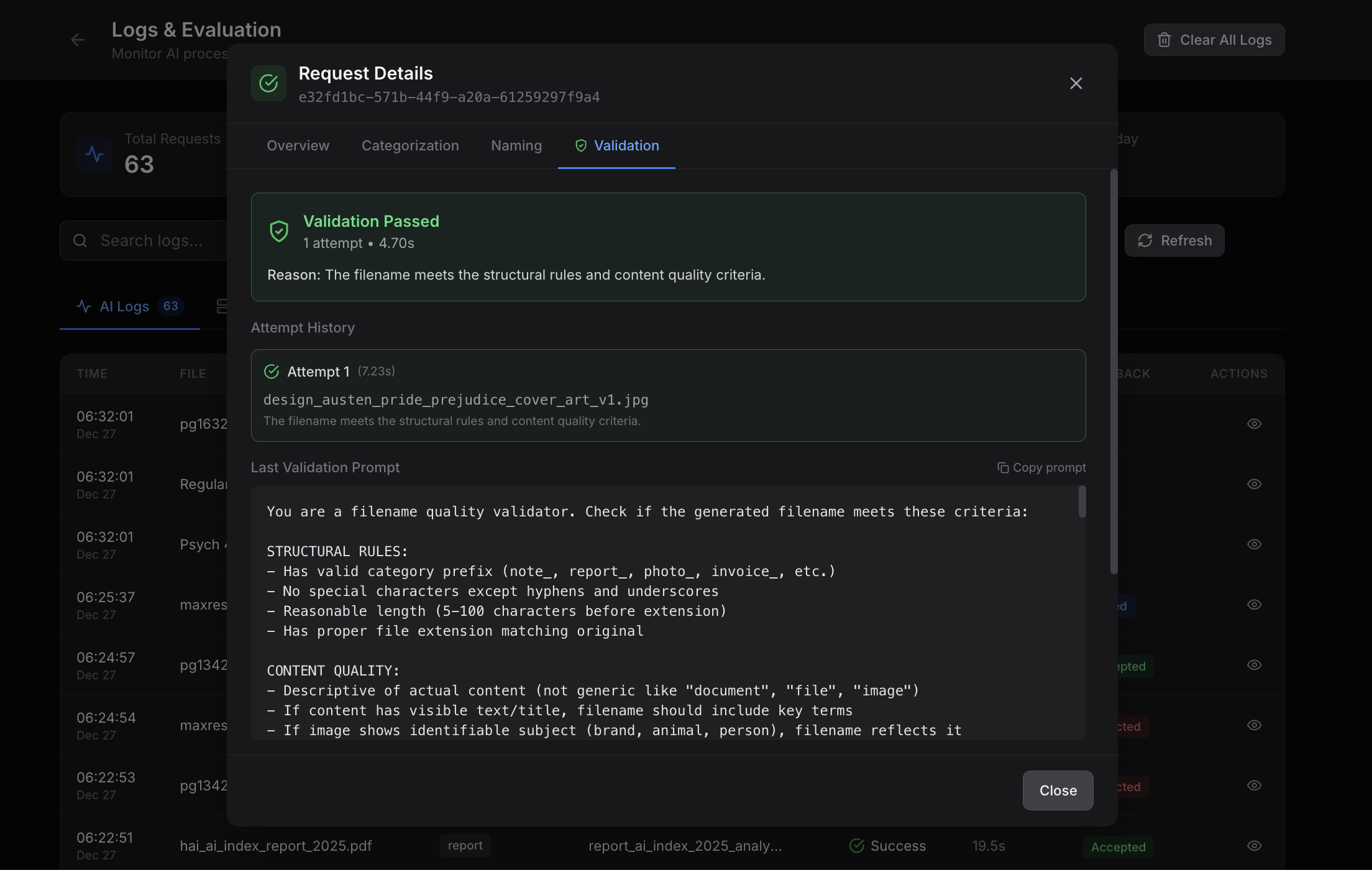
4. LLM-as-Judge Validation (The Quality Multiplier)
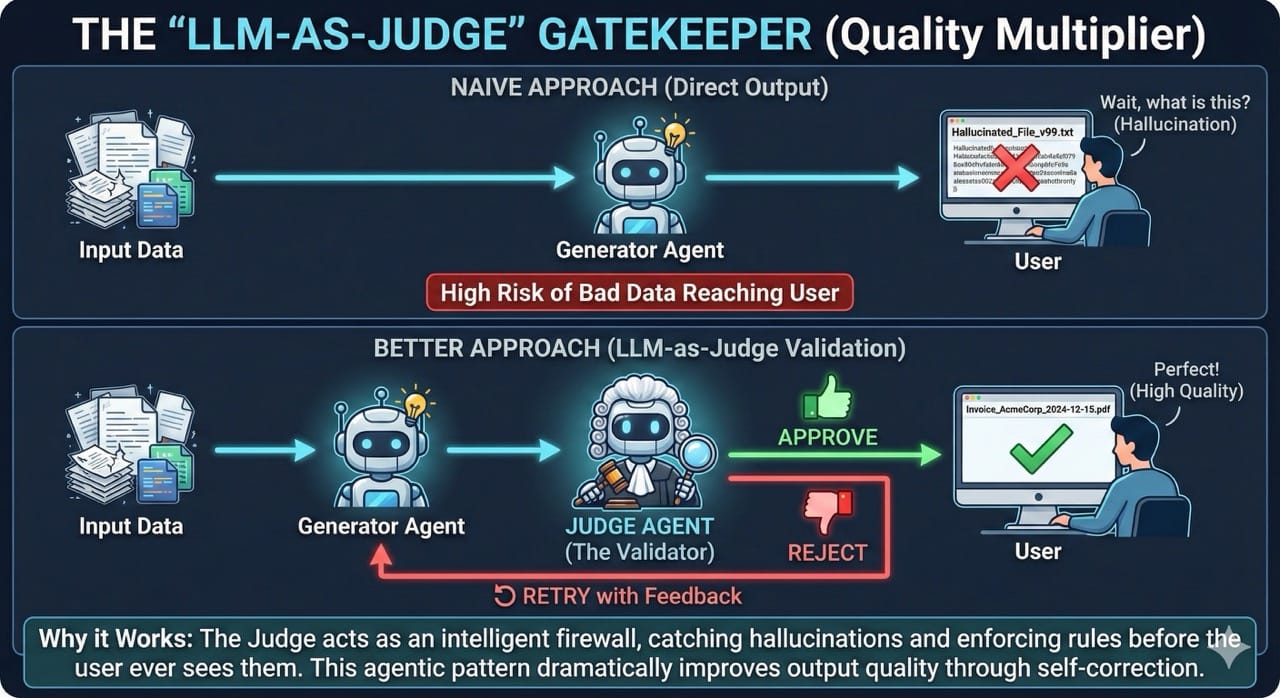
Here is a pattern that dramatically improves output quality: have the AI validate its own work.
- Naive Approach: User Input → AI Generation → Output
- Better Approach: User Input → AI Generation → AI Validation → (Retry if failed) → Output
LLMs are better at judging than generating. It is easier to spot a bad filename than to generate a perfect one. By adding a validation step, I catch 20% of the hallucinations before the user ever sees them.
Pro Tip: Store the validation history. I log every failure: "Show me all filenames that failed validation and why." This data is gold for prompt engineering.
5. Visual Previews Are Worth a Thousand Filenames
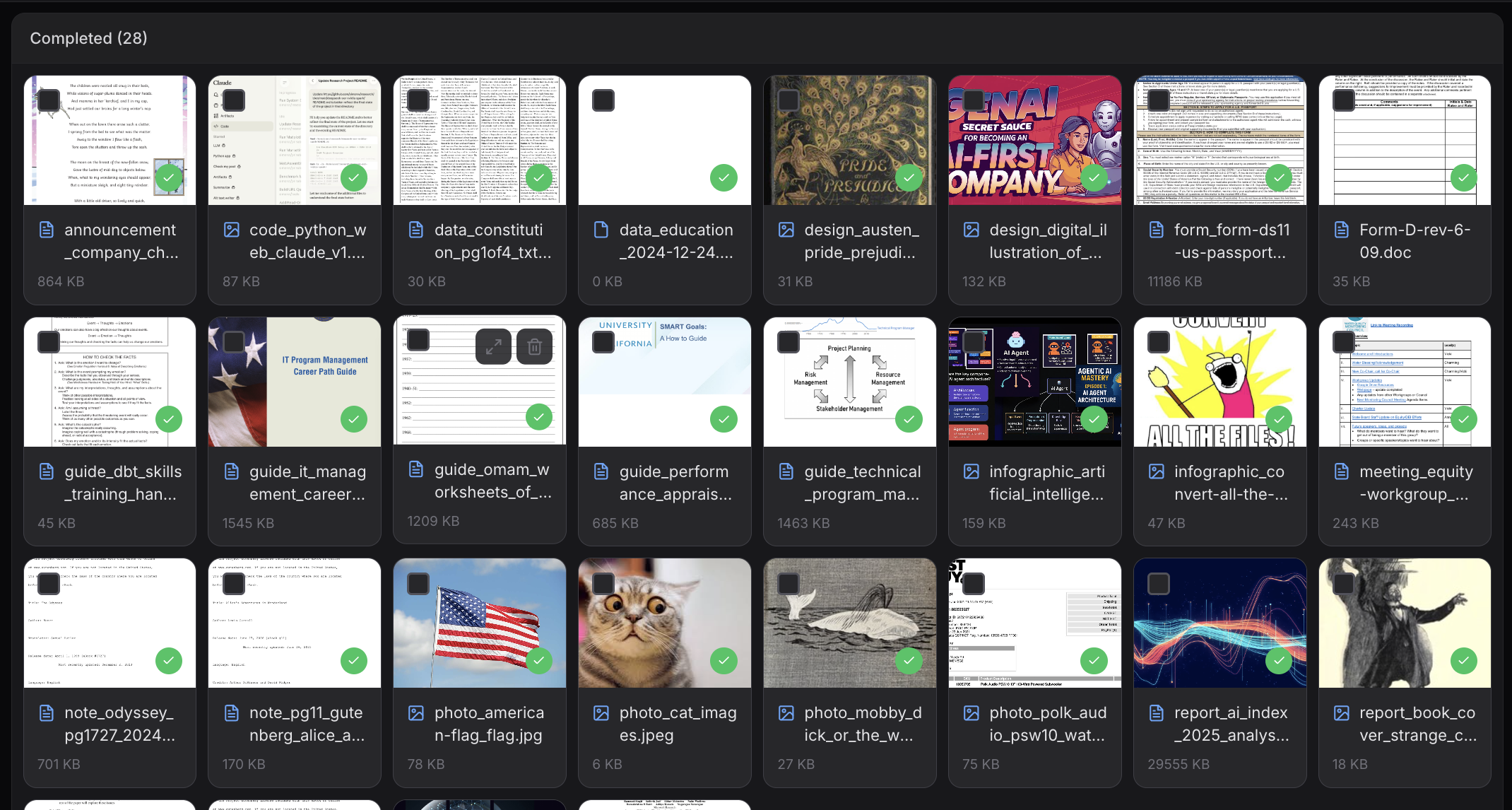
Early versions of my app just showed a list of new filenames but I couldn't remember if Document (3).pdf was the tax return or the takeout menu.
I added asynchronous preview generation:
- Images/Screenshots - Render the actual image as a thumbnail
- Videos - Generate a thumbnail from the first few seconds
- PDFs - Render the first page as an image
- Documents - Extract and display the first 200 characters
- Spreadsheets - Show column headers and first few rows
- Code files - Syntax-highlighted snippet of the first 20 lines
This made a 10x difference in usability. It also helped me debug. When I saw a "photo" that was actually a screenshot of an invoice, I knew immediately that my categorization prompt was broken.
6. The Secret Sauce: Prompt Chaining & 30+ Specialized Rules
My first attempt was a single massive prompt covering every rule for every file type. It was a disaster. The model got confused, hallucinated, and mixed up rules (e.g., applying photo naming rules to invoices).
The Breakthrough: Split the work into two steps using Prompt Chaining.
- Categorization: "Is this an invoice, a screenshot, or a photo?" (Returns:
invoice) - Naming: "Generate a filename for this INVOICE using these rules..."
This approach allowed me to write 30+ category-specific prompts. Each prompt is highly specialized, solving the unique "naming philosophy" of that file type.
Here are three examples of how different file types require completely different rules:
A. Invoices: Searchability First
Invoices are dense with noise—tracking numbers, barcodes, addresses. The mistake is trying to capture everything. I realized that for invoices, users care about Searchability.
They search by Vendor first, Date second, and Price third.
FORMAT: inv_[vendor]_[item-description]_[price]_[date].ext

RULES:
- vendor: Be SPECIFIC (amazon-pharmacy, amazon, target, costco)
- item-description: Main item purchased OR brief description
- price: Total amount, no periods, use hyphens (e.g., 45-99)
- date: YYYY-MM-DD (REQUIRED)
Why this works: When you need to find a receipt, you usually type "Costco" or "2024". You rarely type the exact item name found on the receipt line item.
B. Screenshots: Metadata Extraction
Screenshots are unique because the original filename often contains valuable metadata (Screenshot 2024-12-15 at 14.30.45.png) that isn't visible in the image pixel data.
For this category, I pass the original filename to the prompt so the model can extract that hidden metadata.
Plaintext
FORMAT: ss_[app-website]_[context]_[date]_[time].ext

RULES:
- app-website: github, slack, vscode, chrome
- context: what is shown (error-message, dashboard, pull-request)
- date: YYYY-MM-DD
- time: HHMM format (24-hour)

CONTEXT CLUES:
- Look at the ORIGINAL FILENAME for date/time hints
- Identify the app from UI elements or window chrome
Why this works: Time matters for screenshots. When debugging, you want to find the screenshot from 2:30 PM, not just "sometime Tuesday." Most AI tools throw this data away but this prompt preserves it.
C. Photos: Noun Prioritization
Photos were my hardest category. I discovered a hierarchy that users consistently prefer: Subject > Context.
If you take a picture of Santa, you search for "Santa," not "Christmas." If you take a picture of your dog, you search for "Dog," not "Backyard."
FORMAT: photo_[primary-subject]_[context]_[year].ext

PRIORITIZATION ORDER:
1. PRIMARY SUBJECT (WHO/WHAT):
   - PEOPLE: Names, characters (santa-claus)
   - ANIMALS: Species (golden-retriever)
2. CONTEXT (WHERE/WHEN):
   - EVENTS: Holidays (christmas)
   - PLACES: Locations (beach)

Examples:
- photo_santa-claus_christmas_2024.jpg (Subject First)
- photo_golden-retriever_beach_2024.jpg (Subject First)
Why this works: It aligns with human memory. We remember the subject of a photo much more vividly than the specific event or location name.
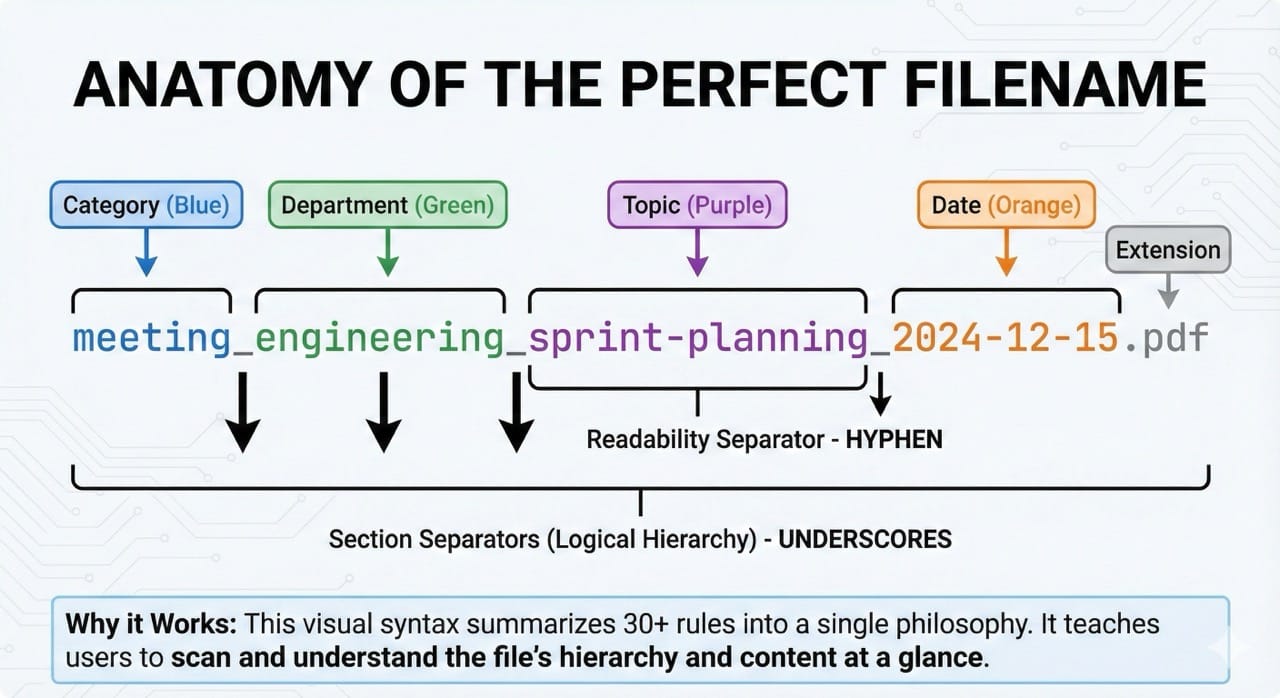
The Global Rule: Underscores vs. Hyphens
Across all 30+ prompts, I enforce one visual parsing rule:
- Underscores (
_) separate logical sections (Category, Subject, Date). - Hyphens (
-) separate words within a section.
meeting_engineering_sprint-planning_2024-12-15
This makes the files readable at a glance. You can instantly see the hierarchy of the file just by scanning the underscores.
What's Next?
These six patterns (parallel inference, model selection, evaluation systems, LLM-as-judge, visual previews, and prompt chaining) aren't just for file organization. They are foundational patterns for building production-quality GenAI applications.
I'm already applying these to my next project, and I'll be writing about that soon.
In the meantime, if you're drowning in file chaos like I was, give GenAI File Organizer a try. It runs entirely on your machine and might just save you hours of manual renaming before the new year.
Here's to a more organized 2026!




Member discussion